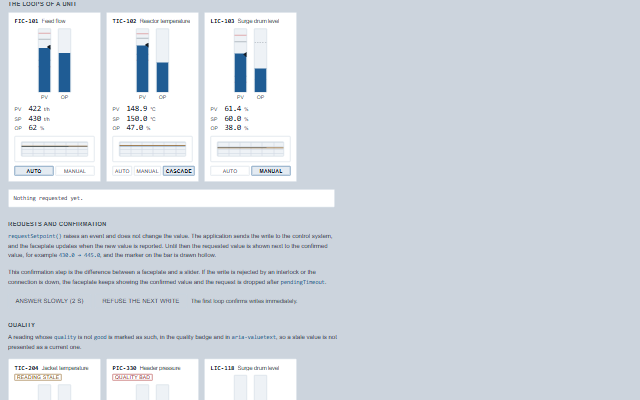
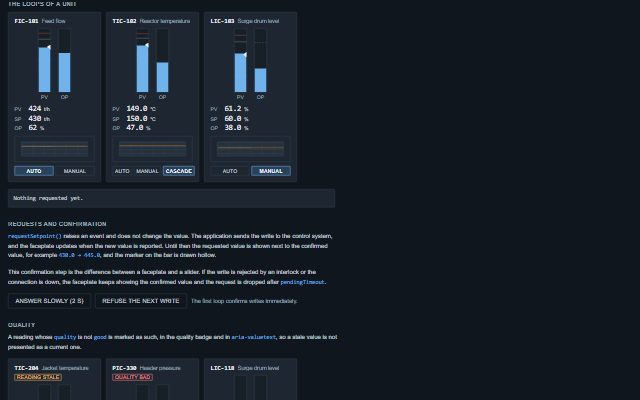
Faceplate is a control loop faceplate that shows the process value, the setpoint and the controller output of a loop together with its mode.
The component does not write values: requestSetpoint, requestOutput and requestMode raise events, the application sends the write to the control system, and the faceplate updates when the new value is reported. Until then the requested value is shown as pending next to the confirmed value, and if no update arrives within pendingTimeout the request is dropped and the writeTimeout event is raised. On the process-value track a drag shows where the setpoint would go and asks for it when it is let go over the track; a tap asks for nothing, and a drag that is cancelled, released away from the track, or interrupted by a change to cascade or out of service, or by the faceplate being removed, asks for nothing.
English, German, French, Spanish, Chinese (locale packs)
In the demo: Control loop faceplate · The loops of a unit · Requests and confirmation · and more. Open the demo
Quick start
Install the package, load the two stylesheets and the component's module, and put the element on the page. The element below is the first one of the demo, with interactive added: the component raises setpointChange only when interactive is set. Put the script after the module, in a <script type="module">, so that it runs once the component is defined.
const faceplate = document.getElementById('staleLoop');

// raised when a new setpoint is requested
faceplate.addEventListener('setpointChange', (event) => {
    const { value, tag } = event.detail;
    // the component waits: carry out the request, then set the property from the result
});

// the same values as properties
faceplate.min = 0;
faceplate.max = 150;
faceplate.processValue = 84.2;
faceplate.setpoint = 85;
The properties the demo sets, then the next ones; the API page lists all 23 with their types and defaults.
Name
Type, default
Description
tag
string
Sets or gets the loop tag, shown first and used as the accessible name.
description
string
Sets or gets the description of the loop, shown next to the tag.
unit
string
Sets or gets the engineering unit of the process value and the setpoint.
processValue
number | null
Sets or gets the process value reported by the plant. The faceplate never sets this value itself. A null or non-numeric value is drawn as absent rather than as zero.
setpoint
number | null
Sets or gets the setpoint. Use requestSetpoint to request a change and set the property when the controller confirms the new value.
output
number | null
Sets or gets the controller output as a percentage of the output range.
min
number 0
Sets or gets the minimum of the process range.
max
number 100
Sets or gets the maximum of the process range.
precisionDigits
number 1
Sets or gets the number of decimal places shown in the readouts.
mode
string auto
Sets or gets the controller mode. Use requestMode to request a change and set the property when the controller confirms the new mode. The output column can be operated in manual mode only.
availableModes
array ["auto","manual"]
Sets or gets the modes offered by the loop. A mode that is not in the list cannot be requested.
alarmLimits
object | null
Sets or gets the four process alarm limits as an object with hiHi, hi, lo and loLo members. They are drawn as lines on the process value column, and the column takes the alarm colour when a limit is crossed. Assign a new object to update the component; object properties are compared by value.
outputLimits
object | null
Sets or gets the part of the output range the operator may drive into, as an object with low and high members. A request outside it is clamped before it is reported.
quality
string good
Sets or gets the quality of the reading. A quality other than good is shown as a badge and included in the spoken value, so a stale value is not presented as a current one. Bad and stale readings are also drawn as not live: the process column hatched and the PV readout grey, struck through when bad and italic when stale. Requests stay possible - with a bad process value the operator may still need to drive the output in manual.
interactive
boolean false
Determines whether requests can be made. Off by default: a read-only faceplate does not take keyboard focus, so a screen with many faceplates does not collect tab stops that do nothing.
showTrend
boolean false
Determines whether a small embedded trend of the process value against the setpoint is shown. The trend is a strip chart.
compact
boolean false
Determines whether the trend, the description and the column captions are hidden, for a strip of loops along the bottom of an overview screen.
The events carry their data in event.detail. setpointChange, outputChange and modeChange are requests: the faceplate raises them only when interactive is true, shows the requested value as pending and keeps the confirmed value until the application sets setpoint, output or mode. A request still pending after pendingTimeout raises writeTimeout, and alarmStateChange reports the process value moving into or out of an alarm band.
Event
Description and detail
setpointChange
This event is triggered when a new setpoint is requested. The faceplate does not change the setpoint; set the setpoint property when the control system confirms the value.
valuenumber The requested setpoint, clamped to min and max. tagstring The loop tag.
outputChange
This event is triggered when a new controller output is requested.
valuenumber The requested output, clamped to outputMin and outputMax. tagstring The loop tag.
modeChange
This event is triggered when a change of mode is requested.
valuestring The requested mode. tagstring The loop tag.
alarmStateChange
This event is triggered when the process value crosses into or out of an alarm limit.
statestring The alarm limit the process value now sits beyond: hiHi, hi, lo, loLo, or normal. oldStatestring The state before.
writeTimeout
This event is triggered when a request has been pending for pendingTimeout without the application writing the value back. The request is dropped and is no longer shown as pending.
propertystring Which request went unanswered: setpoint, output or mode. valueany The value that was requested.
Methods
Method
Description
requestSetpoint(value)
Requests a new setpoint. Raises the setpointChange event and returns without changing the setpoint. The value is clamped to min and max before it is reported. Does nothing unless the faceplate is interactive and enabled. The mode rules apply: nothing is raised in cascade or out of service. Asking for the setpoint already in force raises nothing, and asking again for a value already pending raises nothing until it is answered or times out.
requestOutput(value)
Requests a new controller output. Raises the outputChange event and returns. The value is clamped to outputLimits, then to outputMin and outputMax, before it is reported. Does nothing unless the faceplate is interactive and enabled. The mode rules apply: the output is requested only in manual. Asking for the output already in force, or again for a value already pending, raises nothing.
requestMode(mode)
Requests a change of mode. Raises the modeChange event and returns. A mode that is not in availableModes is ignored. Does nothing unless the faceplate is interactive and enabled. Asking for the mode already in force, or again for a mode already pending, raises nothing.
alarmState() returns string
Returns the alarm limit the current process value has crossed: hiHi, hi, lo, loLo or normal.
static limitStateOf(value, limits) returns string on the class: customElements.get('smart-faceplate').limitStateOf(…)
Also available as a static method of the class. Returns the alarm limit a reading has crossed, given a limits object. It has no side effects, so a banner or a tile wall can classify a reading without creating a faceplate. The most severe limit is returned: a reading above hi-hi is also above hi, and hi-hi is reported.
In Angular, React, Vue and Blazor
The same element with its wrapper. Each page has the installation steps and the full demo in that framework.
A faceplate shows three values and a mode, and the relationship between the values is the information. Each column therefore has its own role, range and spoken value, instead of the whole faceplate being announced as one graphic.
Roles: "group""meter""slider""radiogroup""radio"
Key
Action
Up Arrow, Right Arrow (setpoint, output)
Requests one step higher.
Down Arrow, Left Arrow (setpoint, output)
Requests one step lower.
Page Up, Page Down (setpoint, output)
Requests ten steps higher or lower.
Home, End (setpoint, output)
Requests the bottom or the top of the range.
Left Arrow, Right Arrow (mode selector)
Moves between the modes on offer, wrapping at the ends.
The component follows the theme on the page: the default theme, or the ISA-101 light and dark themes that ship with the package. It declares 5 CSS variables of its own, among them --smart-faceplate-track-width, --smart-faceplate-track-height, --smart-faceplate-value-size, --smart-faceplate-fill. The CSS page lists them; the themes guide covers the tokens every component shares.