



Getting Started with React Calendar Component
Smart UI React targets React 18+ and current Node LTS for tooling; use TypeScript templates when you want typed props and events.
Demo source (Smart UI repo): react/source/calendar/overview/App.jsx
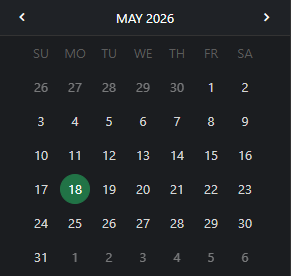
1 Create a Vite + React + TypeScript app
npm create vite@latest my-smart-app -- --template react-ts
cd my-smart-app
thennpm install
2 Install Smart UI for React
npm install smart-webcomponents-react
3 Import styles and render the component
Open src/App.tsx (or App.jsx if you chose JavaScript). The snippet below matches Smart UI React demos for this widget:
import 'smart-webcomponents-react/source/styles/smart.default.css';
import './App.css';
import React, { useRef } from "react";
import { Calendar } from 'smart-webcomponents-react/calendar';

const App = () => {
  const calendarRef = useRef(null);

  const handleCancel = () => {
    // Example: clear selection or any other logic
    if (calendarRef.current) {
      calendarRef.current.clearSelection();
    }
  };

  const handleOk = () => {
    // Example: alert selected date(s)
    if (calendarRef.current) {
      const selected = calendarRef.current.selectedDates;
      alert("Selected dates: " + selected.join(", "));
    }
  };

  return (
    <div className="smart-demo-container">
      <div id="materialPicker">
        <section>
          <h2>smartCalendar</h2>
          <div>
            <h2>
              Allow users to enter dates easily and visually. You can customize date
              formats, language, layout, animations, selection modes and much more
              with the smartCalendar.
            </h2>
            <div className="module"></div>
          </div>
        </section>
        <section id="datePickers">
          <h2>Date pickers</h2>
          <div className="module">
            <p>
              The selected day is indicated by a filled circle. The current day is
              indicated by a different color and type weight.
            </p>
            <p>
              Swipe left to right to navigate through the months. Touch the year in
              the title bar to transition to the year view.
            </p>
          </div>
          <div className="module">
            <div>
              <Calendar
                ref={calendarRef}
                selectionMode="one"
                view="portrait"
                hideOtherMonthDays
                viewSections={["title", "header", "footer"]}
                displayModeView="list"
                // remove footerTemplate to use custom footer
              ></Calendar>
              <div style={{ marginTop: '10px', textAlign: 'right' }}>
                <button
                  className="material flat"
                  onClick={handleCancel}
                  style={{ marginRight: '10px' }}
                >
                  CANCEL
                </button>
                <button className="material flat" onClick={handleOk}>
                  OK
                </button>
              </div>
            </div>
            <br />
            <p>Date and year picker: portrait, month display mode</p>
          </div>
          {/* ... you can do the same for other Calendar instances if needed */}
        </section>
      </div>
    </div>
  );
};

export default App;
4 Run the dev server
npm run dev
Open the URL Vite prints (often http://localhost:5173/).
TypeScript Support
Types ship with smart-webcomponents-react. Import the component and prop types:
import type { Calendar, CalendarProps } from 'smart-webcomponents-react/calendar';
The generated wrappers expose on* callbacks (for example onChange) whose arguments are standard DOM Event values unless the widget typings narrow them further.
Accessibility
The Calendar component follows WAI-ARIA best practices:
- Keyboard navigation - Tab, Arrow keys, Enter, and Escape are supported
- ARIA roles - Appropriate roles and labels are applied automatically
- Focus management - Visible focus indicators for keyboard users
- Screen readers - State changes are announced to assistive technology
- High contrast - Supports Windows High Contrast Mode and forced colors
For custom labeling, set aria-label or aria-labelledby attributes on the component.
Supported stacks: Smart UI targets Angular 17+, React 18+, Vue 3+, Node 18 LTS, and evergreen browsers; pin exact package versions to your org policy.