



Getting Started with DockingLayout Web Component
Smart UI Web Components work with current evergreen browsers and Node 18+ for local tooling; pin package versions to match your project policy.
Smart UI is distributed as the smart-webcomponents NPM package. You can also use the full download from the Download page.
Quick start
- Install the package:
npm install smart-webcomponents
- Load the DockingLayout module (ES module script):
<script type="module" src="node_modules/smart-webcomponents/source/modules/smart.dockinglayout.js"></script>
- Add the default stylesheet (prefer angular.json / bundler entry in app codebases; for plain HTML use a link):
<link rel="stylesheet" type="text/css" href="node_modules/smart-webcomponents/source/styles/smart.default.css" />
- Add markup in one of two ways - semantic custom element (the component tag is in your HTML) or a host
div(you mount programmatically with appendTo):
Semantic element (id matches the selector in Smart()):
<smart-docking-layout id="dockinglayout"></smart-docking-layout>
Host container (id matches appendTo on Smart.DockingLayout):
<div id="dockinglayoutContainer"></div>
- Initialize after the module loads: define a const dockinglayoutOptions object, then either bind with Smart('#dockinglayout', ...) on the semantic tag or use new Smart.DockingLayout({ ...dockinglayoutOptions, appendTo: '#dockinglayoutContainer' }) on the host
div:
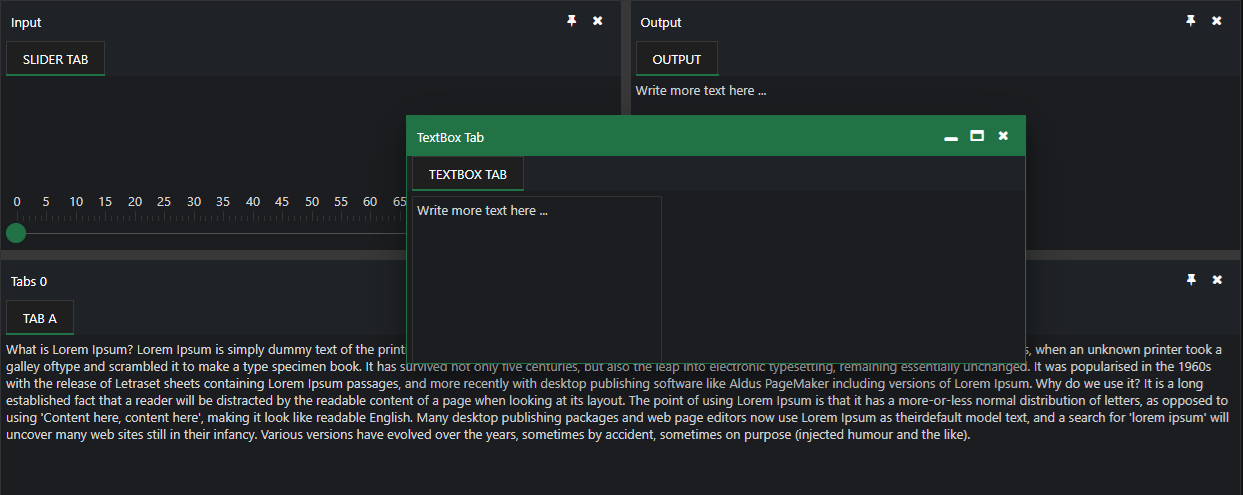
<script type="module"> import 'node_modules/smart-webcomponents/source/modules/smart.dockinglayout.js'; const dockinglayoutOptions = { layout: [ { type: 'LayoutGroup', orientation: 'horizontal', items: [ { type: 'LayoutGroup', items: [ { type: 'LayoutPanel', id: 'tabPanel', label: 'Input', items: [{ label: 'TextBox Tab', content: 'Write more text here ... ' }, { label: 'Slider Tab', content: '' }] }, { type: 'LayoutPanel', label: 'Output', items: [ { id: 'outputTab', label: 'Output', headerPosition: 'none', content: 'Write more text here ...' } ] } ], orientation: 'vertical' }, { id: 'item0', label: 'Tabs 0', items: [{ label: 'Tab A', selected: true, content: 'What is Lorem Ipsum? ' + 'Lorem Ipsum is simply dummy text of the printing and typesetting industry. Lorem Ipsum has been the industry's standard dummy text ever since the 1500s, when an unknown printer took a galley of' + 'type and scrambled it to make a type specimen book. It has survived not only five centuries, but also the leap into electronic typesetting, remaining essentially unchanged. It was popularised in ' + 'the 1960s with the release of Letraset sheets containing Lorem Ipsum passages, and more recently with desktop publishing software like Aldus PageMaker including versions of Lorem Ipsum. ' + 'Why do we use it? ' + 'It is a long established fact that a reader will be distracted by the readable content of a page when looking at its layout. The point of using Lorem Ipsum is that it has a more-or-less normal ' + 'distribution of letters, as opposed to using 'Content here, content here', making it look like readable English. Many desktop publishing packages and web page editors now use Lorem Ipsum as their' + 'default model text, and a search for 'lorem ipsum' will uncover many web sites still in their infancy. Various versions have evolved over the years, sometimes by accident, sometimes on ' + 'purpose (injected humour and the like).' }] }] }] }; // Option A - semantic <smart-docking-layout> with id="dockinglayout" Smart('#dockinglayout', class { get properties() { return dockinglayoutOptions; } }); // Option B - host div id="dockinglayoutContainer" // const dockinglayoutInstance = new Smart.DockingLayout({ // ...dockinglayoutOptions, // appendTo: '#dockinglayoutContainer' // }); // Option C - constructor(selector, options), then append the returned element yourself // const myDockingLayout = new Smart.DockingLayout('#dockinglayout', dockinglayoutOptions); // document.body.appendChild(myDockingLayout); </script>
Uncomment Option B when you use the host
div; use Option A when you use the semantic element. The Runtime cookbook also documents new Smart.DockingLayout('#dockinglayout', dockinglayoutOptions) with appendChild, and document.createElement('smart-docking-layout') with .props or Object.assign (all are valid patterns; do not combine overlapping patterns for the same instance unless you intend multiple components). - Serve the folder over HTTP (or use your bundler dev server) and open the page.
Runtime cookbook
Alternative creation patterns and imperative APIs. These are all valid ways to create Smart UI components: semantic markup + Smart(); new Smart.DockingLayout({ ...options, appendTo: '#...' }); new Smart.DockingLayout('#dockinglayout', dockinglayoutOptions) plus appendChild on the returned element; and document.createElement('smart-docking-layout') then assigning options via .props or Object.assign on the element.
Constructor with a selector string and options, then append the returned element (for example const myDockingLayout = new Smart.DockingLayout('#dockinglayout', dockinglayoutOptions)):
const dockinglayoutOptions = {
layout: [
{
type: 'LayoutGroup',
orientation: 'horizontal',
items: [
{
type: 'LayoutGroup',
items: [
{
type: 'LayoutPanel',
id: 'tabPanel',
label: 'Input',
items: [{
label: 'TextBox Tab',
content: 'Write more text here ... '
},
{
label: 'Slider Tab',
content: '
Create with document.createElement('smart-docking-layout'), assign properties (same as any custom element), then append:
const dockinglayoutOptions = {
layout: [
{
type: 'LayoutGroup',
orientation: 'horizontal',
items: [
{
type: 'LayoutGroup',
items: [
{
type: 'LayoutPanel',
id: 'tabPanel',
label: 'Input',
items: [{
label: 'TextBox Tab',
content: 'Write more text here ... '
},
{
label: 'Slider Tab',
content: '
Host on a div with appendTo (import the module, then instantiate when the document is ready; the container id must match appendTo):
import "../../source/modules/smart.dockinglayout.js";
document.readyState === 'complete' ? init() : window.addEventListener('load', init);
function init() {
const dockinglayoutOptions = {
layout: [
{
type: 'LayoutGroup',
orientation: 'horizontal',
items: [
{
type: 'LayoutGroup',
items: [
{
type: 'LayoutPanel',
id: 'tabPanel',
label: 'Input',
items: [{
label: 'TextBox Tab',
content: 'Write more text here ... '
},
{
label: 'Slider Tab',
content: '
Defining the Layout
In order to create a layout the user has to create a JSON Array and pass it to the layout property. The Array must contain objects describing the items of the layout and their settings. The element can have two types of items:
-
LayoutPanel - Represents a DockingLayout item. This type of items hold the content that the user wants to load. DockingLayout items are smartTabsWindow instances and as such they can have an unlimited number ot TabItems inside them.
Let's take a closer look at a LayoutItem's definition:
    const item = {
                   type: 'LayoutPanel',
                   label: 'TabsWindow A',
                   size: '45%',
                   max: 400,
                   headerButtons: ['customButton1', 'customButton2'],
                   items: [{
                           label: 'Tab A1',
                           content: 'Content of A1'
                       },
                       {
                           label: 'Tab A2',
                           selected: true,
                           content: 'Content of A2'
                       },
                       {
                           label: 'Tab A3',
                           content: '<smart-slider value="25"></smart-slider>'
                       }
                    ]
                };
Every 'LayoutPanel' (DockingLayout item) has an items attribute of type Array that describes the it's TabIems and their content. In the current example we have three TabItems. Each with different content. The content can be a string or any HTML code including a Smart Custom Element.
Here's how to create a LayoutPanel item with a single TabItem with content:
<!DOCTYPE html>
<html>
<head>
 <link rel="stylesheet" href=../../source/styles/smart.default.css" type="text/css" />
<script type="text/javascript" src="../../source/modules/smart.dockinglayout.js"></script>

<script>
    window.onload = function() {
    const dockingLayout = document.querySelector('smart-docking-layout');

    dockingLayout.layout = [
        {
            //The Base Group
            type: 'LayoutGroup',
            orientation: 'horizontal',
            items: [
                {
                    //DockingLayout Item A
                    type: 'LayoutPanel',
                    label: 'TabsWindow A',
                    size: '75%',
                    items: [{
                        //Tab Item A1 of Item A
                        label: 'Tab A1',
                        content: 'Content of A1'
                    }]
                },
                {
                    //DockingLayout Item B
                    type: 'LayoutPanel',
                    label: 'TabsWindow B',
                    size: '25%',
                    items: [{
                        //Tab Item B1 of Item B
                        label: 'Tab B1',
                        content: 'Content of B1'
                    }]
                }]
        }];
    }
</script>
</head>
<body>
    <smart-docking-layout></smart-docking-layout>
</body>
</html>
Demo
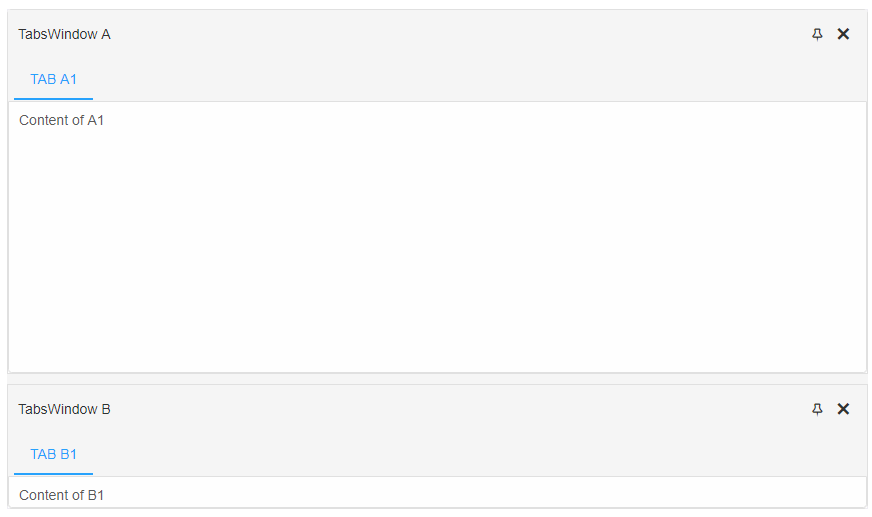
Every layout structure begins with the 'Base Group'. It's the root of the layout. It's not mandatory to include it every time when defining a new layout but in order to change the default orientation of the base layout, it has to be included. In the following scenario we have defined two DockingLayout items of type 'LayoutPanel' which are nested inside the base group with orientation set to 'horizontal'. If the orientaiton property is not set it's default value is 'vertical'.
If the same layout is defined without the 'Base Group' the result will be the same but the items will be vertically oriented:
<!DOCTYPE html> <html> <head> <link rel="stylesheet" href=../../source/styles/smart.default.css" type="text/css" /> <script type="text/javascript" src="../../source/modules/smart.dockinglayout.js"></script> <script> window.onload = function() { const dockingLayout = document.querySelector('smart-docking-layout'); dockingLayout.layout = [ { //DockingLayout Item A type: 'LayoutPanel', label: 'TabsWindow A', size: '75%', items: [{ //Tab Item A1 of Item A label: 'Tab A1', content: 'Content of A1' }] }, { //DockingLayout Item B type: 'LayoutPanel', label: 'TabsWindow B', size: '25%', items: [{ //Tab Item B1 of Item B label: 'Tab B1', content: 'Content of B1' }] }]; </script> </head> <body> <smart-docking-layout></smart-docking-layout> </body> </html> -
LayoutGroup - Represents a group of items. When the user wants to create a group of items they must be defined as part of a LayoutGroup.
Let's take a closer look at a LayoutGroup's definition:
                const itemGroup =  {
                    //A Panel Group
                    type: 'LayoutGroup',
                    orientation: 'horizontal',
                    size: 25%,
                    resizeMode: 'none',
                    items: [
                        {
                            //DockingLayout Item A
                            type: 'LayoutPanel',
                            label: 'TabsWindow A',
                            size: '50%',
                            items: [{
                                //Tab Item A1 of Item A
                                label: 'Tab A1',
                                content: 'Content of A1'
                            }]
                        },
                        {
                            //DockingLayout Item B
                            type: 'LayoutPanel',
                            label: 'TabsWindow B',
                            size: '50%',
                            items: [{
                                //Tab Item B1 of Item B
                                label: 'Tab B1',
                                content: 'Content of B1'
                            }]
                        }
                    ]
                };
The LayoutGroup contains two LayoutPanels - 'TabsWindow A' and 'tabsWindow B'. Each panel has one TabItem - 'Tab A1' and 'Tab B1' with content set. LayoutGroup properties can be applied the same was as with LayoutPanels since they are also DockingLayout items. LayoutGroups have some additional properties like orientation and resizeMode. Items property of a 'LayoutGroup' defines the LayoutPanels of that group.
Here's how to define a DockingLayout group with two items:
<!DOCTYPE html>
<html>
<head>
 <link rel="stylesheet" href=../../source/styles/smart.default.css" type="text/css" />
<script type="text/javascript" src="../../source/modules/smart.dockinglayout.js"></script>
<script>
    window.onload = function() {
    const dockingLayout = document.querySelector('smart-docking-layout');

    dockingLayout.layout = [
        {
            //The Base Group
            type: 'LayoutGroup',
            items: [

                {
                    //A new Horizontal Panel Group
                    type: 'LayoutGroup',
                    orientation: 'horizontal',
                    items: [
                        {
                            //DockingLayout Item A
                            type: 'LayoutPanel',
                            label: 'TabsWindow A',
                            size: '50%',
                            items: [{
                                //Tab Item A1 of Item A
                                label: 'Tab A1',
                                content: 'Content of A1'
                            }]
                        },
                        {
                            //DockingLayout Item B
                            type: 'LayoutPanel',
                            label: 'TabsWindow B',
                            size: '50%',
                            items: [{
                                //Tab Item B1 of Item B
                                label: 'Tab B1',
                                content: 'Content of B1'
                            }]
                        }
                    ]
                },
                {
                    //DockingLayout Item C
                    type: 'LayoutPanel',
                    label: 'TabsWindow C',
                    size: '50%',
                    items: [{
                        //Tab Item C1 of Item C
                        label: 'Tab C1',
                        content: 'Content of C1'
                    }]
                }
            ]
        }];
    }
</script>
</head>
<body>
    <smart-docking-layout></smart-docking-layout>
</body>
</html>
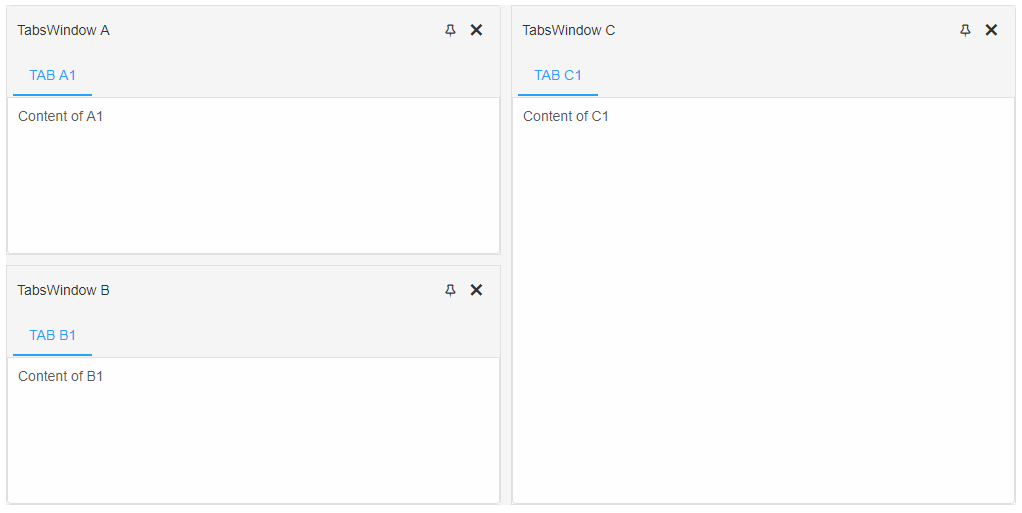
The JSON structure used in the above example creates one horizontal LayoutGroup that contains two LayoutPanels. Each panel contains one item with content. The Base group has a default orientation of 'vertical' since it's not set.
Demo
DockingLayout element has three types of items depending on their position - docked, autoHide, undocked/floating.
-
Docked items are indexed according to their position in the hierarchy starting from left to right. The API provides a getter called items that can be used to get a collection of all docked items inside the layout.
Note:
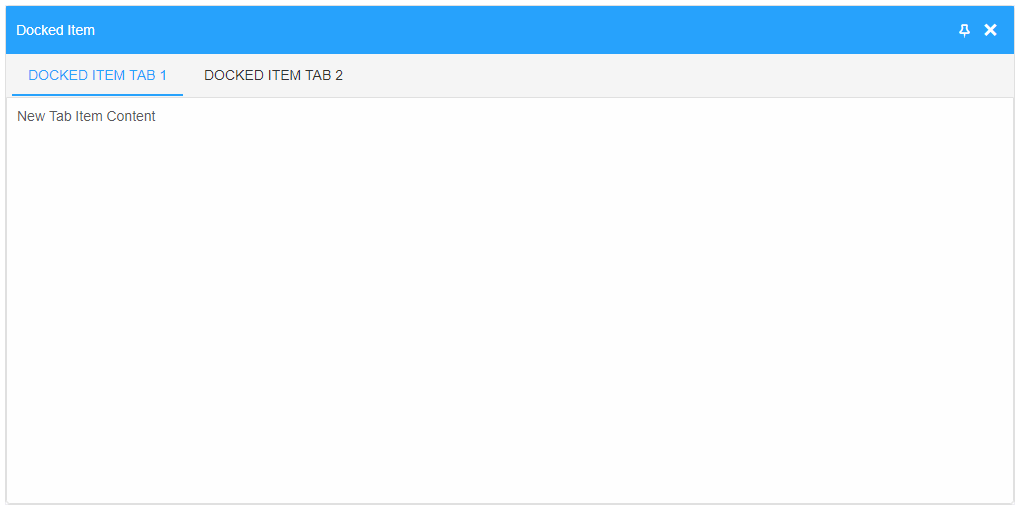
Docked items can be closed by pressing the close button in the header section or pressing the Escape button on the keyboard while the LayoutPanel is focused. Closed items are removed from the DOM but the DockingLayout keeps a reference to them. A collection of all closed items can be retrieved by calling the getter closedItems. These items can be re-inserted back inside the Layout at any time by calling one of the insert methods.All items inside the Base group are docked. Here's a simple dock item object definition:
    const dockingLayout = document.querySelector('smart-docking-layout'),
        dockedItem =
            {
                label: 'Docked Item',
                items: [{
                    label: 'Docked Item Tab 1',
                    content: 'New Tab Item Content'
                },
                {
                    label: 'Docked Item Tab 2',
                    content: 'New Tab Item Content'
                }]
            };

    //Insert's a new docked item as the first item in the layout
    dockingLayout.insertBeforeItem(0, dockedItem);
Demo
-
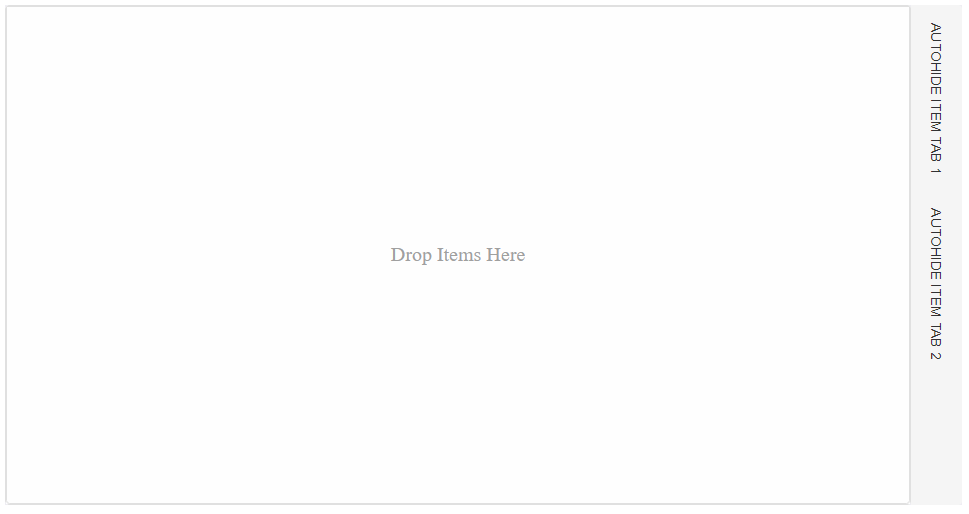
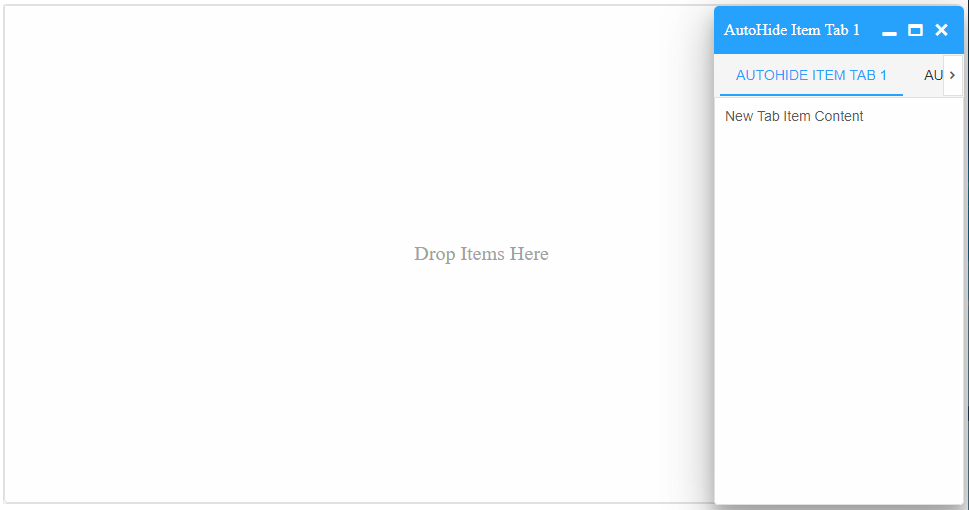
AutoHide items are not like the docked items. These items are position on the sides of the element and display a bar of labels that represent the TabItems of the autoHidden item. When clicking on a label an autoHide window popup opens and displays the content of the selected tab item. AutoHide items can be docked or undocked at any time by calling the appropriate method and passing their instance/index or ID. In order to a collection of all autoHide items inside the DockingLayout, a getter called autoHideItems is provided.
    const dockingLayout = document.querySelector('smart-docking-layout'),
        autoHideItem =
            {
                label: 'AutoHide Item',
                autoHide: true,
                autoHidePosition: 'right',
                items: [{
                    label: 'AutoHide Item Tab 1',
                    content: 'New Tab Item Content'
                },
                {
                    label: 'AutoHide Item Tab 2',
                    content: 'New Tab Item Content'
                }]
            };

    //Insert's a new item to the Base group and autoHide's it.
    dockingLayout.insertLayoutRight(autoHideItem);
Note:
All Docked items can become autoHide items by calling one of the following methods: autoHideBottom, autoHideTop, autoHideLeft and autoHideRight. These methods accept only one argument - the docked item that to become autoHidden.Demo
-
Undocked/Floating items are smartTabsWindow elements that are not part of the layout but can be inserted back in at any time by dragging them back inside. Undocked items exist on their own inside the DOM and like every other window they can be minimized, maximized or closed. In order to get a collection of all undocked/floating items, a getter called undockedItems is provided.
    const dockingLayout = document.querySelector('smart-docking-layout'),
       dockedItems = dockingLayout.items;

    //Undocks the first item from the DockingLayout
    dockingLayout.undock(dockedItems[0]);
Note:
To undock a LayoutPanel it has to be part of the DockingLayout. Docked or AutoHide items can be undocked/floated at any time by calling the undock method. Undock method accepts only one argument - the item to be undocked.Demo
Modifying The Layout
The element has several methods for item modification available in the API docs.
Some methods and operations require the user to know the index of a specific docked item. The getIndex method returns the index of a docked item. The method accepts one argument - an instance of a docked item. The expected result is a numeric value representing it's index.
There are several methods for item inserting:
- To insert a new item in the Base Group the user can use one of the following methods, depending on the desired position: insertLayoutTop, insertLayoutBottom, insertLayoutLeft, insertLayoutRight
- To insert a new item before or after an existing item at it's level of hierarchy the following methods are available: insertBeforeItem, insertAfterItem.
- To insert a a new item at a specific position by splitting an existing item in two can be done via the following methods: insertIntoLeft, insertIntoRight, insertIntoTop, insertIntoBottom.
- To insert a new item outside of an existing item's group by keeping the group unchaged at a specified position can be accomplished with the following methods: insertOutsideTargetGroupTop, insertOutsideTargetGroupBottom, insertOutsideTargetGroupLeft, insertOutsideTargetGroupRight.
All insert methods accept two aruments. First is the target item. It can be it's index inside the DockingLayout, the reference or the ID if it has been set by the user in the initialization JSON. The second argument is a new object describing a LayoutPanel item or an actual smartTabsWindow instance.
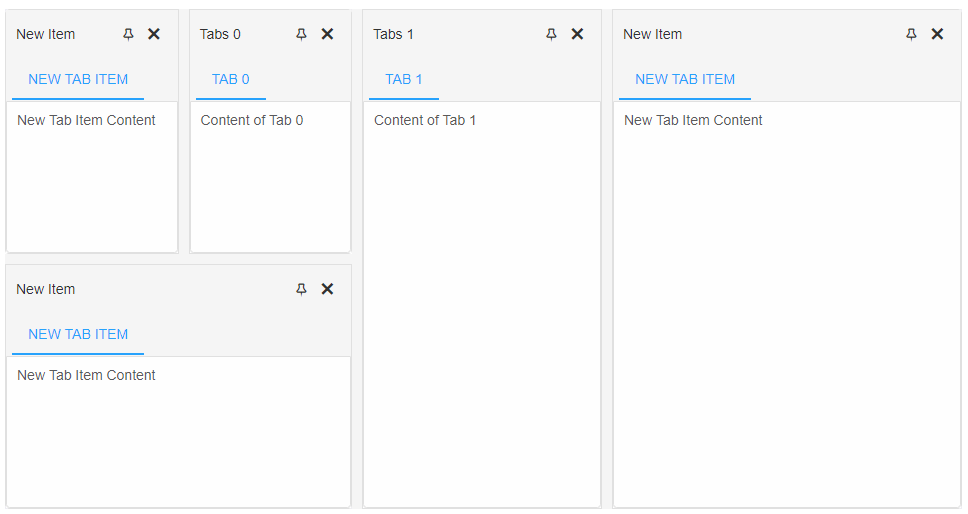
    const dockingLayout = document.querySelector('smart-docking-layout'),
        newItem =
            {
                label: 'New Item',
                size: '50%',
                items: [{
                    label: 'New Tab Item',
                    content: 'New Tab Item Content'
                }]
            };

    //Creating a Layout with two LayoutPanels
    dockingLayout.layout = [
        {
            type: 'LayoutPanel',
            label: 'Tabs 0',
            size: '50%',
            items: [{
                label: 'Tab 0',
                content: 'Content of Tab 0'
            }]
        },
        {
            type: 'LayoutPanel',
            label: 'Tabs 1',
            items: [{
                label: 'Tab 1',
                content: 'Content of Tab 1',
            }]
        }
    ];

    //Insert's a new item at position 0 by splitting the target in two and placing the new item on the left
    dockingLayout.insertIntoLeft(0, newItem);

    //Insert's a new item at position 0 by keeping the target LayoutGroup together as one LayoutPanel and placing the new below it
    dockingLayout.insertOutsideTargetGroupBottom(0, newItem);

    //Insert's a new item on the right side in the Base group ( Top level hierarchy item inserting)
    dockingLayout.insertLayoutRight(newItem);
Demo
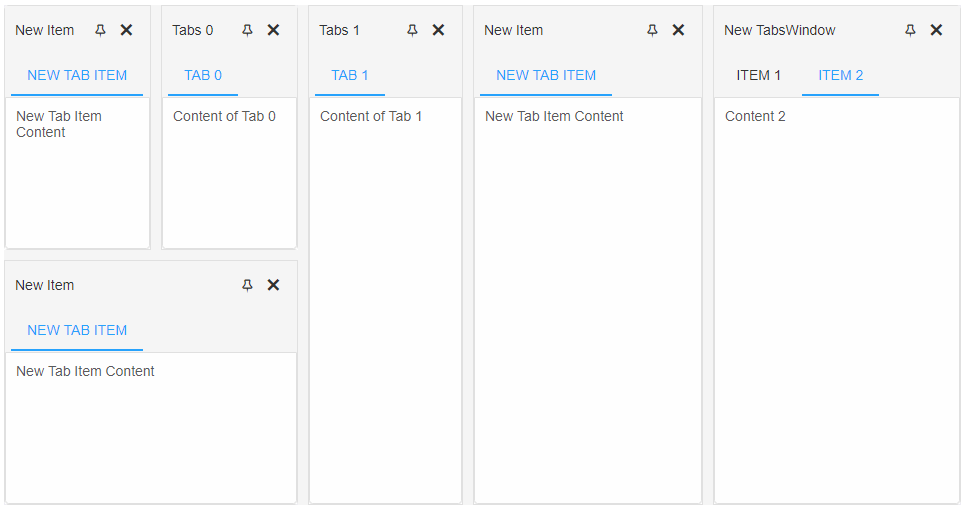
Items can also be inserted via the traditional appendChild method:
    const dockingLayout = document.querySelector('smart-docking-layout'),
          tabsWindow = document.createElement('smart-tabs-window');

    tabsWindow.label = 'New TabsWindow';
    tabsWindow.dataSource =  [{
            label: 'Item 1',
            content: 'Content 1'
        },
        {
            label: 'Item 2',
            content: 'Content 2',
            selected: true
        }];

    //Insert's the new item to the end of the Base group
    dockingLayout.appendChild(tabsWindow);
Demo
DockingLayout items can be dynamically removed as well. Two methods are available for item removing:
- removeChild - accepts one argument - the item to be removed from the DockingLayout.
- remove - accepts one argument - a reference to a docked item inside the DockingLayout, it's index or ID. Removes the target item from the layout and the DOM.
- removeAll - removes all items from the DockingLayout.
Items can also be inserted via the traditional appendChild method:
    const dockingLayout = document.querySelector('smart-docking-layout');

        //Creating a Layout with two LayoutPanels
        dockingLayout.layout = [
            {
                type: 'LayoutPanel',
                label: 'Tabs 0',
                items: [{
                    label: 'Tab 0',
                    content: 'Content of Tab 0'
                }]
            },
            {
                type: 'LayoutPanel',
                label: 'Tabs 1',
                items: [{
                    label: 'Tab 1',
                    content: 'Content of Tab 1',
                }]
            },
            {
                type: 'LayoutPanel',
                id: 'itemToRemove',
                label: 'Tabs 3',
                items: [{
                    label: 'Tab 3',
                    content: 'Content of Tab 3',
                }]
            }
        ];

    const dockingLayoutItems = dockingLayout.items;

    //Removes the first item from the DockingLayout
    dockingLayout.removeChild(dockingLayoutItems[0]);

    //Removes the second item from the DockingLayout
    dockingLayout.remove('itemToRemove');

    //Removes all items
    dockingLayout.removeAll();
Updating
The DockingLayout items can be updated after the layout has been initialized via the update method. It accepts two arguments: a reference to a docked item and a settings object containing the new settings for the item. The settings object follows the same pattern as LayoutPanel item definition:
const dockingLayout = document.querySelector('smart-docking-layout'),
      layoutPanel = dockingLayout.items[0],
      settings = {
                size: '250', label: layoutPanel.label + '- Updated',
                items: [{
                    index: 0, label: layoutPanel.items[0].label + ' - Updated',
                    content: layoutPanel.items[0].textContent + ' has been Updated!'
                }]
            };

       dockingLayout.layout = [
                {
                    type: 'LayoutPanel',
                    label: 'Tabs 0',
                    size: '50%',
                    items: [{
                        label: 'Tab 0',
                        content: 'Content of Tab 0'
                    }]
                },
                {
                    type: 'LayoutPanel',
                    label: 'Tabs 1',
                    items: [{
                        label: 'Tab 1',
                        content: 'Content of Tab 1',
                    }]
                }
            ];

    //Updates the TabItem with index 0
    dockingLayout.update(layoutPanel, settings);
Note: Each DockingLayout item (LayoutPanel) has a getter called 'items' that returns an array of all TabItems inside the window.
The items attribute of the settings object represents an Array of objects. Each object contains TabItem properties with new values assigned to them. Update method will update those items that have a matching index. In this case the updated TabItem is the one with index 0.
Demo
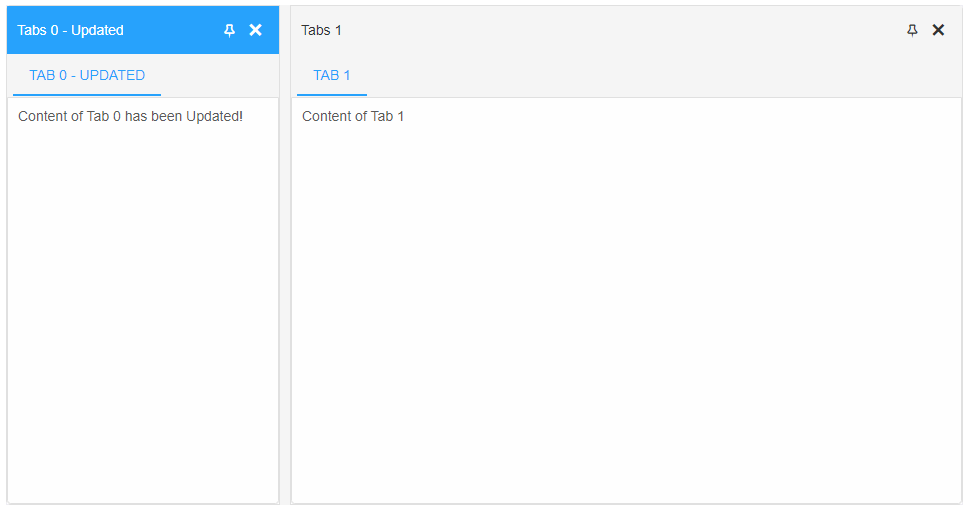
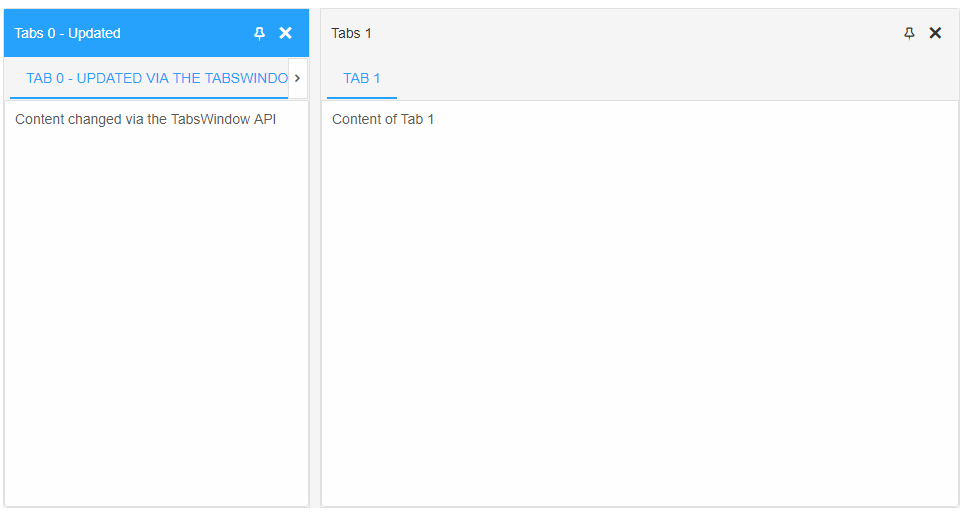
Since the LayoutPanel items are actual smartTabsWindows, their API methods can also be used to make changes:
const dockingLayout = document.querySelector('smart-docking-layout'),
      items = dockingLayout.items,
      layoutPanel = items[0],
      layoutPanelItem = layoutPanel.items[0];

    //Updates the first TabItem of the LayoutPanel with index 0 inside the DockingLayout
    layoutPanel.update(layoutPanelItem.index, layoutPanelItem.label + 'via the TabsWindow API', 'Content changed via the TabsWindow API!');
Note: TabItems can be removed or inserted as well as updated. Check smartTabsWindow API to see the full list of available options.
Demo
Save/Load State
The users of the DockingLayout can make changes to the layout by interacting with the element. Some might have a favorite layout or want to save the current state and continued later with it or just get back to. The element offers the following methods for state handling:
- getState - returns an array of objects describing the current structure of the DockingLayout. The array includes references to actual LayoutPanels which are stored untill the user refreshes the page. This is very helpfull in cases where the user wants to keeps a history of the layout changes and wants to quickly revert to a previous one along with the current data inside the items.
- getJSONStructure - returns a JSON array describing the current structure of the DockingLayout. The array does NOT include a references to LayoutPanels. Suitable for cases where the user wants only the layout structure of the items and not their content. This type of structure can be saved to localStorage and reloaded after page refresh.
- saveState - saves the current layout structure to the localStorage by using the ID of the DockingLayout if it's provided. If no id is provided a console warn is thrown and the operation is aborted. This method uses getJSONStructure to get the current state of the element.
- loadState - loads a previously saved layout. The method accepts an optional argument that represents an Array of a valid DockngLayout structure. If no arguments are provided, which is the case by default, the element will do a localStorage lookup using it's ID in an attempt to find a valid layout and load it. If the element has no ID, a console warn is thrown and the operaton is aborted.
const dockingLayout = document.querySelector('smart-docking-layout'),
      dockingLayoutItems = dockingLayout.items,
      currentState = dockingLayout.getState();

dockingLayout.remove(dockingLayoutItems[0]);
//... make additional changes

//The layout is revered to the saved state
dockingLayout.loadState(currentState);
Append to the DOM:
const container = document.getElementById('dockinglayout-container');
container.appendChild(dockinglayout);
Remove from the DOM:
dockinglayout.remove();
Set a property:
dockinglayout.disabled = true;
dockinglayout.theme = 'dark';
Get a property value:
const isDisabled = dockinglayout.disabled;
const currentTheme = dockinglayout.theme;
Invoke a method:
dockinglayout.refresh();
dockinglayout.focus();
Add event listener:
dockinglayout.addEventListener('change', (event) => {
    console.log('change triggered:', event.detail);
});
Remove event listener:
const handleDockingLayoutEvent = (event) => {
    console.log('change triggered:', event.detail);
};

dockinglayout.addEventListener('change', handleDockingLayoutEvent);
dockinglayout.removeEventListener('change', handleDockingLayoutEvent);
Accessibility
The DockingLayout component follows WAI-ARIA best practices:
- Keyboard navigation - Tab, Arrow keys, Enter, and Escape are supported
- ARIA roles - Appropriate roles and labels are applied automatically
- Focus management - Visible focus indicators for keyboard users
- Screen readers - State changes are announced to assistive technology
- High contrast - Supports Windows High Contrast Mode and forced colors
For custom labeling, set aria-label or aria-labelledby attributes on the component.
Supported stacks: Smart UI targets Angular 17+, React 18+, Vue 3+, Node 18 LTS, and evergreen browsers; pin exact package versions to your org policy.