



Getting Started with DropDownList Web Component
Smart UI Web Components work with current evergreen browsers and Node 18+ for local tooling; pin package versions to match your project policy.
Smart UI is distributed as the smart-webcomponents NPM package. You can also use the full download from the Download page.
Quick start
- Install the package:
npm install smart-webcomponents
- Load the DropDownList module (ES module script):
<script type="module" src="node_modules/smart-webcomponents/source/modules/smart.dropdownlist.js"></script>
- Add the default stylesheet (prefer angular.json / bundler entry in app codebases; for plain HTML use a link):
<link rel="stylesheet" type="text/css" href="node_modules/smart-webcomponents/source/styles/smart.default.css" />
- Add markup in one of two ways - semantic custom element (the component tag is in your HTML) or a host
div(you mount programmatically with appendTo):
Semantic element (id matches the selector in Smart()):
<smart-drop-down-list id="dropdownlist"></smart-drop-down-list>
Host container (id matches appendTo on Smart.DropDownList):
<div id="dropdownlistContainer"></div>
- Initialize after the module loads: define a const dropdownlistOptions object, then either bind with Smart('#dropdownlist', ...) on the semantic tag or use new Smart.DropDownList({ ...dropdownlistOptions, appendTo: '#dropdownlistContainer' }) on the host
div:
<script type="module">
	import 'node_modules/smart-webcomponents/source/modules/smart.dropdownlist.js';

	const dropdownlistOptions = { selectionMode: "one" };

	// Option A - semantic <smart-drop-down-list> with id="dropdownlist"
	Smart('#dropdownlist', class {
		get properties() {
			return dropdownlistOptions;
		}
	});

	// Option B - host div id="dropdownlistContainer"
	// const dropdownlistInstance = new Smart.DropDownList({
	// 	...dropdownlistOptions,
	// 	appendTo: '#dropdownlistContainer'
	// });

	// Option C - constructor(selector, options), then append the returned element yourself
	// const myDropDownList = new Smart.DropDownList('#dropdownlist', dropdownlistOptions);
	// document.body.appendChild(myDropDownList);
</script>
Uncomment Option B when you use the host
div; use Option A when you use the semantic element. The Runtime cookbook also documents new Smart.DropDownList('#dropdownlist', dropdownlistOptions) with appendChild, and document.createElement('smart-drop-down-list') with .props or Object.assign (all are valid patterns; do not combine overlapping patterns for the same instance unless you intend multiple components). - Serve the folder over HTTP (or use your bundler dev server) and open the page.
Runtime cookbook
Alternative creation patterns and imperative APIs. These are all valid ways to create Smart UI components: semantic markup + Smart(); new Smart.DropDownList({ ...options, appendTo: '#...' }); new Smart.DropDownList('#dropdownlist', dropdownlistOptions) plus appendChild on the returned element; and document.createElement('smart-drop-down-list') then assigning options via .props or Object.assign on the element.
Constructor with a selector string and options, then append the returned element (for example const myDropDownList = new Smart.DropDownList('#dropdownlist', dropdownlistOptions)):
	const dropdownlistOptions = { selectionMode: "one" };
	const myDropDownList = new Smart.DropDownList('#dropdownlist', dropdownlistOptions);
	document.body.appendChild(myDropDownList);
Create with document.createElement('smart-drop-down-list'), assign properties (same as any custom element), then append:
	const dropdownlistOptions = { selectionMode: "one" };
	const dropdownlist = document.createElement('smart-drop-down-list');
	Object.assign(dropdownlist, dropdownlistOptions);
	document.body.appendChild(dropdownlist);
Host on a div with appendTo (import the module, then instantiate when the document is ready; the container id must match appendTo):
	import "../../source/modules/smart.dropdownlist.js";

	document.readyState === 'complete' ? init() : window.addEventListener('load', init);

	function init() {
		const dropdownlistOptions = { selectionMode: "one" };
		const dropdownlist = new Smart.DropDownList({
			...dropdownlistOptions,
			appendTo: '#dropdownlistContainer'
		});
	}
Demo
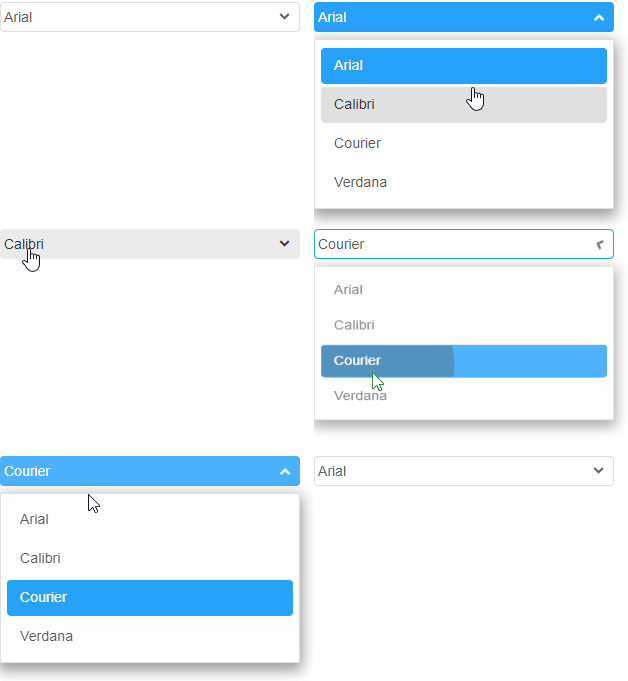
Appearance
Smart.DropDownList allows to completely customize the content of the list items.
In order to change the content of an item, itemTemplate property has to be applied by assigning the id of an HTML Template element that's located inside the DOM. Here's an example:
<!DOCTYPE html>
<html lang="en">
<head>
 <link rel="stylesheet" href="../../source/styles/smart.default.css" type="text/css" />
 <script type="text/javascript" src="../../source/modules/smart.ropDownList.js"></script>
</head>
<body>
 <template id="template">
     <span class="glyphicon glyphicon-ok"></span>
     <span>{{label}}</span>
 </template>
 <smart-drop-down-list item-template="template">
     <smart-list-item selected value="1">Item 1</smart-list-item>
     <smart-list-item value="2">Item 2</smart-list-item>
     <smart-list-item value="3">Item 3</smart-list-item>
 </smart-drop-down-list>
</body>
</html>
Demo
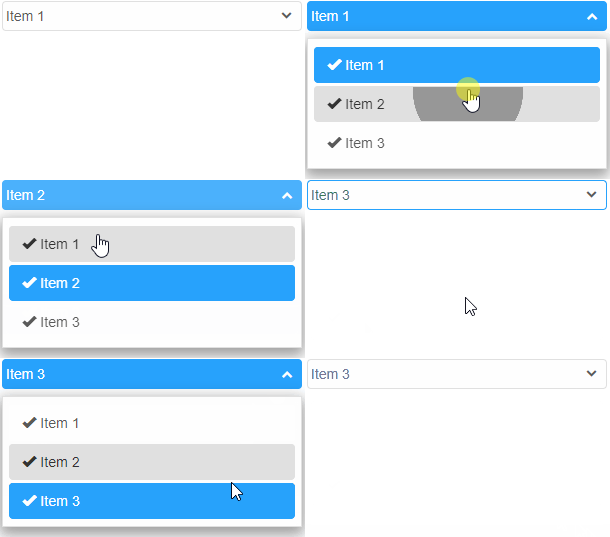
The template contains a binding field surrounded by curly braces {{ label }}. The text between the brAckets can be random.
Smart.DropDownList has the ability to behave like a single dropDown button or a group of buttons. The dropDownOpenMode property determines how the drop down will open. The element can have two separate buttons: an action and a dropDown button if the property is set to 'dropDownButton'.
Data Binding
Adding data to the DropDownList can be accomplished in a few ways:
-
Nesting Smart.ListItem elements inside the DropDownList's body in the HTML:
 <smart-drop-down-list>
     <smart-list-item value="value1">Item1</smart-list-item>
     <smart-list-item selected value="value2">Item2</smart-list-item>
     <smart-list-item value="value3">Item3</smart-list-item>
 </smart-drop-down-list>
Demo
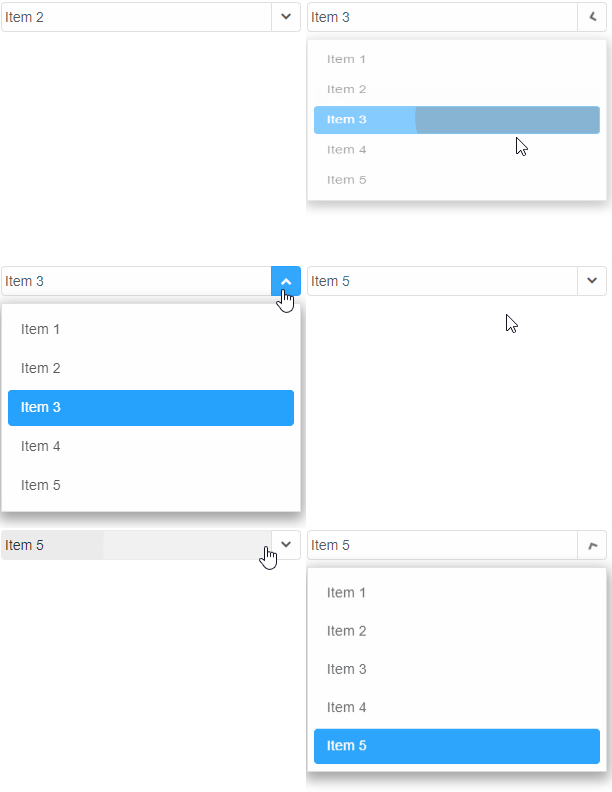
Smart.ListItem has a label and a value property. The value property can have a separate value from the label or no value at all. The user can prefer to apply a value only to the label and it will be automatically assigned to value as well.
The text inside the list item represents the value of the label property. It can also be set in the HTML code like shown in the example above.
-
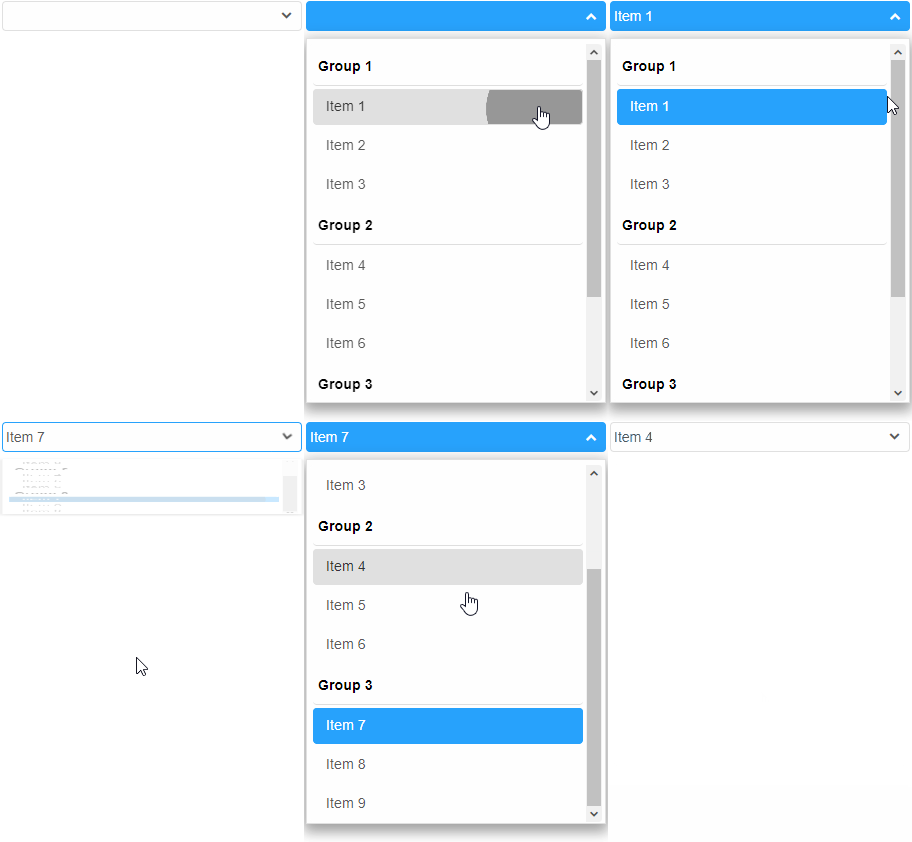
Nesting Smart.ListItemGroup elements inside the DropDownList's body in the HTML:
<smart-drop-down-list>
    <smart-list-items-group label="Group 1">
        <smart-list-item>Item 1</smart-list-item>
        <smart-list-item>Item 2</smart-list-item>
        <smart-list-item>Item 3</smart-list-item>
    </smart-list-items-group>
    <smart-list-items-group label="Group 2">
        <smart-list-item>Item 4</smart-list-item>
        <smart-list-item>Item 5</smart-list-item>
        <smart-list-item>Item 6</smart-list-item>
    </smart-list-items-group>
    <smart-list-items-group label="Group 3">
        <smart-list-item>Item 7</smart-list-item>
        <smart-list-item>Item 8</smart-list-item>
        <smart-list-item>Item 9</smart-list-item>
    </smart-list-items-group>
</smart-drop-down-list>
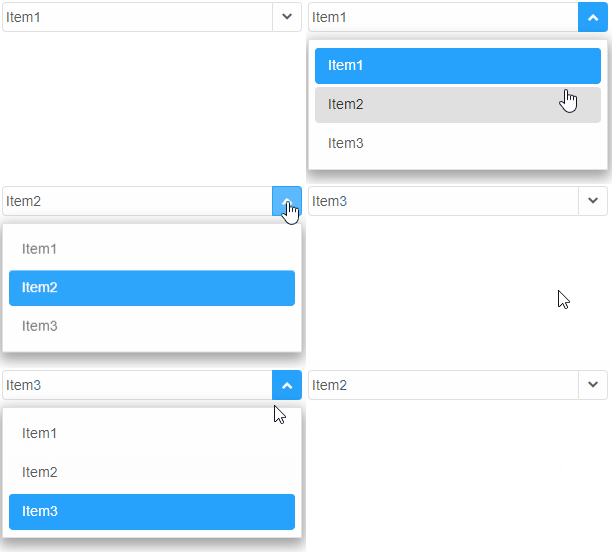
Smart.ListItemGroup represents a group of items.
Demo
-
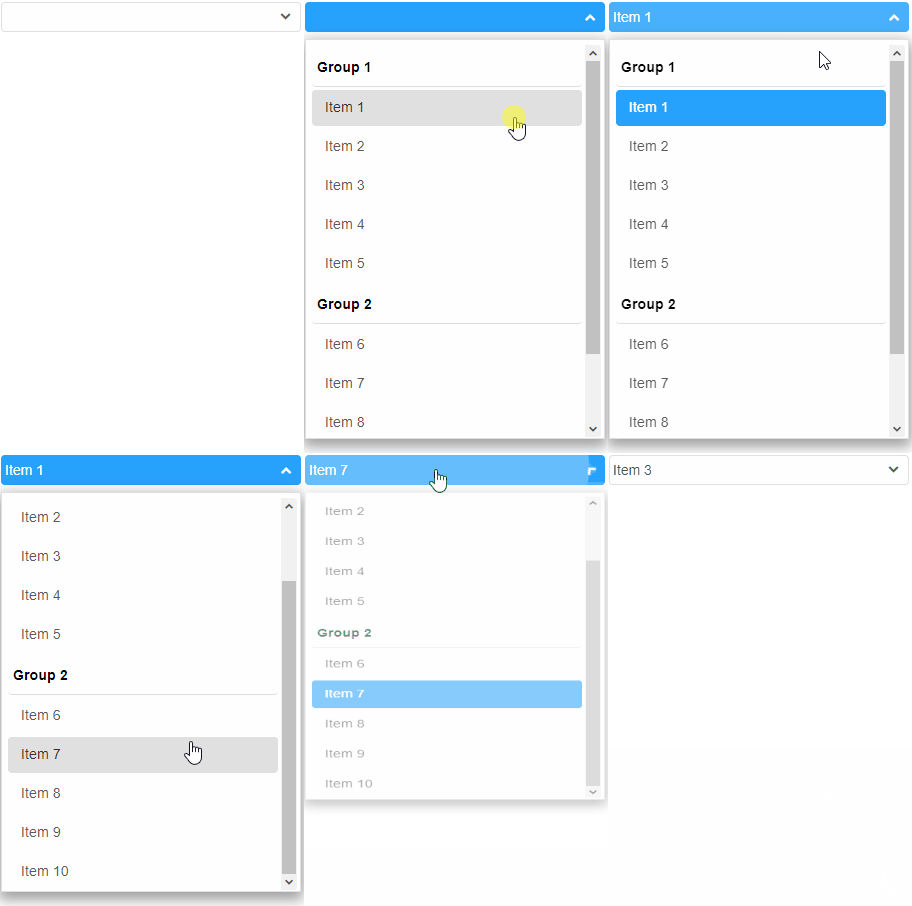
Nesting HTML list elements inside the DropDownList's body in the HTML:
<smart-drop-down-list>
     <ul label="Group 1">
         <li>Item 1</li>
         <li>Item 2</li>
         <li>Item 3</li>
         <li>Item 4</li>
         <li>Item 5</li>
     </ul>
     <ul label="Group 2">
         <li>Item 6</li>
         <li>Item 7</li>
         <li>Item 8</li>
         <li>Item 9</li>
         <li>Item 10</li>
     </ul>
 </smart-drop-down-list>
Demo
List items can be added without the ul tag. The grouping can be added at a later stage by setting the grouped property to the element.
-
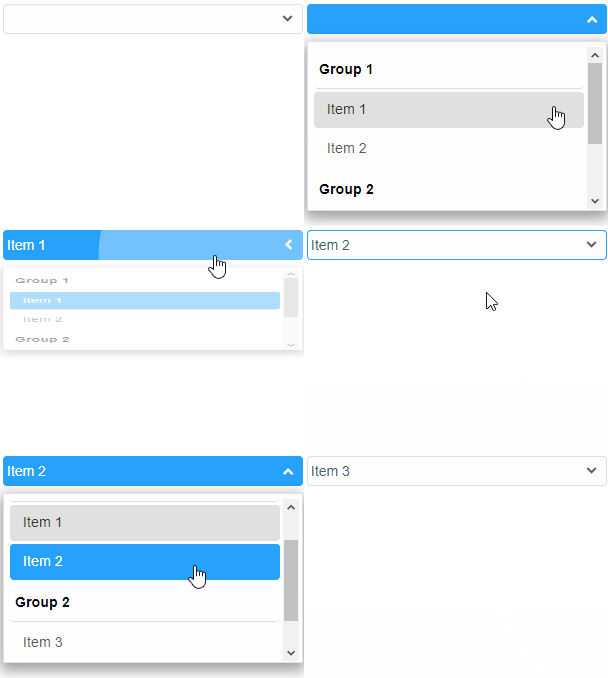
Nesting optgroup elements inside the DropDownList's body in the HTML:
<smart-drop-down-list>
     <optgroup label="Group 1">
         <option value="1">Item 1</option>
         <option value="2">Item 2</option>
     </optgroup>
     <optgroup label="Group 2">
         <option value="3">Item 3</option>
         <option value="4">Item 4</option>
     </optgroup>
 </smart-drop-down-list>
optgroups are the items of an HTML select element. As usual the value attribute can be applied to each list item to assign a specific value that can differ from the label.
Demo
-
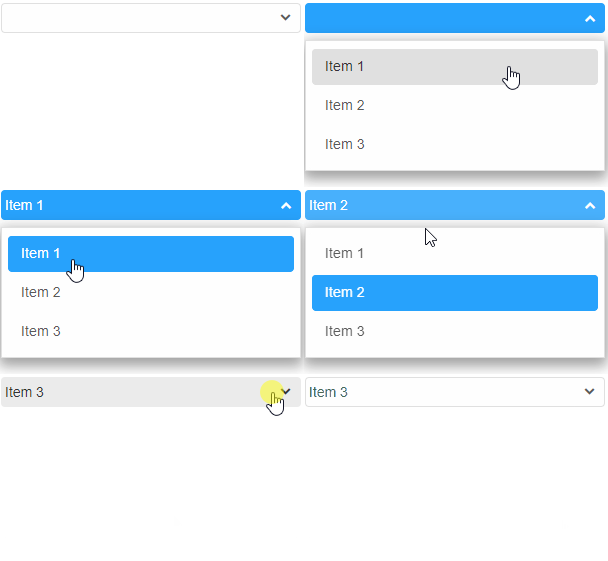
Setting the dataSource property of the element to a new value of type Array.
The property can be changed dynamically via javascript after the element has been initialized:
<!DOCTYPE html>
<html>
<head>
 <link rel="stylesheet" href="./../../source/styles/smart.default.css" type="text/css" />
 <script type="text/javascript" src="../../source/modules/smart.dropdownlist.js"></script>
 <script>
 window.onload = function () {
     document.querySelector('smart-drop-down-list').dataSource =
         [
             "Item 1",
             "Item 2",
             "Item 3"
         ];
     }
 </script>
</head>
<body>
 <smart-drop-down-list></smart-drop-down-list>
</body>
</html>
Demo
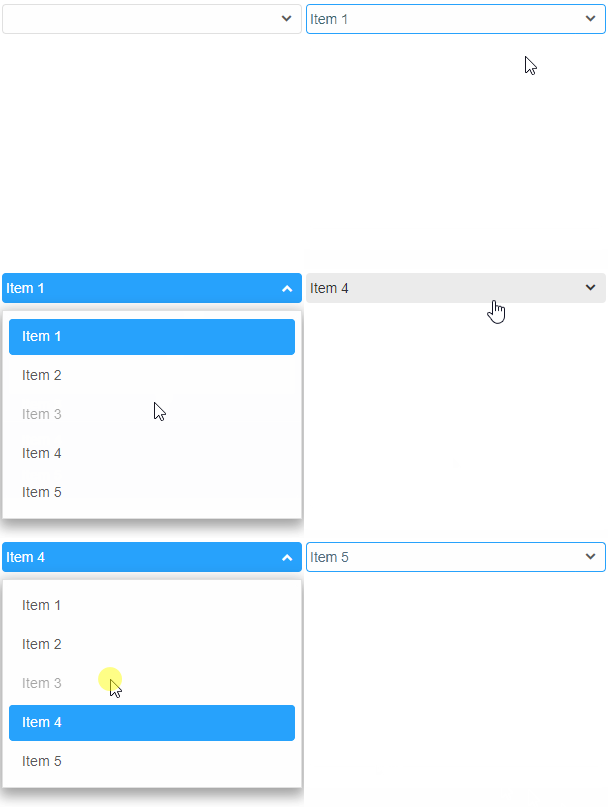
dataSource accepts Arrays of strings or Objects. An object can contain more specific data for the items. For example:
<!DOCTYPE html>
<html>
<head>
 <link rel="stylesheet" href="./../../source/styles/smart.default.css" type="text/css" />
 <script type="text/javascript" src="../../source/modules/smart.dropdownlist.js"></script>
 <script>
 window.onload = function () {
     var dropDownList = document.querySelector('smart-drop-down-list');
     dropDownList.dataSource = [
         {
             label: 'Item 1',
             value: 1
         },
         {
             label: 'Item 2',
             value: 2
         },
         {
             label: 'Item 3',
             value: 3,
             disabled: true
         },
         {
             label: 'Item 4',
             value: 4
         },
         {
             label: 'Item 5',
             value: 5
         },
     ];
 }
 </script>
</head>
<body>
 <smart-drop-down-list></smart-drop-down-list>
</body>
</html>
Demo
Like every other custom element property, dataSource can also be set from the HTML in the tag of the element, like so:
<smart-drop-down-list data-source='["Item1", "Item2", "Item3"]'></smart-drop-down-list>
Demo
Manipulating the content
The element offers the following methods:
-
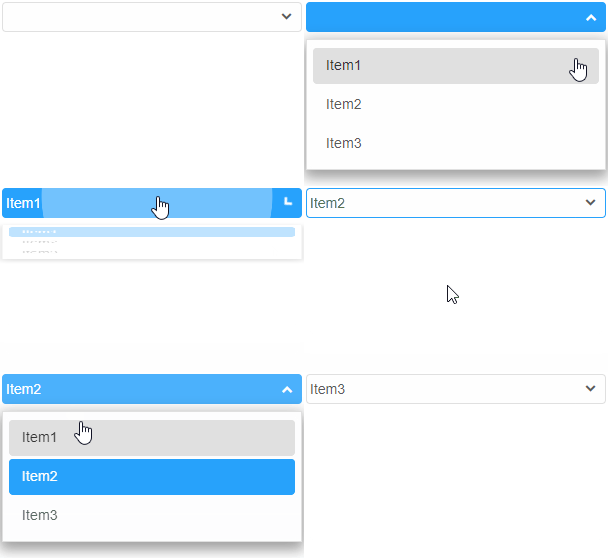
Insert method can create and insert new list items into the element.
The insert method can be called at any time after the element has been initialized.
The method accepts two arguments:
- The index at which the item will be inserted.
- An array of strings or a single string representing the labels of the items to be inserted.
<!DOCTYPE html>
<html>
<head>
 <link rel="stylesheet" href="./../../source/styles/smart.default.css" type="text/css" />
 <script type="text/javascript" src="../../source/smart.dropdownlist.js"></script>
 <script>
     window.onload = function () {
         var dropDownList = document.querySelector('smart-drop-down-list');
         dropDownList.insert(0, ["Item1", "Item2", "Item3"]);
         dropDownList.insert(2, 'Item4');
     }
 </script>
</head>
<body>
 <smart-drop-down-list></smart-drop-down-list>
</body>
</html>
Demo
-
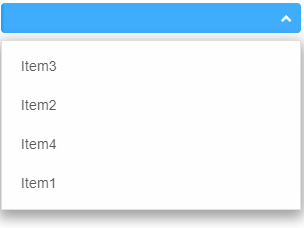
Update method allow List items to be modified after creation.
Update method accepts two arguments:- The index of the item to be updated.
- Details for the item. This argument can be an object containing properties of Smart.ListItem, e.g. label, value, disabled. It can also be a simple string that represents the new label of the item that will be updated.
<!DOCTYPE html>
<html>
<head>
 <link rel="stylesheet" href="./../../source/styles/smart.default.css" type="text/css" />
 <script type="text/javascript" src="../../source/smart.dropdownlist.js"></script>
 <script>
     window.onload = function () {
         var dropDownList = document.querySelector('smart-drop-down-list');
         //Create items
         dropDownList.insert(0, ["Item1", "Item2", "Item3"]);
         dropDownList.insert(2, 'Item4');
         //Update items
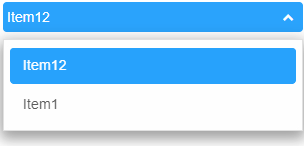
         dropDownList.update(1, 'Item12');
         dropDownList.update(2, { label: 'Item13', value: '13', disabled: true });
     }
 </script>
</head>
<body>
 <smart-drop-down-list></smart-drop-down-list>
</body>
</html>
Demo
-
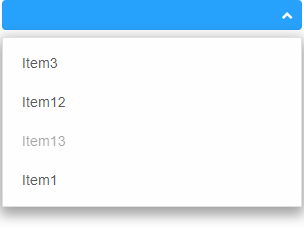
Remove deletes an item from the element. The method accepts a single argument - the index of the item to be removed.
Here's an example:
<!DOCTYPE html>
<html>
<head>
 <link rel="stylesheet" href="./../../source/styles/smart.default.css" type="text/css" />
 <script type="text/javascript" src="../../source/smart.dropdownlist.js"></script>
 <script>
     window.onload = function () {
         var dropDownList = document.querySelector('smart-drop-down-list');
         //Create items
         dropDownList.insert(0, ["Item1", "Item2", "Item3"]);
         dropDownList.insert(2, 'Item4');
         //Update items
         dropDownList.update(1, 'Item12');
         dropDownList.update(2, { label: 'Item13', value: '13', disabled: true });
         //Remove items
         dropDownList.remove(2);
         dropDownList.remove(0);
     }
 </script>
</head>
<body>
 <smart-drop-down-list></smart-drop-down-list>
</body>
</html>
Demo
-
clearItems removes all items from the element. Take no arguments:
window.onload = function () {
    var dropDownList = document.querySelector('smart-drop-down-list');
    dropDownList.clearItems();
}
Demo
Behavior
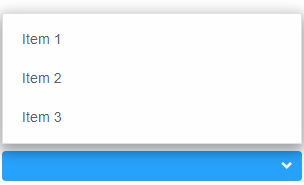
Smart.DropDownList offers different drop down positions: bottom, top, overlay-center, overlay-bottom, overlay-top, center-top, center-bottom and auto. The position of the listBox drop down can be modified via the dropDownPosition property, like so:
<!DOCTYPE html>
<html>
<head>
 <link rel="stylesheet" href="./../../source/styles/smart.default.css" type="text/css" />
 <script type="text/javascript" src="../../source/smart.dropdownlist.js"></script>
 <script>
     window.onload = function () {
         var dropDownList = document.querySelector('smart-drop-down-list');
         dropDownList.dropDownPosition = 'top';
     }
 </script>
</head>
<body>
 <smart-drop-down-list></smart-drop-down-list>
</body>
</html>
Demo
Similar to any other property dropDownPosition can be set in the HTML with an attribute:
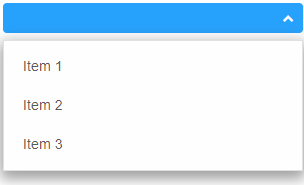
<smart-drop-down-list drop-down-position="bottom"></smart-drop-down-list>
The default value of the property is 'auto'. This means that the element will automatically determine the position of the drop down depending on the space available. The algorithm always starts by trying to place the drop down below the element. If there's no space available it moves it above the element.
Demo
Append to the DOM:
const container = document.getElementById('dropdownlist-container');
container.appendChild(dropdownlist);
Remove from the DOM:
dropdownlist.remove();
Set a property:
dropdownlist.disabled = true;
dropdownlist.theme = 'dark';
Get a property value:
const isDisabled = dropdownlist.disabled;
const currentTheme = dropdownlist.theme;
Invoke a method:
dropdownlist.refresh();
dropdownlist.focus();
Add event listener:
dropdownlist.addEventListener('change', (event) => {
    console.log('change triggered:', event.detail.addedItems);
});
Remove event listener:
const handleDropDownListEvent = (event) => {
    console.log('change triggered:', event.detail.addedItems);
};

dropdownlist.addEventListener('change', handleDropDownListEvent);
dropdownlist.removeEventListener('change', handleDropDownListEvent);
Common Use Cases
-
Populate from API
Load dropdown options from a REST endpoint
const options = await fetch('/api/options').then(r => r.json()); dropDownList.dataSource = options; -
Get selected value
Retrieve the currently selected item
const selected = dropDownList.selectedValues[0];
Troubleshooting
- How do I set a default selected value?
- Set the selectedValues property to an array containing the default value(s): selectedValues = ['defaultValue'].
- How do I disable specific items?
- Add disabled: true to items in your dataSource that should not be selectable.
Accessibility
The DropDownList component follows WAI-ARIA best practices:
- Keyboard navigation - Tab, Arrow keys, Enter, and Escape are supported
- ARIA roles - Appropriate roles and labels are applied automatically
- Focus management - Visible focus indicators for keyboard users
- Screen readers - State changes are announced to assistive technology
- High contrast - Supports Windows High Contrast Mode and forced colors
For custom labeling, set aria-label or aria-labelledby attributes on the component.
Supported stacks: Smart UI targets Angular 17+, React 18+, Vue 3+, Node 18 LTS, and evergreen browsers; pin exact package versions to your org policy.