



Editor for React
React version of this topic (compatible with React 19+). Keep the same configuration logic from JavaScript and pass it as component props.
What this topic covers: practical setup, the framework-specific API access pattern, and copy-adapt guidance for the examples in this page.
import React, { useMemo, useRef } from 'react';
import { Editor } from 'smart-webcomponents-react/editor';
import 'smart-webcomponents-react/source/styles/smart.default.css';

export default function App() {
  const componentRef = useRef(null);
  const componentProps = useMemo(() => ({
    // Copy this topic's JavaScript configuration here.
  }), []);

  return <Editor ref={componentRef} {...componentProps}></Editor>;
}
Use componentRef.current for API methods in this topic.
Build your web apps using Smart UI Library
Smart.Editor - Context Menu
Editor Context Menu
Smart.Editor has a built in context menu that is available by default. When the user right clicks with the mouse inside the Editor, the context menu opens. A different options list is displayed depending on the target. However the options list can be customized.
The contextMenu property determines the behavior of the Editor's context menu. It is possible to use the native context menu instead of the Editor's built in or event disable the context menus inside the element.
Here's how to enable the browser's context menu in order to used it instead of the built in:
componentRef.current.contextMenu = 'browser';
Let's take a close look at the built in Context menu options.
Table Context Menu
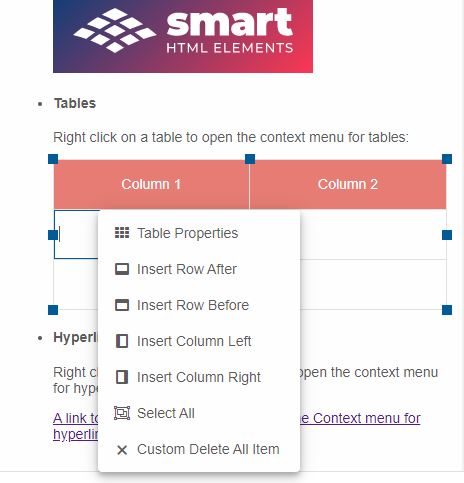
When the user triggers the context menu on a Table cell element inside the Editor a specific options list appears that allows to execute quick actions like:
- Edit the Table Properties
- Insert new rows/columns
- Delete rows/columns
- Delete the whole table
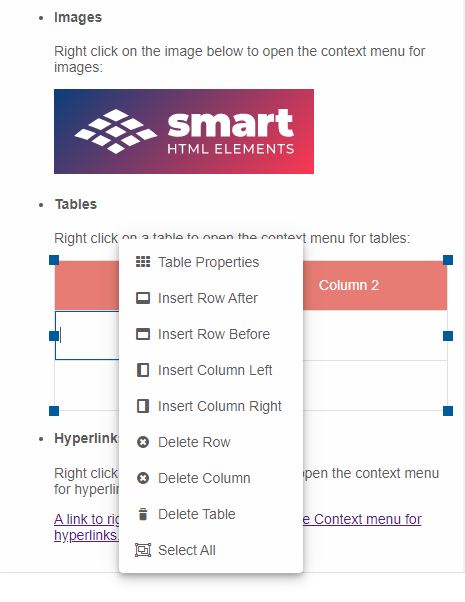
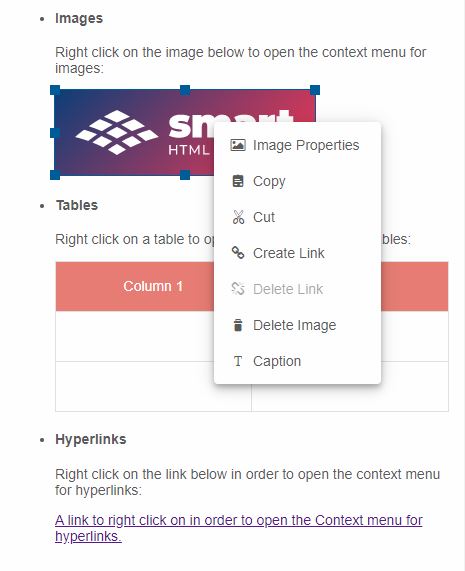
Image Context Menu
Image elements inside the Editor also offer specific context menu options:
- Edit Image Properties
- Copy/Cut the image
- Add/Remove a hyperlink
- Add/Remove a caption
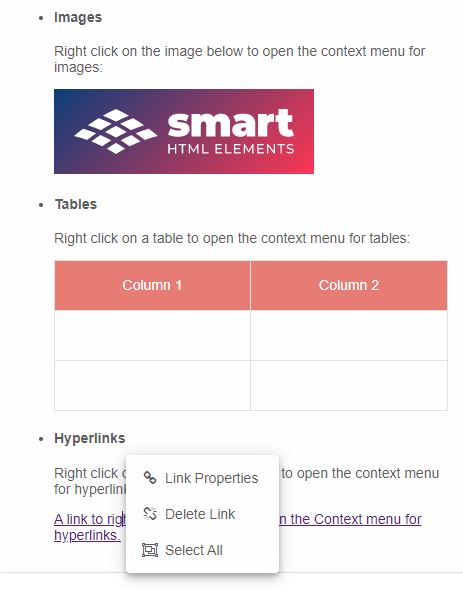
Link Context Menu
Hyperlink elements inside the Editor also have specific context menu options:
- Editor the Link properties
- Delete the link
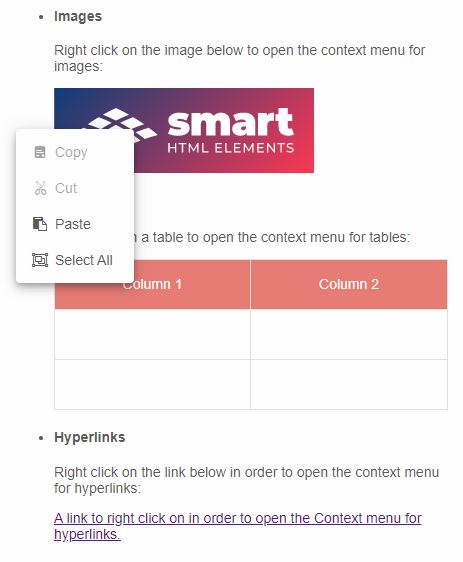
Text Context Menu
Clicking anywhere else inside the Editor's content will trigger the default context menu for text.
The default context menu options offer basic quick actions like copy, paste, cut and text selection
Custom Context Menu
The Context menu options can be customized. The user can specify a list of completely different quick action items even for specific targets.
It is also possible to modify the default options list and remove specific options that the user does not want to have or include additional.
The contextMenuDataSource property allows to modify the options list of the context menu. It accepts an array of strings or objects with the following format
{ label: string, value: string }
If the list option is a string it is used as the label and value for the item. When defined as objects the user can set a one label to an option while it has a different value.
The contextMenuDataSource also accepts a function with the following format:
function (target: HTMLElement, type: string, defaultItems: string[]) { return defaultItems }
When the property is a function it is possible to modify the default options list instead of replacing
it. The defaultItems is an array that contains the options for the context menu that will be
displayed. The type parameter represents the type of the context menu (table, image, link or
text). The function is executed before the context menu is opened.
The following demo shows to to add a custom context menu item that deletes everything inside the Editor:
const componentProps = useMemo(() => ({
            //Properties
            contextMenuDataSource: function (target, type, defaultItems) {
                if (type === 'table') {
                    defaultItems.splice(defaultItems.indexOf('deleteTable'), 1);
                    defaultItems.splice(defaultItems.indexOf('deleteRow'), 1);
                    defaultItems.splice(defaultItems.indexOf('deleteColumn'), 1);
                }
                if (!defaultItems.find(i => typeof i === 'object' && i.value === 'custoItem1')) {
                    defaultItems.push({
                        label: 'Custom Delete All Item',
                        value: 'customItem1'
                    });
                }
                return defaultItems;
            }
}), []);
The context menu fires a contextMenuItemClick event which contains the value of the selected item. This way it is possible to execute a custom logic when a certain item has been clicked.
For AI tooling
Developer Quick Reference
Topic: editor-context-menu Component: Editor Framework: React
Main methods: (none detected)
Common config keys: (none detected)
Implementation Notes
Compatibility: React 19+ API access pattern: const componentRef = useRef(null) + componentRef.current.method()
Lifecycle guidance: Use useMemo for large config objects and call imperative API through componentRef.current after first render.
Common pitfalls:
- Recreating columns/dataSource objects on every render can reset component state.
- Calling API methods before ref is available causes runtime errors.
- Mixing controlled and imperative updates without sync can lead to stale UI.
Validation checklist:
- Keep config objects memoized when possible.
- Guard API calls with ref existence checks.
- Verify CSS theme import is present once per app.