



Editor for Vue
Vue 3 version using Smart custom elements and template refs.
What this topic covers: practical setup, the framework-specific API access pattern, and copy-adapt guidance for the examples in this page.
<script setup>
import { onMounted, ref } from 'vue';
import 'smart-webcomponents/source/styles/smart.default.css';
import 'smart-webcomponents/source/modules/smart.editor.js';

const component = ref();
const componentProps = {
  // Copy this topic's JavaScript configuration here.
};

onMounted(() => {
  Object.assign(component.value, componentProps);
});
</script>

<template>
  <smart-editor ref="component"></smart-editor>
</template>
Use component.value for API methods in this topic.
Build your web apps using Smart UI Library
Smart.Editor - Find and Replace
Editor Find and Replace
Smart.Editor toolbar has many actions that can modify the content. Some of the them are more complex and offer greater capabilities. Such is the Find and Replace feature.
The Find and Replace toolbar actions triggers a dialog window that allows to search for a specific text inside Editor's content. The matches found are displayed inside a list box and can be replaced by another string also defined by the user in a separate text box.
The text matches are highlighted inside the Editor and the user can navigate between the matches via the dialog window.
By default the matching criteria is case insensitive. However there's an additional option to match the case of the search string.
Here's an example:
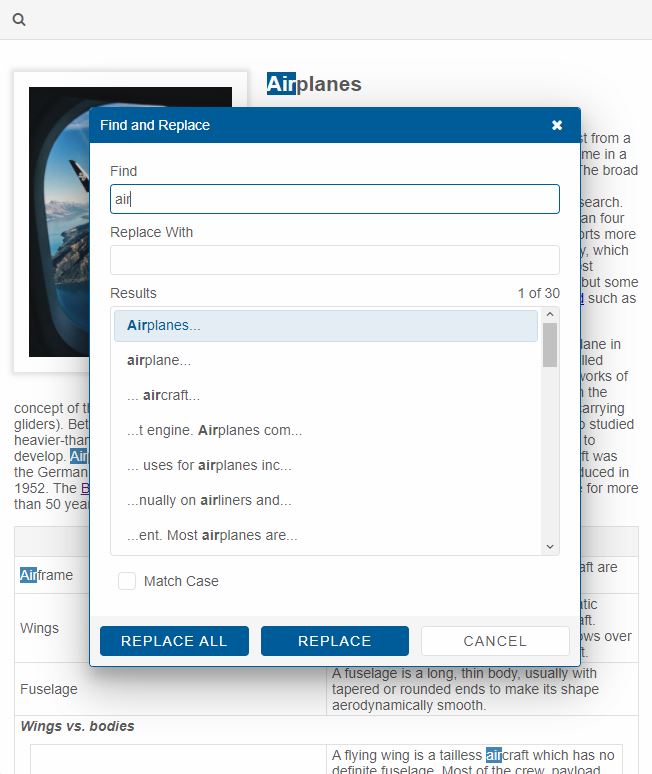
The find and replace dialog is triggered by clicking on the the appropriate action inside the Toolbar.
The Find and Replace feature is available only when the editMode is set to HTML (default).
Editor Search Bar
An additional Search bar is also available for users who want to quickly find the desired text inside the Editor's content section.
The search bar is enabled by default and can be triggered via a keyboard combination: Control + F only when the Editor's content section is focused.
The Search bar feature is only avaialble for editMode HTML.
The Search bar is case insensitive and can be disabled via the disableSearchBar.
Here's an example:
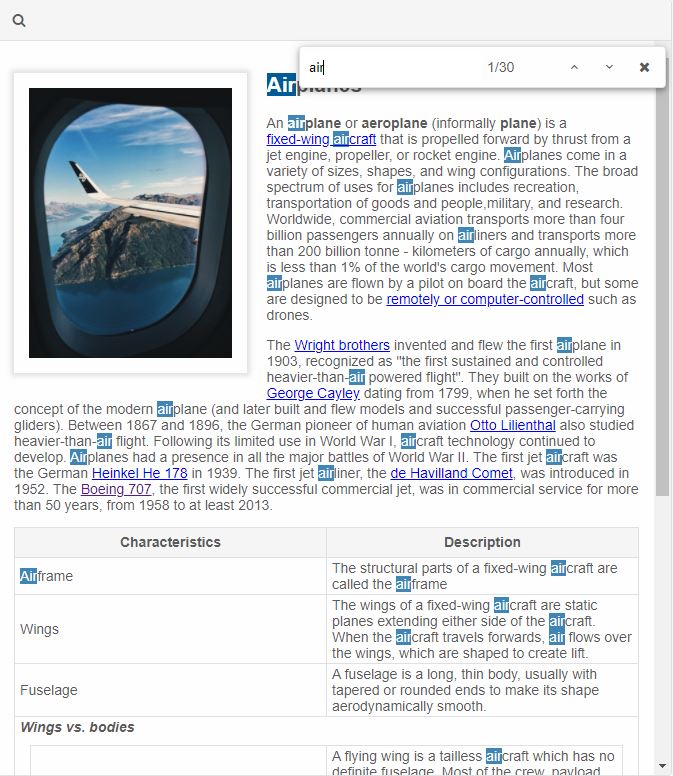
The findAndReplaceTimeout property determines the timeout before the search criteria is applied and the results are displayed. The property is used for both find and replace and search bar features.
For AI tooling
Developer Quick Reference
Topic: editor-find-and-replace Component: Editor Framework: Vue
Main methods: (none detected)
Common config keys: (none detected)
Implementation Notes
Compatibility: Vue 3+ API access pattern: const component = ref() + component.value.method()
Lifecycle guidance: Use template refs with