



Grid for React
React version of this topic (compatible with React 19+). Keep the same configuration logic from JavaScript and pass it as component props.
What this topic covers: practical setup, the framework-specific API access pattern, and copy-adapt guidance for the examples in this page.
import React, { useMemo, useRef } from 'react';
import { Grid } from 'smart-webcomponents-react/grid';
import 'smart-webcomponents-react/source/styles/smart.default.css';

export default function App() {
  const componentRef = useRef(null);
  const componentProps = useMemo(() => ({
    // Copy this topic's JavaScript configuration here.
  }), []);

  return <Grid ref={componentRef} {...componentProps}></Grid>;
}
Use componentRef.current for API methods in this topic.
Column Height
The column height is automatically measured by the Grid taking into account the column label, font size and font weight. There are situations in which you may want to set the column height. This can be achived by using the 'layout.columnHeight' property.For example:
layout: {
	columnHeight: 100
}
Column Width
The column width can be set in the column definitions. It can be fixed width, fluid width in percentages, 'auto' or unset. When the 'width' is set to a number, the column's width will be in pixels i.e width: 200 means that the width of the column will be 200px. Width in percentages, means that the column will take a part of the Grid's width and will grow and shrink depending on the Grid's width. Width equal to 'auto' means that the column will auto-resize itself to the minimum required width. Width which is not set means that the column will take the remaining space available which is not taken by other columns.For example:
columns: [
	{
		label: 'First Name', dataField: 'firstName', width: 300
	},
	{ label: 'Last Name', dataField: 'lastName', width: '30%' },
	{ label: 'Product', dataField: 'productName', width: 'auto'},
	{ label: 'Quantity', dataField: 'quantity', align: 'right', cellsAlign: 'right' },
	{ label: 'Unit Price', dataField: 'price', align: 'right', cellsAlign: 'right', cellsFormat: 'c2' }
]
You can also use the 'layout.columnWidth' property to set equal width to all columns.
For example:
layout: {
	columnHeight: 100,
	columnWidth: 300
}
The 'autoSizeColumn(dataField)' and 'autoSizeColumns()' methods auto-size a column or columns based on the contents.
Custom Column Headers
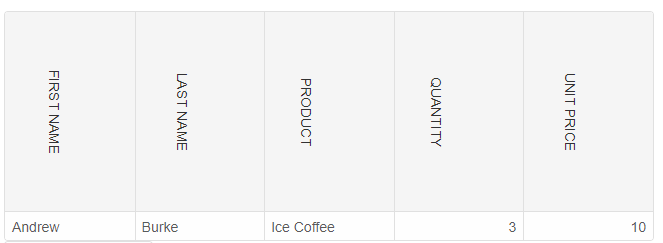
With the help of CSS, we can customize the column headers by using the 'className' property.
.labelTemplate {
    transform: rotate(90deg);
    transform-origin: initial;
    text-transform: uppercase;
    display: inline-block;
}
const componentProps = {
    dataSourceSettings: {
        dataFields: [
            { name: 'firstName', dataType: 'string' },
            { name: 'lastName', dataType: 'string' },
            { name: 'productName', map: 'product.name', dataType: 'string' },
            { name: 'quantity', map: 'product.quantity', dataType: 'string' },
            { name: 'price', map: 'product.price', dataType: 'string' },
            { name: 'total', map: 'product.total', dataType: 'string' }
        ]
    },
    behavior: {
        columnResizeMode: 'growAndShrink'
    },
    sorting: {
        enabled: true
    },
    layout: {
        columnHeight: 200
    },
    dataSource: [
        {
            firstName: 'Andrew',
            lastName: 'Burke',
            product: {
                name: 'Ice Coffee', price: 10, quantity: 3, total: 30
            }
        }
    ],
    columns: [
        { label: 'First Name', dataField: 'firstName', className: 'labelTemplate' },
        { label: 'Last Name', dataField: 'lastName', className: 'labelTemplate' },
        { label: 'Product', dataField: 'productName', className: 'labelTemplate' },
        { label: 'Quantity', dataField: 'quantity', cellsAlign: 'right', className: 'labelTemplate' },
        { label: 'Unit Price', dataField: 'price', cellsAlign: 'right', cellsFormat: 'c2', className: 'labelTemplate' }
    ]
}
const grid = new Smart.Grid("#grid", gridOptions);
Column Headers Tooltips
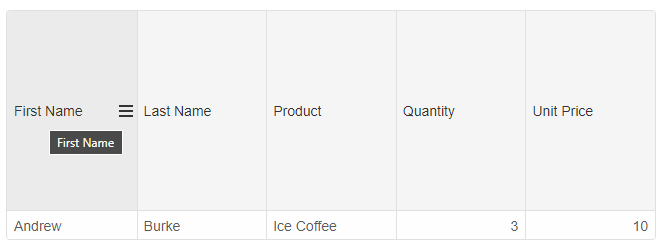
In order to add header tooltips, you can set the 'labelTemplate' property of the column and add a 'title' attribute. For example:
{label: 'First Name', dataField: 'firstName', labelTemplate: (label) => { return `<span title="${label}">${label}</span>`}}
Column Headers Description
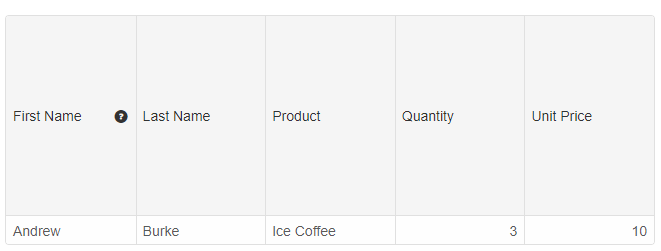
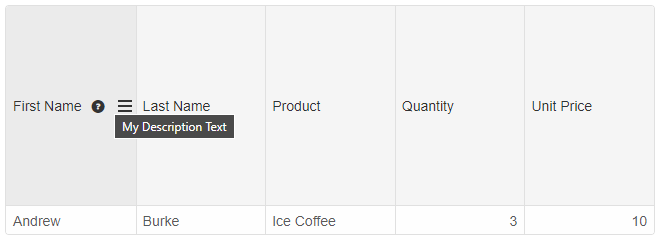
The column header optionally displays a description text. To enable this feature, set the 'showDescriptionButton' and 'description' properties in the column definition. For example:
columns: [
	{ label: 'First Name', dataField: 'firstName', showDescriptionButton: true, description: 'My Description Text' },
	{ label: 'Last Name', dataField: 'lastName' },
	{ label: 'Product', dataField: 'productName' },
	{ label: 'Quantity', dataField: 'quantity', cellsAlign: 'right' },
	{ label: 'Unit Price', dataField: 'price', cellsAlign: 'right', cellsFormat: 'c2' }
]
Column Headers Icons
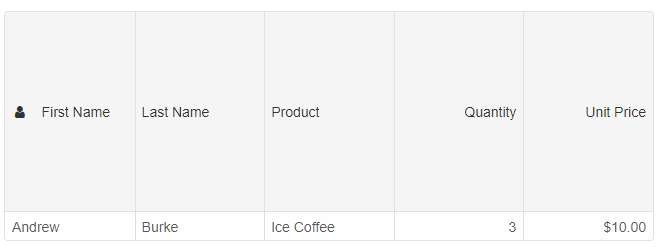
To display a custom icon in a column header, you need to set the 'icon' property to a CSS class and 'showIcon' property to true.
columns: [
	{ label: 'First Name', dataField: 'firstName', showIcon: true, icon: 'fa-user custom-icon' },
	{ label: 'Last Name', dataField: 'lastName' },
	{ label: 'Product', dataField: 'productName' },
	{ label: 'Quantity', dataField: 'quantity', cellsAlign: 'right' },
	{ label: 'Unit Price', dataField: 'price', cellsAlign: 'right', cellsFormat: 'c2' }
]
The 'custom-icon' CSS class is:
.custom-icon {
	margin-left: 4px;
	margin-right: 4px;
	font-family: 'FontAwesome';
}
and we need to import the custom icon in the CSS or HTML page. Sample link with fonts: https://cdnjs.cloudflare.com/ajax/libs/font-awesome/4.7.0/css/font-awesome.min.css.
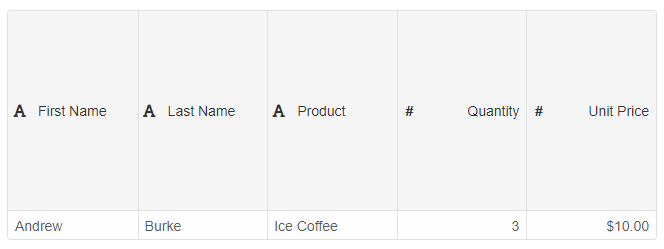
Optionally you can display default built-in column header icons showing the column type using the 'appearance.showColumnIcon' property and set it to true.
const componentProps = {
    dataSourceSettings: {
        dataFields: [
            { name: 'firstName', dataType: 'string' },
            { name: 'lastName', dataType: 'string' },
            { name: 'productName', map: 'product.name', dataType: 'string' },
            { name: 'quantity', map: 'product.quantity', dataType: 'number' },
            { name: 'price', map: 'product.price', dataType: 'number' },
            { name: 'total', map: 'product.total', dataType: 'number' }
        ]
    },
    behavior: {
        columnResizeMode: 'growAndShrink'
    },
    sorting: {
        enabled: true
    },
    layout: {
        columnHeight: 200
    },
    dataSource: [
        {
            firstName: 'Andrew',
            lastName: 'Burke',
            product: {
                name: 'Ice Coffee', price: 10, quantity: 3, total: 30
            }
        }
    ],
    appearance: {
        showColumnIcon: true
    },
    columns: [
        { label: 'First Name', dataField: 'firstName' },
        { label: 'Last Name', dataField: 'lastName' },
        { label: 'Product', dataField: 'productName' },
        { label: 'Quantity', dataField: 'quantity', cellsAlign: 'right' },
        { label: 'Unit Price', dataField: 'price', cellsAlign: 'right', cellsFormat: 'c2' }
    ]
}
Column Headers Templates
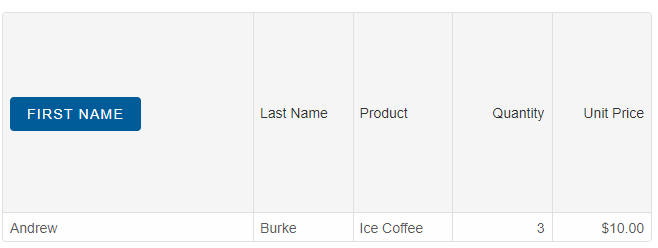
By using the 'labelTemplate' property, you can render custom HTML in the column headers.
columns: [
	{
		label: 'First Name', dataField: 'firstName', width: 250, labelTemplate: (label) => {
			return `<div><smart-button class="primary">${label}</smart-button></div>`
		}
	},
	{ label: 'Last Name', dataField: 'lastName' },
	{ label: 'Product', dataField: 'productName' },
	{ label: 'Quantity', dataField: 'quantity', cellsAlign: 'right' },
	{ label: 'Unit Price', dataField: 'price', cellsAlign: 'right', cellsFormat: 'c2' }
]
For AI tooling
Developer Quick Reference
Topic: grid-column-headers Component: Grid Framework: React
Main methods: (none detected)
Common config keys: layout, columns, behavior, sorting, dataSource, appearance
Implementation Notes
Compatibility: React 19+ API access pattern: const componentRef = useRef(null) + componentRef.current.method()
Lifecycle guidance: Use useMemo for large config objects and call imperative API through componentRef.current after first render.
Common pitfalls:
- Recreating columns/dataSource objects on every render can reset component state.
- Calling API methods before ref is available causes runtime errors.
- Mixing controlled and imperative updates without sync can lead to stale UI.
Validation checklist:
- Keep config objects memoized when possible.
- Guard API calls with ref existence checks.
- Verify CSS theme import is present once per app.