



Grid for Angular
Angular standalone version of this topic (compatible with Angular 17+). Import both the Smart UI component and module in the standalone component.
What this topic covers: practical setup, the framework-specific API access pattern, and copy-adapt guidance for the examples in this page.
import { Component, ViewChild, ViewEncapsulation } from '@angular/core';
import { CommonModule } from '@angular/common';
import { RouterOutlet } from '@angular/router';
import { GridComponent, GridModule } from 'smart-webcomponents-angular/grid';

@Component({
  selector: 'app-root',
  standalone: true,
  imports: [CommonModule, GridModule, RouterOutlet],
  templateUrl: './app.component.html',
  styleUrls: ['./app.component.css'],
  encapsulation: ViewEncapsulation.None
})
export class AppComponent {
  @ViewChild('grid', { read: GridComponent, static: false }) grid!: GridComponent;
}
<!-- app.component.html -->
<smart-grid #grid></smart-grid>
Use this.grid for API methods in this topic.
Column Dragging
Columns can be dragged and reordered by using drag & drop and using the column API.The following example code shows how to enable column reorder in the Grid.
componentProps = {
	behavior: { allowColumnReorder: true },
	dataSource: new Smart.DataAdapter({
		dataSource: generateData(100),
		dataFields: [
			'id: number',
			'firstName: string',
			'lastName: string',
			'productName: string',
			'quantity: number',
			'price: number',
			'total: number'
		]
	}),
	paging: {
		enabled: true
	},
	pager: {
		visible: true
	},
	columns: [
		{
			label: 'First Name', width: 150, dataField: 'firstName'
		},
		{ label: 'Last Name', width: 150, dataField: 'lastName' },
		{ label: 'Product', width: 200, dataField: 'productName' },
		{ label: 'Quantity', width: 100, dataField: 'quantity' },
		{ label: 'Unit Price', width: 100, dataField: 'price', cellsFormat: 'c2' },
		{ label: 'Total', width: 300, dataField: 'total', cellsFormat: 'c2' }
	]
}
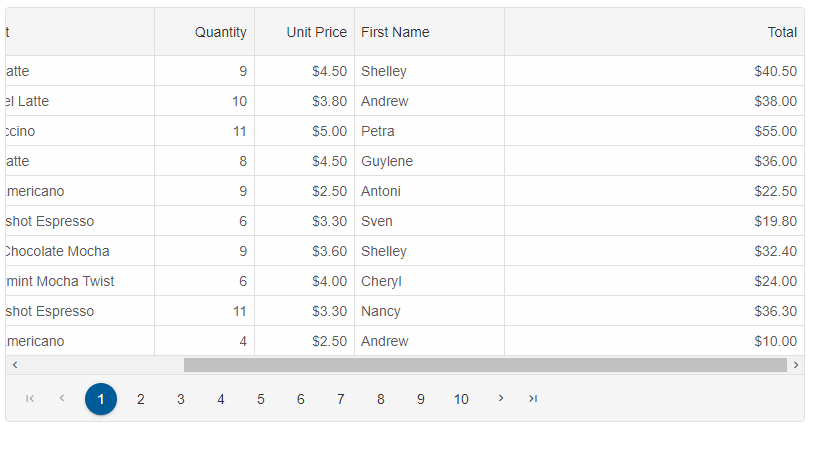
The Column API has two methods for moving columns - reorderColumns and swapColumns. When you call grid.reorderColumns('firstName', 'total'); the result would be:
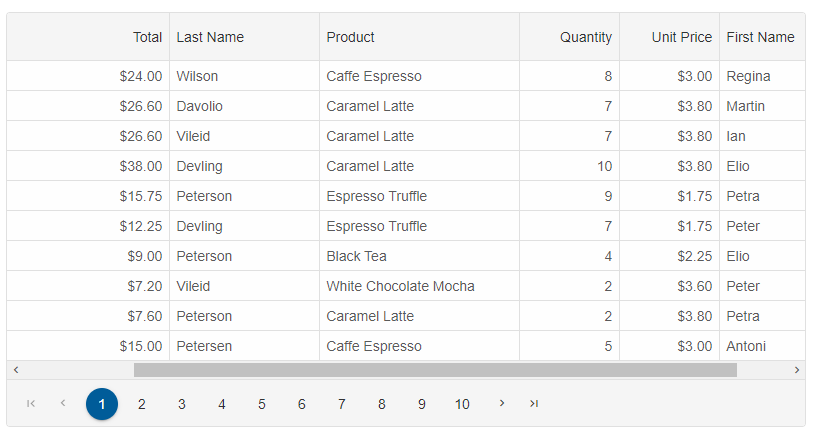
When you call grid.swapColumns('firstName', 'total'); the result would be:
columnDragStart - when the user starts a column drag.
columnDragging - when the user drags a column.
columnDragEnd - when the user starts a column drag.
columnReorder - when the user reorders a column.
By using the above events, you can implement drag and drop of a column from one grid to another component. Example:
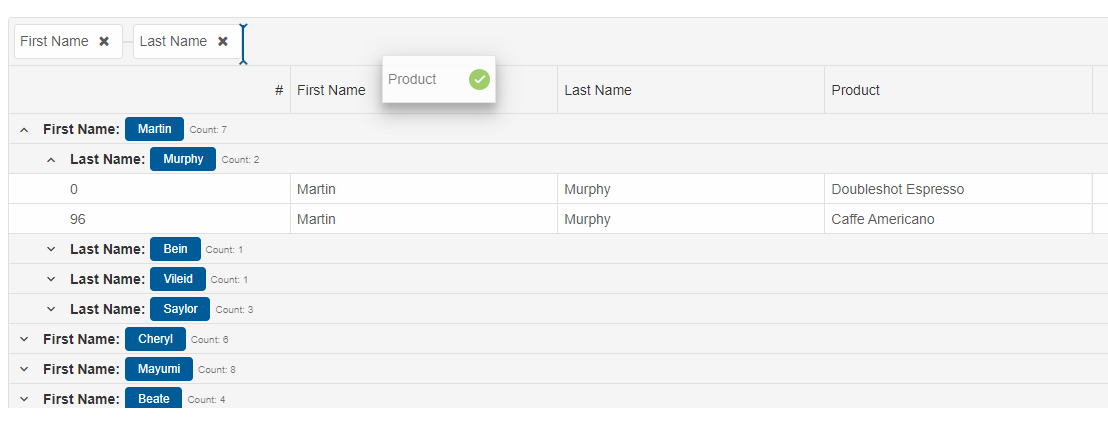
Drag a column to the Group bar to group by that column
When grouping and column reorder are enabled, you can drag and drop columns between the group bar and the columns. When you drag a column from the columns header and drop it over the group bar, the Grid is grouped by the dropped column. When you drag a column from the group bar and drop it over the columns header, the Grid will remove the dropped group.
componentProps = {
dataSource: new Smart.DataAdapter({
		dataSource: generateData(100),
		groupBy: ['firstName', 'lastName'],
		dataFields: [
			'id: number',
			'firstName: string',
			'lastName: string',
			'productName: string',
			'quantity: number',
			'price: number',
			'total: number'
		]
	}),
	sorting: {
		enabled: true
	},
	behavior: {
		allowColumnReorder: true
	},
	grouping: {
		enabled: true,
		groupBar: {
			visible: true
		}
	},
	columns: [
		{
			label: '#', width: 200, dataField: 'id'
		},
		{
			label: 'First Name', dataField: 'firstName'
		},
		{ label: 'Last Name', dataField: 'lastName' },
		{ label: 'Product', dataField: 'productName' },
		{ label: 'Quantity', dataField: 'quantity', align: 'right', cellsAlign: 'right', },
		{ label: 'Unit Price', dataField: 'price', align: 'right', cellsAlign: 'right', cellsFormat: 'c2' },
		{
			label: 'Total', dataField: 'total', align: 'right', cellsAlign: 'right', cellsFormat: 'c2'
		}
	]
}
Reorder columns and Freezing
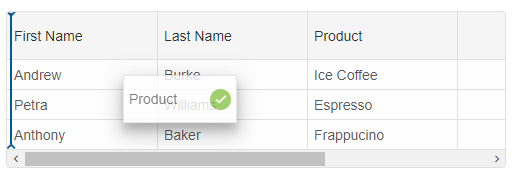
The Grid component has a feature which enables you to dynamically pin/unpin(freeze/unfreeze) a column when the functionality is enabled. Let's look at the following example which is a basic Grid with enabled column reordering.
componentProps = {
    dataSourceSettings: {
        dataFields: [
            { name: 'firstName', dataType: 'string' },
            { name: 'lastName', dataType: 'string' },
            { name: 'productName', map: 'product.name', dataType: 'string' },
            { name: 'payment', map: 'product.payment', dataType: 'string' },
            { name: 'quantity', map: 'product.quantity', dataType: 'number' },
            { name: 'price', map: 'product.price', dataType: 'number' },
            { name: 'total', map: 'product.total', dataType: 'number' }
        ]
    },
    editing: {
        enabled: true
    },
    selection: {
        enabled: true,
        allowCellSelection: true,
        mode: 'extended'
    },
    filtering: {
        enabled: true
    },
    behavior: {
        allowColumnReorder: true,
        columnResizeMode: 'growAndShrink'
    },
    sorting: {
        enabled: true
    },
    dataSource: [
        {
            firstName: 'Andrew',
            lastName: 'Burke',
            product: {
                name: 'Ice Coffee', price: 10, quantity: 3, total: 30, payment: 'Visa'
            }
        },
        {
            firstName: 'Petra',
            lastName: 'Williams',
            product: {
                name: 'Espresso', price: 7, quantity: 5, total: 35, payment: 'Visa'
            }
        },
        {
            firstName: 'Anthony',
            lastName: 'Baker',
            product: {
                name: 'Frappucino', price: 6, quantity: 4, total: 24, payment: 'Mastercard'
            }
        }
    ],
    columns: [
        {
            label: 'First Name', dataField: 'firstName', width: 150
        },
        { label: 'Last Name', dataField: 'lastName', width: 150 },
        { label: 'Product', dataField: 'productName', width: 150 },
        {
            label: 'Quantity', dataField: 'quantity', cellsAlign: 'right', width: 150
        },
        {
            label: 'Unit Price', dataField: 'price', cellsAlign: 'right', cellsFormat: 'c2', width: 150
        }
    ]
}
Now, let's enable the
allowColumnFreeze property to enable the column freezing.
componentProps = {
    dataSourceSettings: {
        dataFields: [
            { name: 'firstName', dataType: 'string' },
            { name: 'lastName', dataType: 'string' },
            { name: 'productName', map: 'product.name', dataType: 'string' },
            { name: 'payment', map: 'product.payment', dataType: 'string' },
            { name: 'quantity', map: 'product.quantity', dataType: 'number' },
            { name: 'price', map: 'product.price', dataType: 'number' },
            { name: 'total', map: 'product.total', dataType: 'number' }
        ]
    },
    editing: {
        enabled: true
    },
    selection: {
        enabled: true,
        allowCellSelection: true,
        mode: 'extended'
    },
    filtering: {
        enabled: true
    },
    behavior: {
        allowColumnReorder: true,
        allowColumnFreeze: true,
        columnResizeMode: 'growAndShrink'
    },
    sorting: {
        enabled: true
    },
    dataSource: [
        {
            firstName: 'Andrew',
            lastName: 'Burke',
            product: {
                name: 'Ice Coffee', price: 10, quantity: 3, total: 30, payment: 'Visa'
            }
        },
        {
            firstName: 'Petra',
            lastName: 'Williams',
            product: {
                name: 'Espresso', price: 7, quantity: 5, total: 35, payment: 'Visa'
            }
        },
        {
            firstName: 'Anthony',
            lastName: 'Baker',
            product: {
                name: 'Frappucino', price: 6, quantity: 4, total: 24, payment: 'Mastercard'
            }
        }
    ],
    columns: [
        {
            label: 'First Name', dataField: 'firstName', width: 150
        },
        { label: 'Last Name', dataField: 'lastName', width: 150 },
        { label: 'Product', dataField: 'productName', width: 150 },
        {
            label: 'Quantity', dataField: 'quantity', cellsAlign: 'right', width: 150
        },
        {
            label: 'Unit Price', dataField: 'price', cellsAlign: 'right', cellsFormat: 'c2', width: 150
        }
    ]
}
When you drag a column to the edge, you will be able to dynamically freeze a grid column.
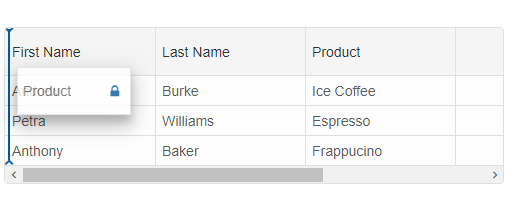
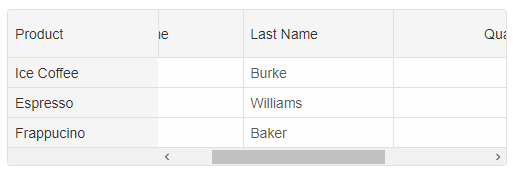
We can easily unfreeze a datagrid column. By dragging the pinned/frozen column to the other columns, we will unpin/unfreeze this column.
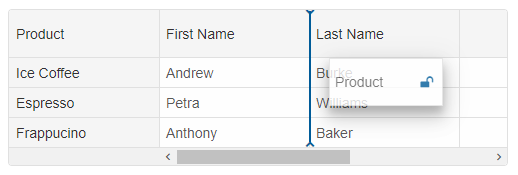
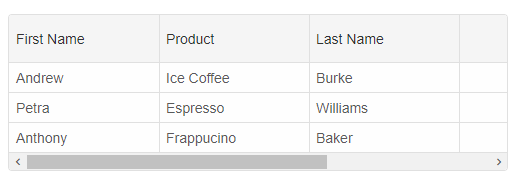
For AI tooling
Developer Quick Reference
Topic: grid-column-reorder Component: Grid Framework: Angular
Main methods: (none detected)
Common config keys: behavior, dataSource, paging, pager, columns, sorting, grouping, editing, selection, filtering
Implementation Notes
Compatibility: Angular 17+ (standalone) API access pattern: @ViewChild(...) + this.component.method()
Lifecycle guidance: Bind inputs declaratively and call imperative API through @ViewChild in/after ngAfterViewInit.
Common pitfalls:
- Using @ViewChild API too early (before view init).
- Omitting standalone imports for Smart modules in @Component.imports.
- Type mismatches between configuration fields and template bindings.
Validation checklist:
- Ensure module import exists in standalone component imports array.
- Use typed @ViewChild(..., { read: ComponentType }).
- Call imperative methods after view initialization.