



Grid for React
React version of this topic (compatible with React 19+). Keep the same configuration logic from JavaScript and pass it as component props.
What this topic covers: practical setup, the framework-specific API access pattern, and copy-adapt guidance for the examples in this page.
import React, { useMemo, useRef } from 'react';
import { Grid } from 'smart-webcomponents-react/grid';
import 'smart-webcomponents-react/source/styles/smart.default.css';

export default function App() {
  const componentRef = useRef(null);
  const componentProps = useMemo(() => ({
    // Copy this topic's JavaScript configuration here.
  }), []);

  return <Grid ref={componentRef} {...componentProps}></Grid>;
}
Use componentRef.current for API methods in this topic.
Grid Expanding Groups
Enabling Grouping
To enable the row grouping functionality, you need to use thegrouping Grid property.
grouping: {
	enabled: true
}
Expanding groups by using a condition
TheonGroupDefaultExpanded callback function can be used for expanding specific groups. For example, the following example shows how to
expand a group where the header label is equal to "Peppermint Mocha Twist"
grouping: {
	enabled: true,
	renderMode: 'basic',
	onGroupDefaultExpanded: (dataItem) => { return dataItem.label === "Peppermint Mocha Twist" },
	groupBar: {
		visible: true
	}
}
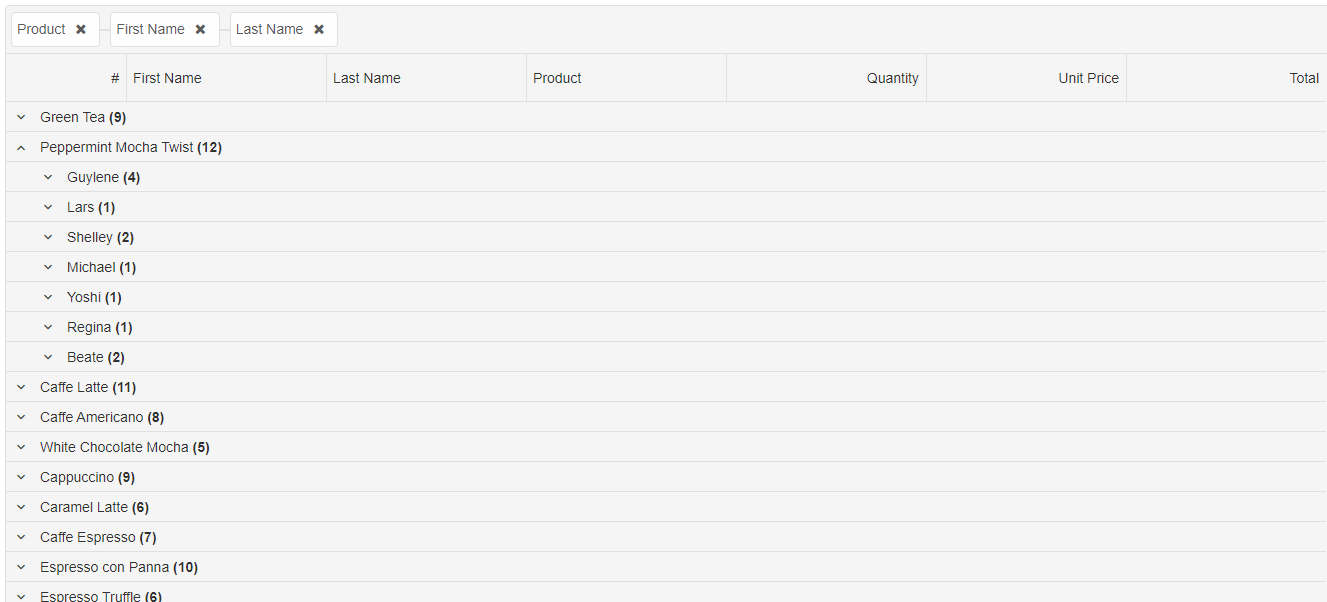
To expand a group by its index, you can use the
expandRow method and to collapse a group the collapseRow method. The methods also accept indexed path. For example the expandRow('0.0') expands the first group and its first sub group.
The
expandAllRows and collapseAllRows methods can be use to expand and collapse all groups. The expandRowsToGroupLevel method can be use to expand all groups to a specific level. For example: expandRowsToGroupLevel(1) expands all root groups. expandRowsToGroupLevel(2) expands all root groups and their sub groups.
Multiple Group columns rendering
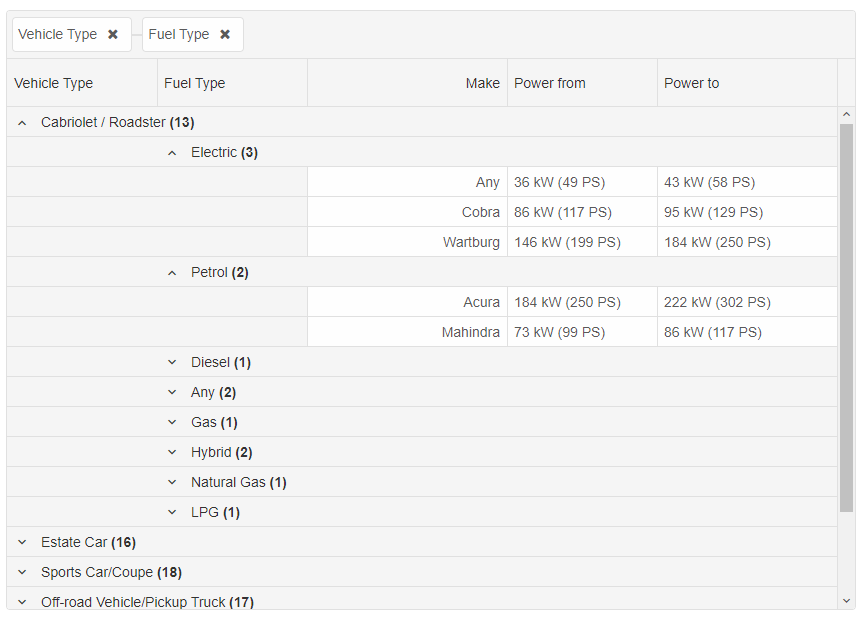
In this rendering mode, each row group is displayed in its grid column.
const gripOptions = {
	dataSource: new Smart.DataAdapter({
		dataSource: generateCarsData(500),
		groupBy: ['vehicleType', 'fuelType'],
		dataFields: [
			{ name: 'make', dataType: 'string' },
			{ name: 'fuelType', dataType: 'string' },
			{ name: 'vehicleType', dataType: 'string' },
			{ name: 'powerFrom', map: 'powerFrom.label', dataType: 'string' },
			{ name: 'powerTo', map: 'powerTo.label', dataType: 'string' }
		]
	}),
	selection: {
		enabled: true,
		allowCellSelection: true,
		mode: 'extended'
	},
	filtering: {
		enabled: true
	},
	sorting: {
		enabled: true
	},
	behavior: {
		allowColumnReorder: true
	},
	grouping: {
		enabled: true,
		renderMode: 'multipleColumns',
		groupBar: {
			visible: true
		},
		summaryRow: {
			inline: true
		}
	},
	columns: [
		{ label: 'Vehicle Type', dataField: 'vehicleType', width: 180 },
		{ label: 'Fuel Type', dataField: 'fuelType', width: 180 },
		{ label: 'Make', dataField: 'make', align: 'right', width: 200, cellsAlign: 'right', },
		{ label: 'Power from', dataField: 'powerFrom', width: 150 },
		{ label: 'Power to', dataField: 'powerTo' }
	]
}
Custom Rendering in Groups
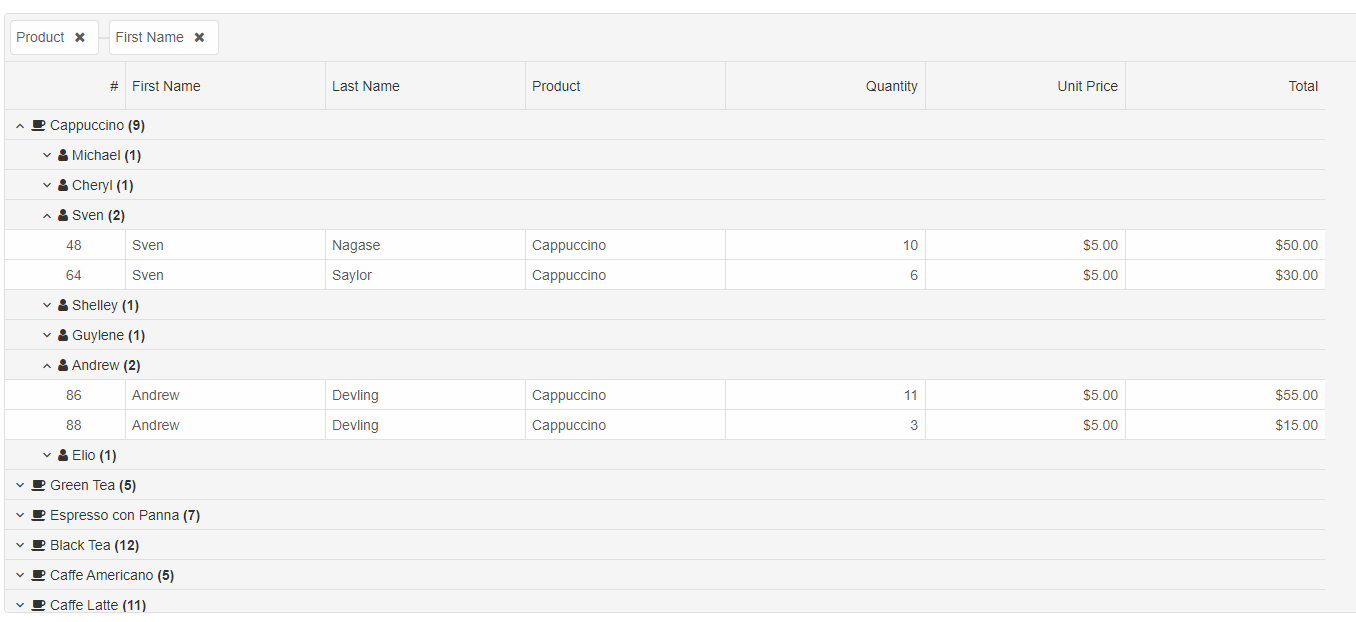
It is possible to customize the rendering with your own rendering function. To achieve that, you can use the 'grouping.formatFunction'. The formatFunction's settings object is a JSON object with 'row', 'column', 'cell', 'value' and 'template'. The passed value is the default value which will be rendered unless you set the 'template' property.
const componentProps = {
	dataSource: new Smart.DataAdapter({
		dataSource: generateData(100),
		groupBy: ['productName', 'firstName'],
		dataFields: [
			'id: number',
			'firstName: string',
			'lastName: string',
			'productName: string',
			'date: date',
			'quantity: number',
			'price: number',
			'total: number'
		]
	}),
	sorting: {
		enabled: true
	},
	filtering: {
		enabled: true
	},
	behavior: {
		allowColumnReorder: true
	},
	grouping: {
		enabled: true,
		renderMode: 'basic',
		onGroupDefaultExpanded: (dataItem) => { return dataItem.label === "Peppermint Mocha Twist" },
		formatFunction(settings) {
			if (settings.row.level === 0) {
				settings.template = `<div><span class="custom-icon fa-coffee"></span>${settings.value}</div>`
			}
			else if (settings.row.level === 1) {
				settings.template = `<div><span class="custom-icon fa-user"></span>${settings.value}</div>`
			}
		},
		groupBar: {
			visible: true
		}
	},
	onLoad(grid) {
	},
	columns: [
		{
			label: '#',
			width: 120,
			dataField: 'id',
			minWidth: 20,
			freeze: false
		},
		{
			label: 'First Name',
			dataField: 'firstName',
			width: 200,
		},
		{ label: 'Last Name', dataField: 'lastName', width: 200 },
		{ label: 'Product', dataField: 'productName', width: 200 },
		{
			label: 'Quantity',
			dataField: 'quantity',
			align: 'right',
			cellsAlign: 'right',
			width: 200,
		},
		{
			label: 'Unit Price',
			dataField: 'price',
			align: 'right',
			cellsAlign: 'right',
			cellsFormat: 'c2',
			width: 200,
		},
		{
			label: 'Total',
			dataField: 'total',
			align: 'right',
			cellsAlign: 'right',
			cellsFormat: 'c2',
			width: 200,
		}
	]
};
The .custom-icon CSS class is:
.custom-icon {
	margin-left: -8px;
	margin-right: 4px;
	font-family: 'FontAwesome';
}
You can refer FontAwesome from any source. For the sample purposes, you can try <link rel="stylesheet" href="https://cdnjs.cloudflare.com/ajax/libs/font-awesome/4.7.0/css/font-awesome.min.css">
For AI tooling
Developer Quick Reference
Topic: grid-expanding-groups Component: Grid Framework: React
Main methods: (none detected)
Common config keys: grouping, dataSource, selection, filtering, sorting, behavior, columns
Implementation Notes
Compatibility: React 19+ API access pattern: const componentRef = useRef(null) + componentRef.current.method()
Lifecycle guidance: Use useMemo for large config objects and call imperative API through componentRef.current after first render.
Common pitfalls:
- Recreating columns/dataSource objects on every render can reset component state.
- Calling API methods before ref is available causes runtime errors.
- Mixing controlled and imperative updates without sync can lead to stale UI.
Validation checklist:
- Keep config objects memoized when possible.
- Guard API calls with ref existence checks.
- Verify CSS theme import is present once per app.