



Grid for Angular
Angular standalone version of this topic (compatible with Angular 17+). Import both the Smart UI component and module in the standalone component.
What this topic covers: practical setup, the framework-specific API access pattern, and copy-adapt guidance for the examples in this page.
import { Component, ViewChild, ViewEncapsulation } from '@angular/core';
import { CommonModule } from '@angular/common';
import { RouterOutlet } from '@angular/router';
import { GridComponent, GridModule } from 'smart-webcomponents-angular/grid';

@Component({
  selector: 'app-root',
  standalone: true,
  imports: [CommonModule, GridModule, RouterOutlet],
  templateUrl: './app.component.html',
  styleUrls: ['./app.component.css'],
  encapsulation: ViewEncapsulation.None
})
export class AppComponent {
  @ViewChild('grid', { read: GridComponent, static: false }) grid!: GridComponent;
}
<!-- app.component.html -->
<smart-grid #grid></smart-grid>
Use this.grid for API methods in this topic.
Build your web apps using Smart UI
Smart.Grid - Scrolling
Grid Scrolling
When loading a large data set in Smart.Grid and the Grid's height is not enough to show all data, a scrollbar is shown.
There are four different scroll modes in the Gid which can be set via the property scrolling. The default mode is 'physical', which enables scrolling behavior similar to that of standard HTML elements. The other three modes are:
More information: property scrolling in the Grid API documentation.
Virtual scrolling
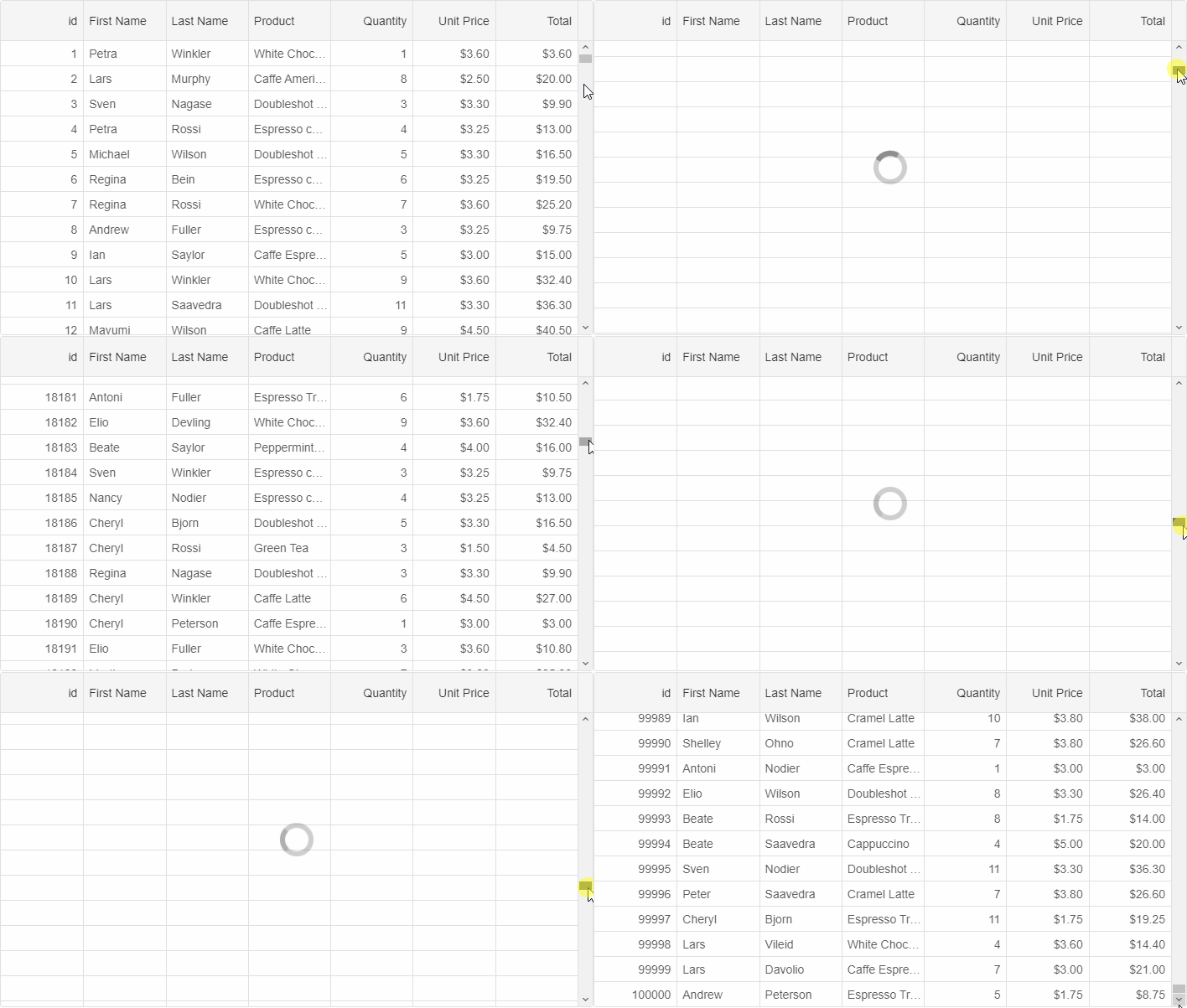
Virtual scrolling is enabled by setting scrolling to 'virtual'. In this case, data is loaded on demand while scrolling. This makes this scrolling mode suitable for large data sets that are dynamically retrieved from the server.
For virtual scrolling to work as expected, related properties of the Grid's data source also have to be set, e.g.:
dataSource: new Smart.DataAdapter({
            virtualDataSourceLength: 100000,
            virtualDataSourceCache: true,
            virtualDataSource: function(resultCallbackFunction, details) {
                setTimeout(function() {
                    resultCallbackFunction({
                        dataSource: GetData(details.first, details.last)
                    });
                }, 100);
            },
- virtualDataSourceLength - the number of records in the remote data source.
- virtualDataSourceCache - if set to true, data is cached and will not be reloaded if scrolled to again.
- virtualDataSource - a callback function which executes when a scroll position is reached and fetches only the portion of the remote data source that will be visible in the Grid.
Infinite scrolling
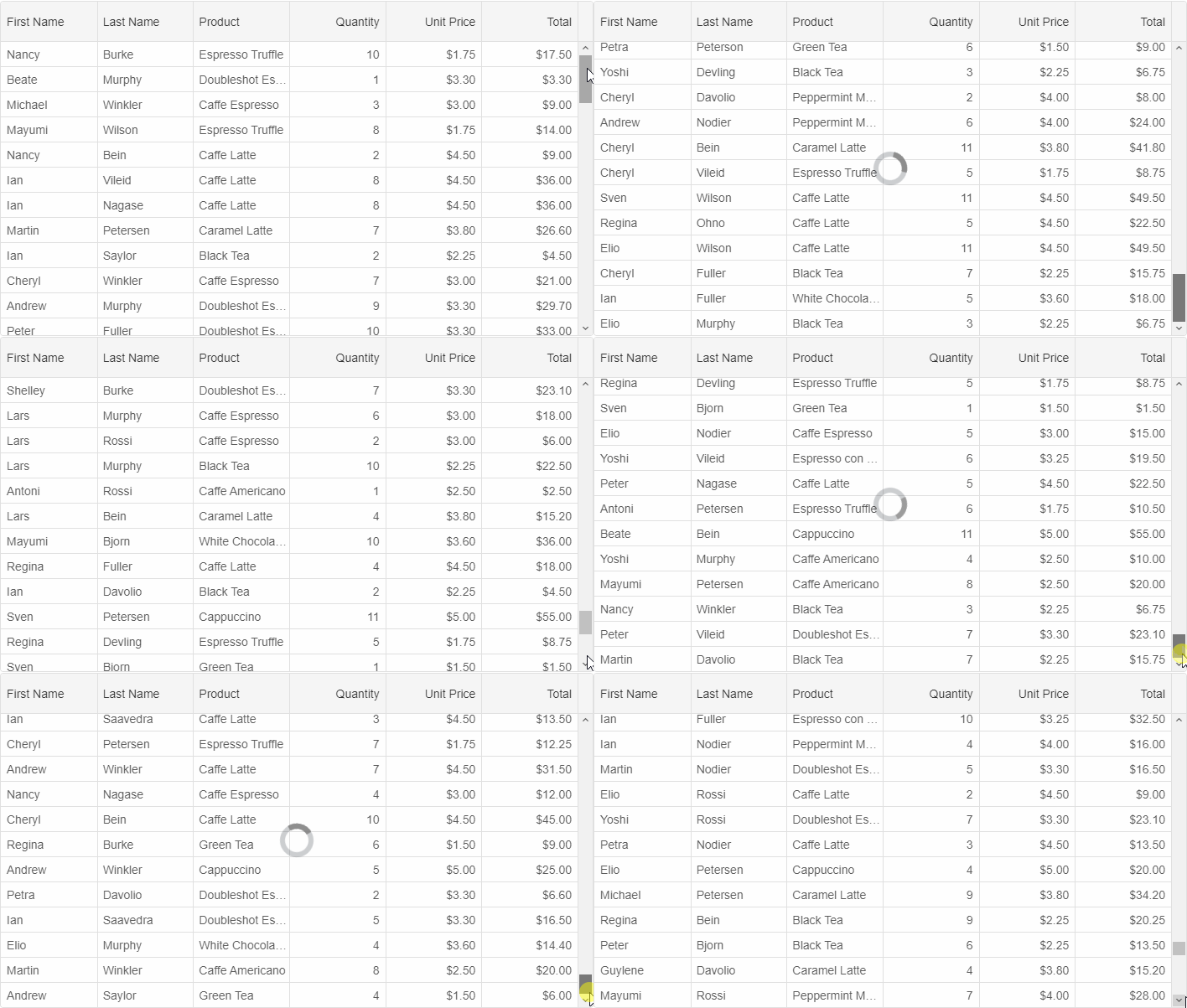
Infinite scrolling is enabled by setting scrolling to 'infinite'. In this case, data is loaded on demand the user has scrolled to the bottom of the Grid's view. This makes this scrolling mode suitable for large data sets that are dynamically retrieved from the server when the size of the data source is unknown.
For infinite scrolling to work as expected, the virtualDataSource property of the Grid's data source also has to be set.
Deferred scrolling
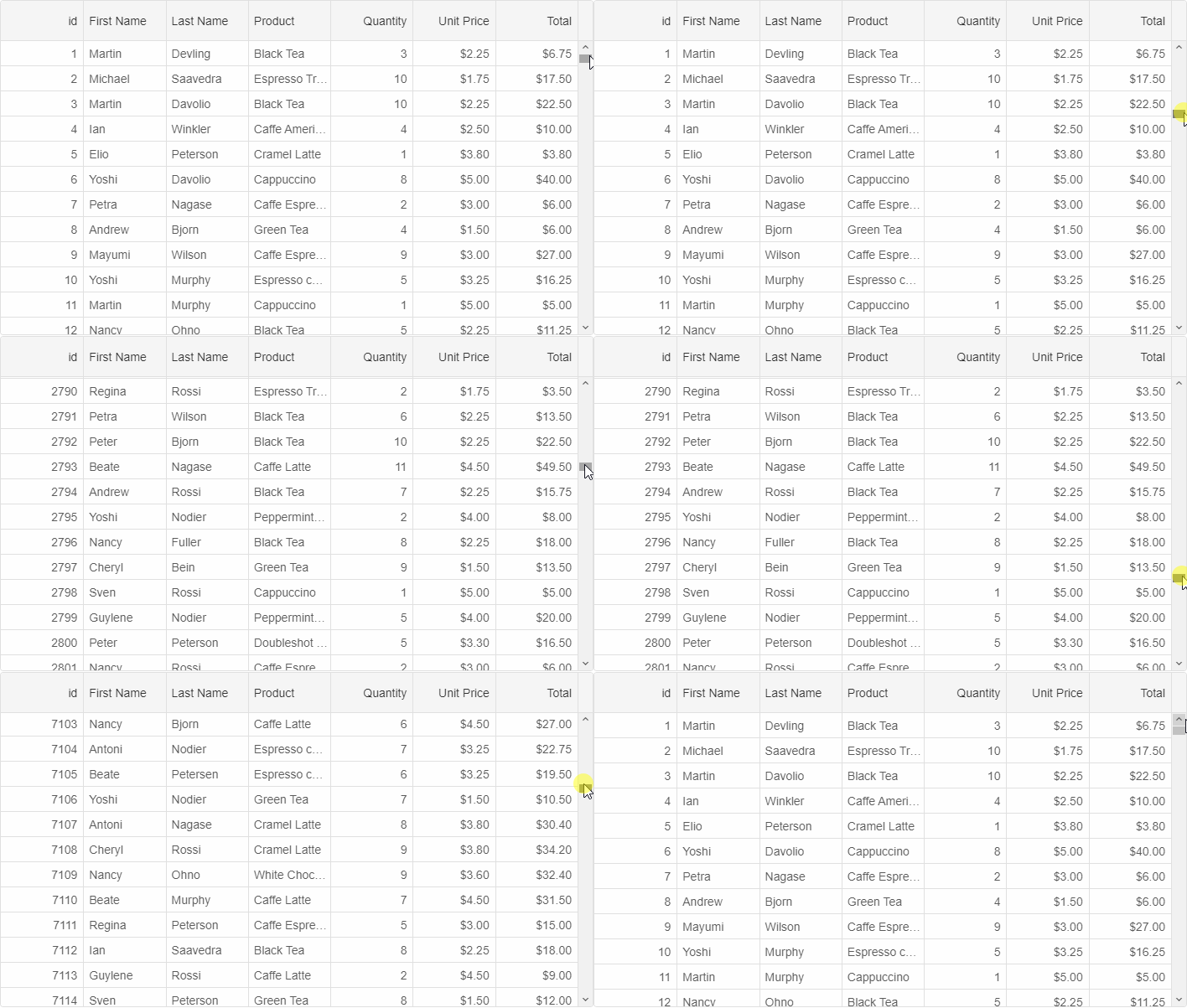
Deferred scrolling is enabled by setting scrolling to 'deferred'. In this mode, the Grid's view is updated when the scrollbar's thumb is released. The lack of reload while moving the thumb improves the performance significantly.
For AI tooling
Developer Quick Reference
Topic: grid-scrolling Component: Grid Framework: Angular
Main methods: (none detected)
Common config keys: dataSource, virtualDataSource
Implementation Notes
Compatibility: Angular 17+ (standalone) API access pattern: @ViewChild(...) + this.component.method()
Lifecycle guidance: Bind inputs declaratively and call imperative API through @ViewChild in/after ngAfterViewInit.
Common pitfalls:
- Using @ViewChild API too early (before view init).
- Omitting standalone imports for Smart modules in @Component.imports.
- Type mismatches between configuration fields and template bindings.
Validation checklist:
- Ensure module import exists in standalone component imports array.
- Use typed @ViewChild(..., { read: ComponentType }).
- Call imperative methods after view initialization.