



Kanban for Angular
Angular standalone version of this topic (compatible with Angular 17+). Import both the Smart UI component and module in the standalone component.
What this topic covers: Focuses on card editing and board customization patterns that align with real team workflows and governance rules.
import { Component, ViewChild, ViewEncapsulation } from '@angular/core';
import { CommonModule } from '@angular/common';
import { RouterOutlet } from '@angular/router';
import { KanbanComponent, KanbanModule } from 'smart-webcomponents-angular/kanban';

@Component({
  selector: 'app-root',
  standalone: true,
  imports: [CommonModule, KanbanModule, RouterOutlet],
  templateUrl: './app.component.html',
  styleUrls: ['./app.component.css'],
  encapsulation: ViewEncapsulation.None
})
export class AppComponent {
  @ViewChild('kanban', { read: KanbanComponent, static: false }) kanban!: KanbanComponent;
}
<!-- app.component.html -->
<smart-kanban #kanban></smart-kanban>
Use this.kanban for API methods in this topic.
Build your web apps using Smart UI
Smart.Kanban - configuration and usage
Kanban Editing and Customization
Smart.Kanban has multiple ways of customizing the kanban board and editing the data it displays.
Editing
To be able to edit a task, the Kanban's property editable has to be enabled. Moreover, if a current user is set, the user would have to have editing privileges (allowEdit not set to false).
Editing a task can be initiated the following ways:
- Double-clicking a task.
- Highlighting a task with the keyboard and pressing F2.
- Opening the Actions list and selecting "Edit"
These will open the edit dialog with editors for all task data fields, regardless of whether they are currently visualized in the task.
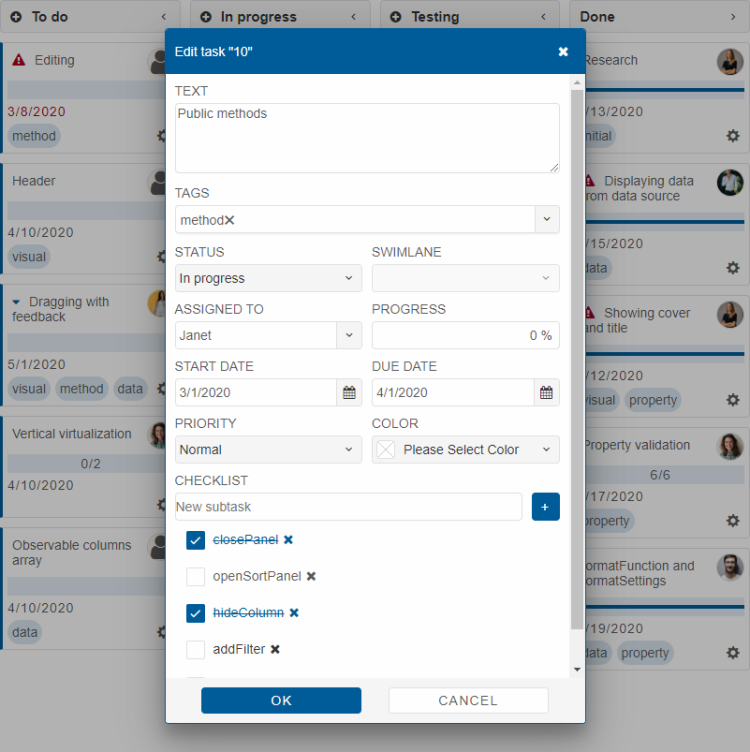
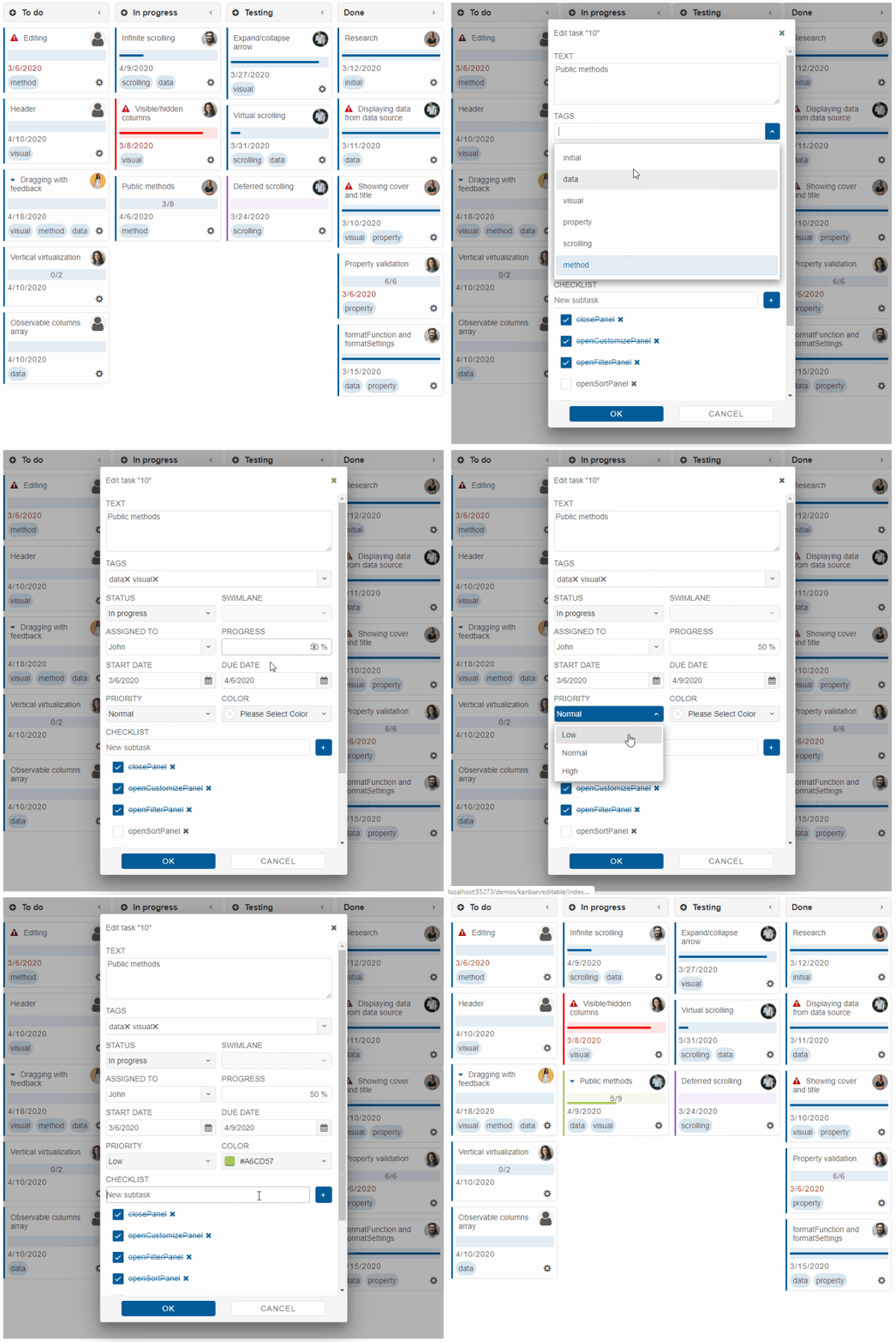
Once the necessary changes are made and the "OK" button is clicked, they are applied to the task.
Customization, Filtering, Sorting, and Searching Through the Header
When the Kanban header is enabled (headerPosition is set to 'top' or 'bottom'), four buttons for task customization become available:
-
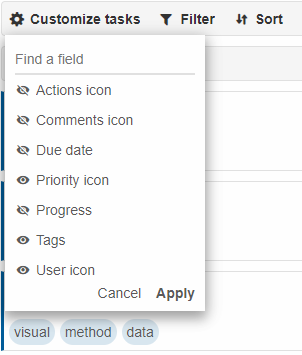
"Customize tasks" - each of the options sets a property related to task appearance:
- Actions icon - taskActions
- Comments icon - taskComments
- Due date - taskDue
- Priority icon - taskPriority
- Progress - taskProgress
- Tags - taskTags
- User icon - taskUserIcon
-
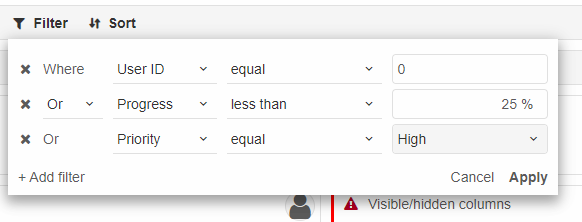
"Filter" - allows filtering the Kanban data by multiple data fields and criteria.
-
"Sort" - allows sorting the kanban data by multiple data fields.
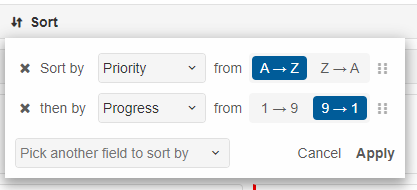
-
Search icon - allows searching and highlighting items that contain specified keywords in their text or tags.
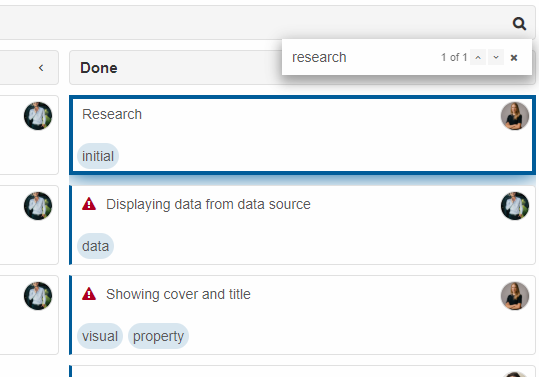
Task Templates
To display custom content in the task text part, a template can be applied by setting the textTemplate property, which can be set to a function or the id of a template element on the page (or a combination of both to achieve conditional effects).
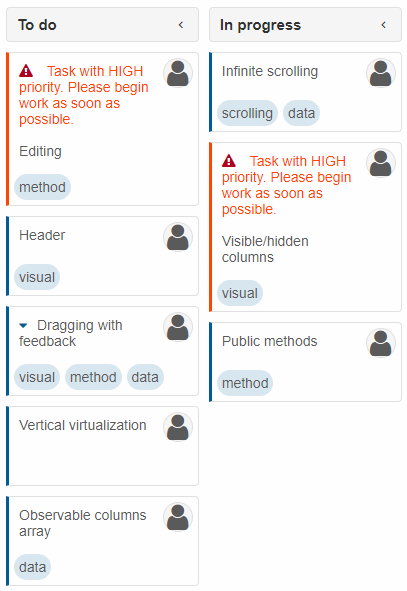
In the following example, tasks with high priority have additional labels in red in their text section.
    <script type="text/javascript">
        componentOptions = {
                    collapsible: true,
                    dataSource: getKanbanData(),
                    editable: true,
                    columns: [
                        { label: 'To do', dataField: 'toDo' },
                        { label: 'In progress', dataField: 'inProgress' },
                        { label: 'Testing', dataField: 'testing' },
                        { label: 'Done', dataField: 'done' }
                    ],
                    textTemplate: function (settings) {
                        const data = settings.data,
                            task = settings.task,
                            text = settings.text;

                        if (data.priority === 'high') {
                            settings.template = '#kanbanTemplateHighPriority'; // references a template element in the DOM
                        }
                    }
};
    </script>
</head>
<body>
    <smart-kanban id="kanban"></smart-kanban>

    <template id="kanbanTemplateHighPriority">
        <span class="attention">Task with HIGH priority. Please begin work as soon as possible.</span>
        <br />
        <br />
        {{text}}
    </template>
</body>
</html>
In the textTemplate callback function, the template of tasks with high priority is made to be the HTML template element with id kanbanTemplateHighPriority on the page. When applying this template, {{text}} is replaced with the task's text from the data source. The same applies to {{id}}.
For AI tooling
Developer Quick Reference
Topic: kanban-editing-customization Component: Kanban Framework: Angular
Main methods: (none detected)
Common config keys: appearance, dataSource, columns
Implementation Notes
Compatibility: Angular 17+ (standalone) API access pattern: @ViewChild(...) + this.component.method()
Lifecycle guidance: Bind inputs declaratively and call imperative API through @ViewChild in/after ngAfterViewInit.
Common pitfalls:
- Using @ViewChild API too early (before view init).
- Omitting standalone imports for Smart modules in @Component.imports.
- Type mismatches between configuration fields and template bindings.
Validation checklist:
- Ensure module import exists in standalone component imports array.
- Use typed @ViewChild(..., { read: ComponentType }).
- Call imperative methods after view initialization.