



Getting Started with ListMenu Web Component
Smart UI Web Components work with current evergreen browsers and Node 18+ for local tooling; pin package versions to match your project policy.
Smart UI is distributed as the smart-webcomponents NPM package. You can also use the full download from the Download page.
Quick start
- Install the package:
npm install smart-webcomponents
- Load the ListMenu module (ES module script):
<script type="module" src="node_modules/smart-webcomponents/source/modules/smart.listmenu.js"></script>
- Add the default stylesheet (prefer angular.json / bundler entry in app codebases; for plain HTML use a link):
<link rel="stylesheet" type="text/css" href="node_modules/smart-webcomponents/source/styles/smart.default.css" />
- Add markup in one of two ways - semantic custom element (the component tag is in your HTML) or a host
div(you mount programmatically with appendTo):
Semantic element (id matches the selector in Smart()):
<smart-list-menu id="listmenu"></smart-list-menu>
Host container (id matches appendTo on Smart.ListMenu):
<div id="listmenuContainer"></div>
- Initialize after the module loads: define a const listmenuOptions object, then either bind with Smart('#listmenu', ...) on the semantic tag or use new Smart.ListMenu({ ...listmenuOptions, appendTo: '#listmenuContainer' }) on the host
div:
<script type="module">
	import 'node_modules/smart-webcomponents/source/modules/smart.listmenu.js';

	const listmenuOptions = {checkboxes: true, checkable: true};

	// Option A - semantic <smart-list-menu> with id="listmenu"
	Smart('#listmenu', class {
		get properties() {
			return listmenuOptions;
		}
	});

	// Option B - host div id="listmenuContainer"
	// const listmenuInstance = new Smart.ListMenu({
	// 	...listmenuOptions,
	// 	appendTo: '#listmenuContainer'
	// });

	// Option C - constructor(selector, options), then append the returned element yourself
	// const myListMenu = new Smart.ListMenu('#listmenu', listmenuOptions);
	// document.body.appendChild(myListMenu);
</script>
Uncomment Option B when you use the host
div; use Option A when you use the semantic element. The Runtime cookbook also documents new Smart.ListMenu('#listmenu', listmenuOptions) with appendChild, and document.createElement('smart-list-menu') with .props or Object.assign (all are valid patterns; do not combine overlapping patterns for the same instance unless you intend multiple components). - Serve the folder over HTTP (or use your bundler dev server) and open the page.
Runtime cookbook
Alternative creation patterns and imperative APIs. These are all valid ways to create Smart UI components: semantic markup + Smart(); new Smart.ListMenu({ ...options, appendTo: '#...' }); new Smart.ListMenu('#listmenu', listmenuOptions) plus appendChild on the returned element; and document.createElement('smart-list-menu') then assigning options via .props or Object.assign on the element.
Constructor with a selector string and options, then append the returned element (for example const myListMenu = new Smart.ListMenu('#listmenu', listmenuOptions)):
	const listmenuOptions = {checkboxes: true, checkable: true};
	const myListMenu = new Smart.ListMenu('#listmenu', listmenuOptions);
	document.body.appendChild(myListMenu);
Create with document.createElement('smart-list-menu'), assign properties (same as any custom element), then append:
	const listmenuOptions = {checkboxes: true, checkable: true};
	const listmenu = document.createElement('smart-list-menu');
	Object.assign(listmenu, listmenuOptions);
	document.body.appendChild(listmenu);
Host on a div with appendTo (import the module, then instantiate when the document is ready; the container id must match appendTo):
	import "../../source/modules/smart.listmenu.js";

	document.readyState === 'complete' ? init() : window.addEventListener('load', init);

	function init() {
		const listmenuOptions = {checkboxes: true, checkable: true};
		const listmenu = new Smart.ListMenu({
			...listmenuOptions,
			appendTo: '#listmenuContainer'
		});
	}
Appearance
The list menu structure contains smart-menu-item and smart-menu-items-group elements.
The following attributes are available for these custom elements.
- label - the label to be displayed in the list menu
- separator - if present, a visual separator (horizontal line) is added after the item
- disabled - disables the selection of an item
The following attributes are only available for smart-menu-item.
- value - a custom value that is not displayed, but is passed as an argument to the itemClick event (called when an item is chosen).
- shortcut - a helper text/icon that can represent a keyboard shortcut that activates the item. The shortcut is not displayed for top-level items in horizontal and vertical modes.
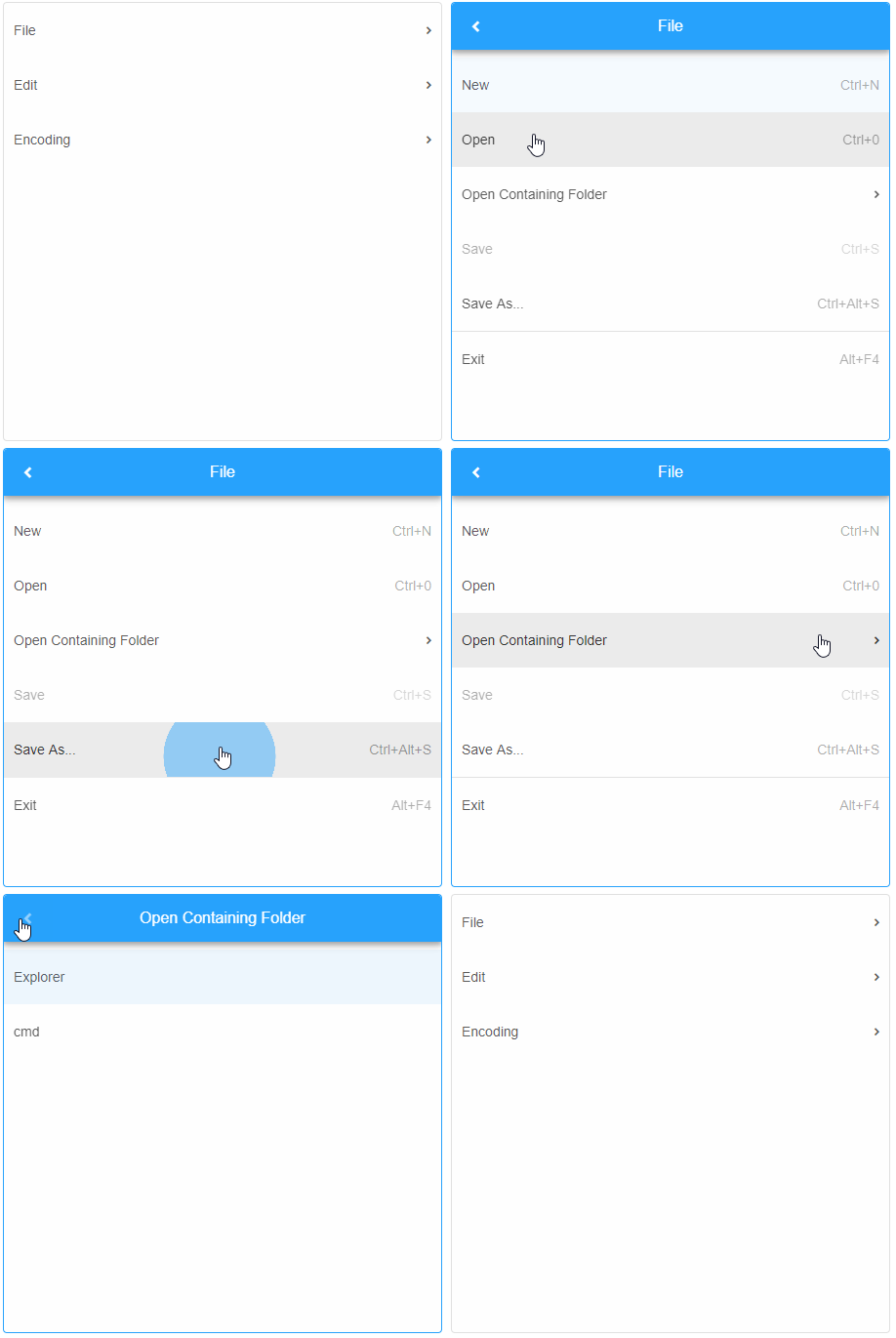
Animated list menu could be achieved when animation class is added .
<smart-list-menu class="animation"></smart-list-menu>
Demo
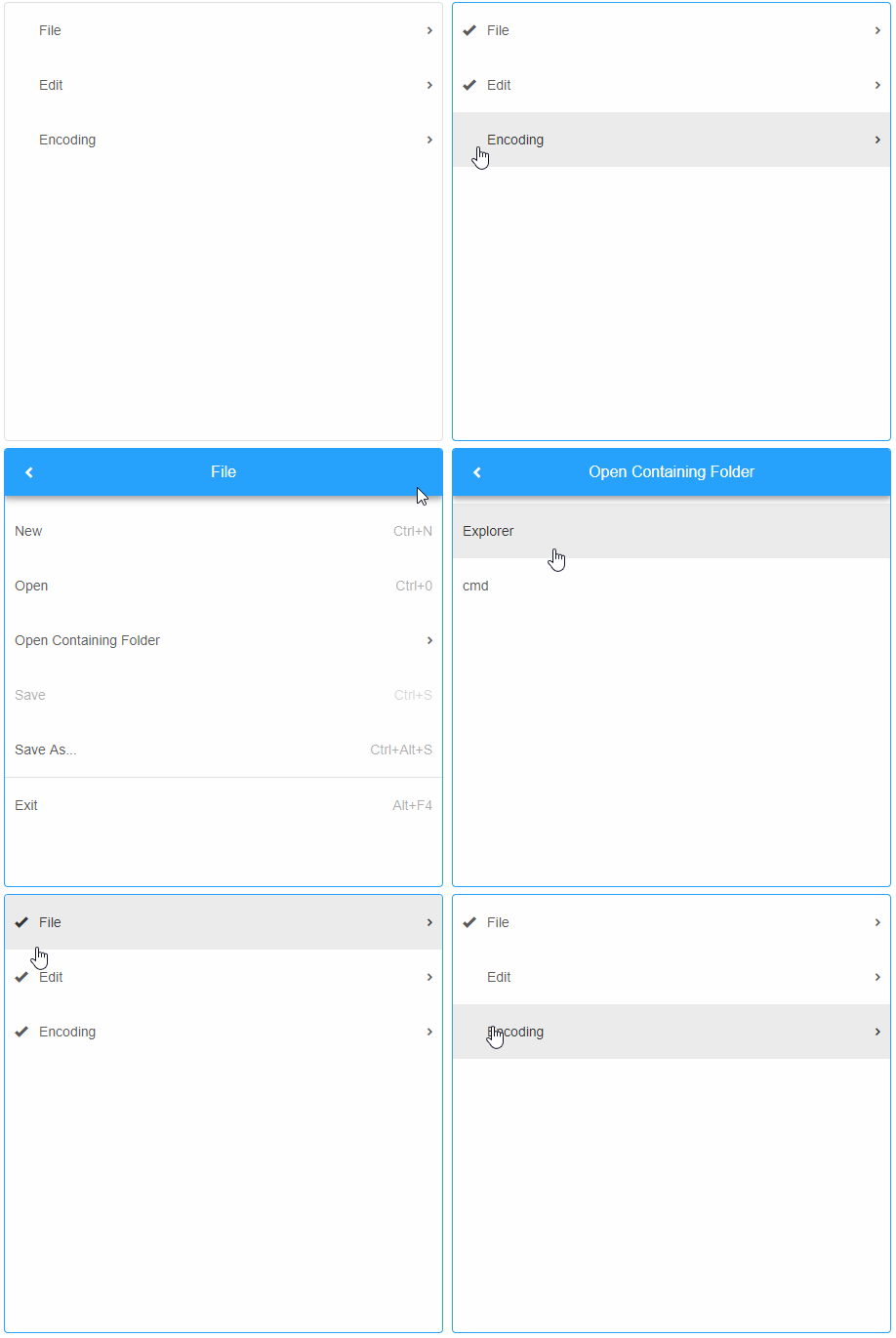
The list menu and its items can have checkbox or radio button selection. To allow this the user has to set element's checkboxes property to true and checkable for the particular items or group.
<smart-list-menu checkboxes checkable></smart-list-menu>
Demo
Data Binding
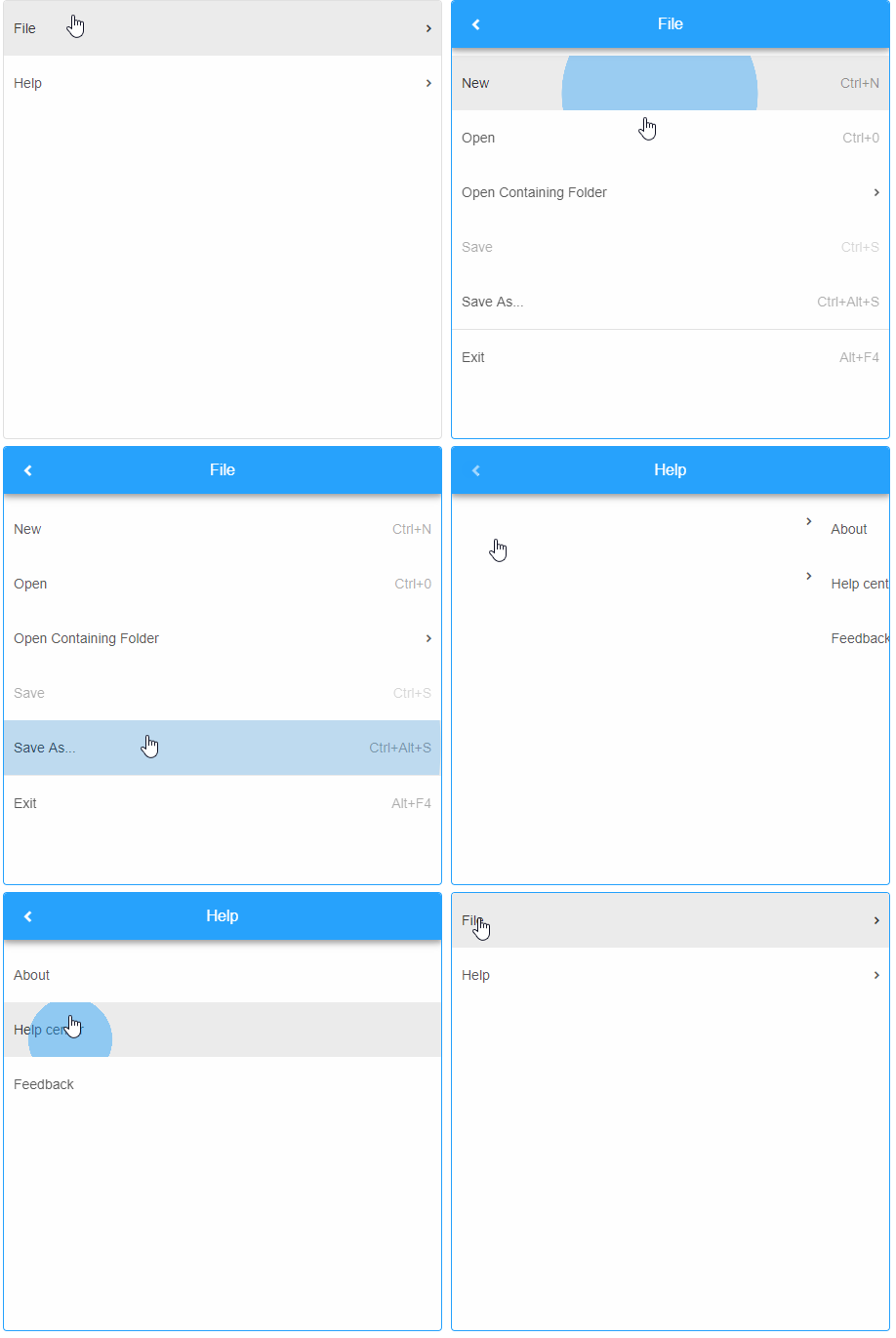
To initialize a populated Smart.ListMenu custom element, insert the required inner structure consisting of the auxiliary custom elements smart-menu-item and smart-menu-items-group, e.g.:
<!DOCTYPE html>
<html lang="en">
<head>
 <link rel="stylesheet" href="../../source/styles/smart.default.css" type="text/css" />
 <script type="text/javascript" src="../../source/modules/smart.listmenu.js"></script>
</head>
<body>
 <smart-list-menu>
    <smart-menu-items-group>
        File
        <smart-menu-item shortcut="Ctrl+N">New</smart-menu-item>
        <smart-menu-item shortcut="Ctrl+0">Open</smart-menu-item>
        <smart-menu-items-group>
            Open Containing Folder
            <smart-menu-item>Explorer</smart-menu-item>
            <smart-menu-item>cmd</smart-menu-item>
        </smart-menu-items-group>
        <smart-menu-item shortcut="Ctrl+S" disabled>Save</smart-menu-item>
        <smart-menu-item shortcut="Ctrl+Alt+S" separator>Save As...</smart-menu-item>
        <smart-menu-item shortcut="Alt+F4">Exit</smart-menu-item>
    </smart-menu-items-group>
    <smart-menu-items-group>
        Help
        <smart-menu-item>About</smart-menu-item>
        <smart-menu-item>Help center</smart-menu-item>
        <smart-menu-item>Feedback</smart-menu-item>
    </smart-menu-items-group>
 </smart-list-menu>
</body>
</html>
Demo
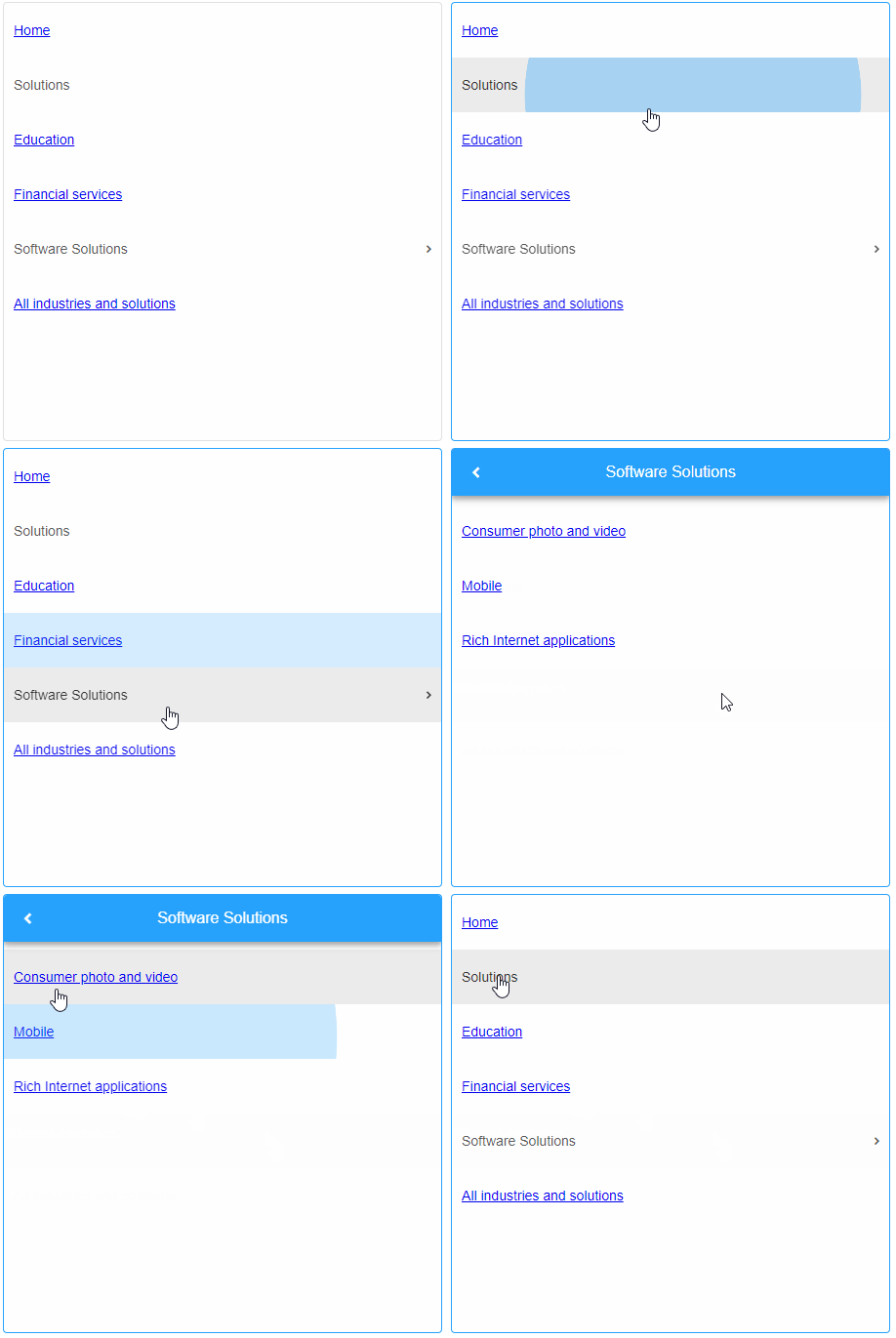
Populating from UL :
<!DOCTYPE html>
<html lang="en">
<head>
 <link rel="stylesheet" href="../../source/styles/smart.default.css" type="text/css" />
 <script type="text/javascript" src="../../source/modules/smart.listmenu.js"></script>
</head>
<body>
 <smart-list-menu id="menu">
    <ul>
        <li><a href="#Home">Home</a></li>
        <li>
                Solutions
                    <li><a href="#Education">Education</a></li>
                    <li><a href="#Financial">Financial services</a></li>
                    <li>
                        Software Solutions
                        <ul>
                            <li><a href="#ConsumerPhoto">Consumer photo and video</a></li>
                            <li><a href="#Mobile">Mobile</a></li>
                            <li><a href="#RIA">Rich Internet applications</a></li>
                        </ul>
                    </li>
                <li><a href="#">All industries and solutions</a></li>
                </ul>
        </li>
        <li>
                Products
                <ul>
                    <li><a href="#PCProducts">PC products</a></li>
                    <li><a href="#MobileProducts">Mobile products</a></li>
                    <li><a href="#AllProducts">All products</a></li>
                </ul>
        </li>
        <li>
                Support
                <ul>
                    <li><a href="#SupportHome">Support home</a></li>
                    <li><a href="#CustomerService">Customer Service</a></li>
                    <li><a href="#KB">Knowledge base</a></li>
                    <li><a href="#Books">Books</a></li>
                </ul>
        </li>
    </ul>
 </smart-list-menu>
</body>
</html>
Demo
Populating from dataSource.
<!DOCTYPE html>
<html lang="en">
<head>
 <link rel="stylesheet" href="../../source/styles/smart.default.css" type="text/css" />
 <script type="text/javascript" src="../../source/modules/smart.listmenu.js"></script>

 <script>
 window.onload = function () {
     document.querySelector('smart-list-menu').dataSource = [
                {
                    label: 'File',
                    items: [
                        {
                            label: 'New',
                            shortcut: 'Ctrl+N'
                        },
                        {
                            label: 'Open',
                            shortcut: 'Ctrl+0'
                        },
                        {
                            label: 'Open Containing Folder',
                            items: [
                                {
                                    label: 'Explorer'
                                },
                                {
                                    label: 'cmd'
                                }
                            ]
                        },
                        {
                            label: 'Save',
                            shortcut: 'Ctrl+S',
                            disabled: true,
                            separator: true
                        },
                        {
                            label: 'Exit',
                            shortcut: 'Alt+F4'
                        }
                    ]
                }
            ];
     }
 </script>
</head>
<body>
    <smart-list-menu></smart-list-menu>
</body>
</html>
Demo
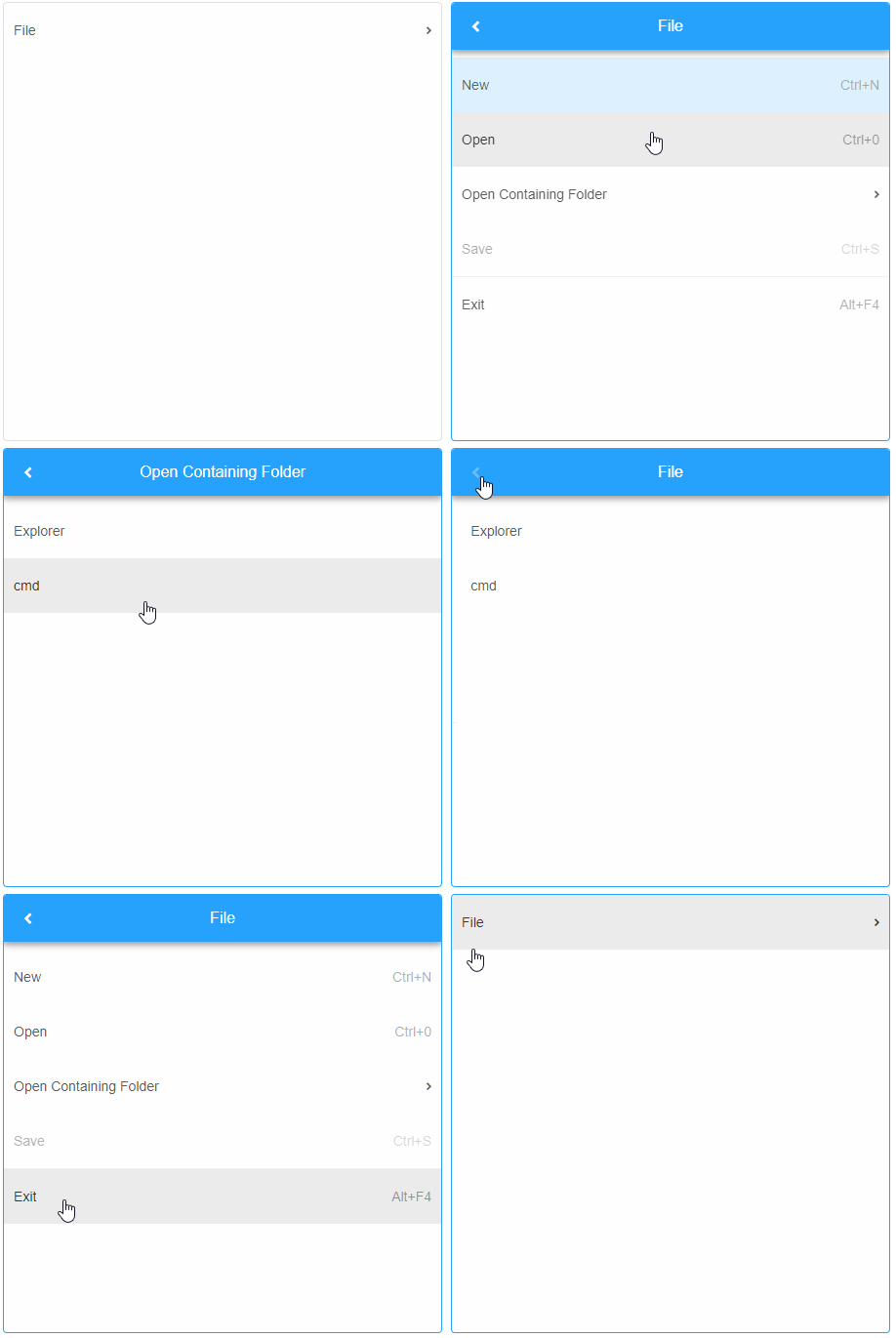
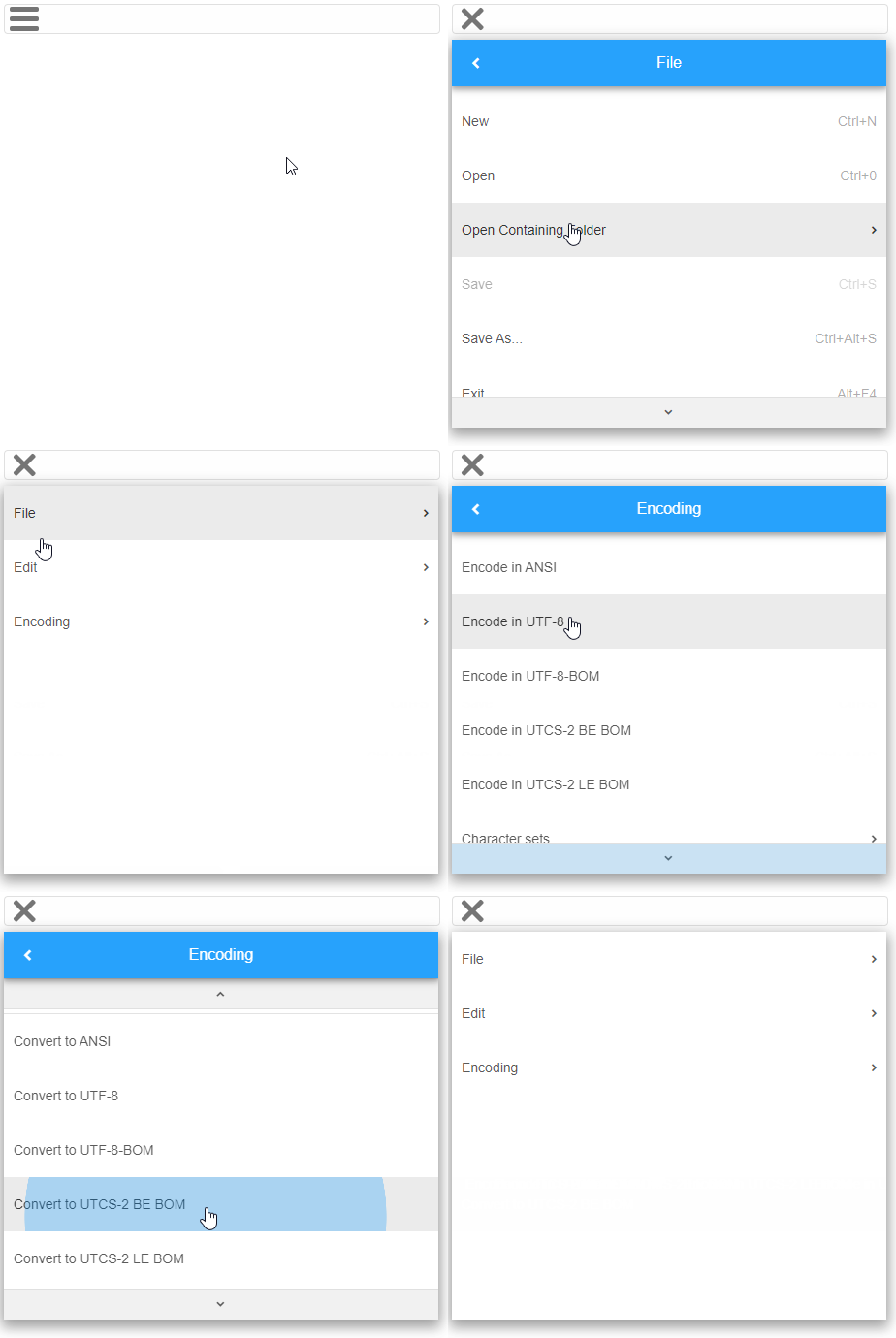
Behavior
Smart.ListMenu could be minimized/maximized. The element has minimizeWidth property. It determines the minimum width of the ListMenu at which it will switch from normal to minimized mode. If set to null, the ListMenu does not minimize automatically.
<!DOCTYPE html>
<html lang="en">
<head>
  <link rel="stylesheet" href="../../source/styles/smart.default.css" type="text/css" />
 <script type="text/javascript" src="../../source/modules/smart.listmenu.js"></script>

 <script>
 window.onload = function () {
     document.querySelector('smart-list-menu').minimizeWidth = 1000;
 }
 </script>
</head>
<body>
    <smart-list-menu></smart-list-menu>
</body>
</html>
Demo
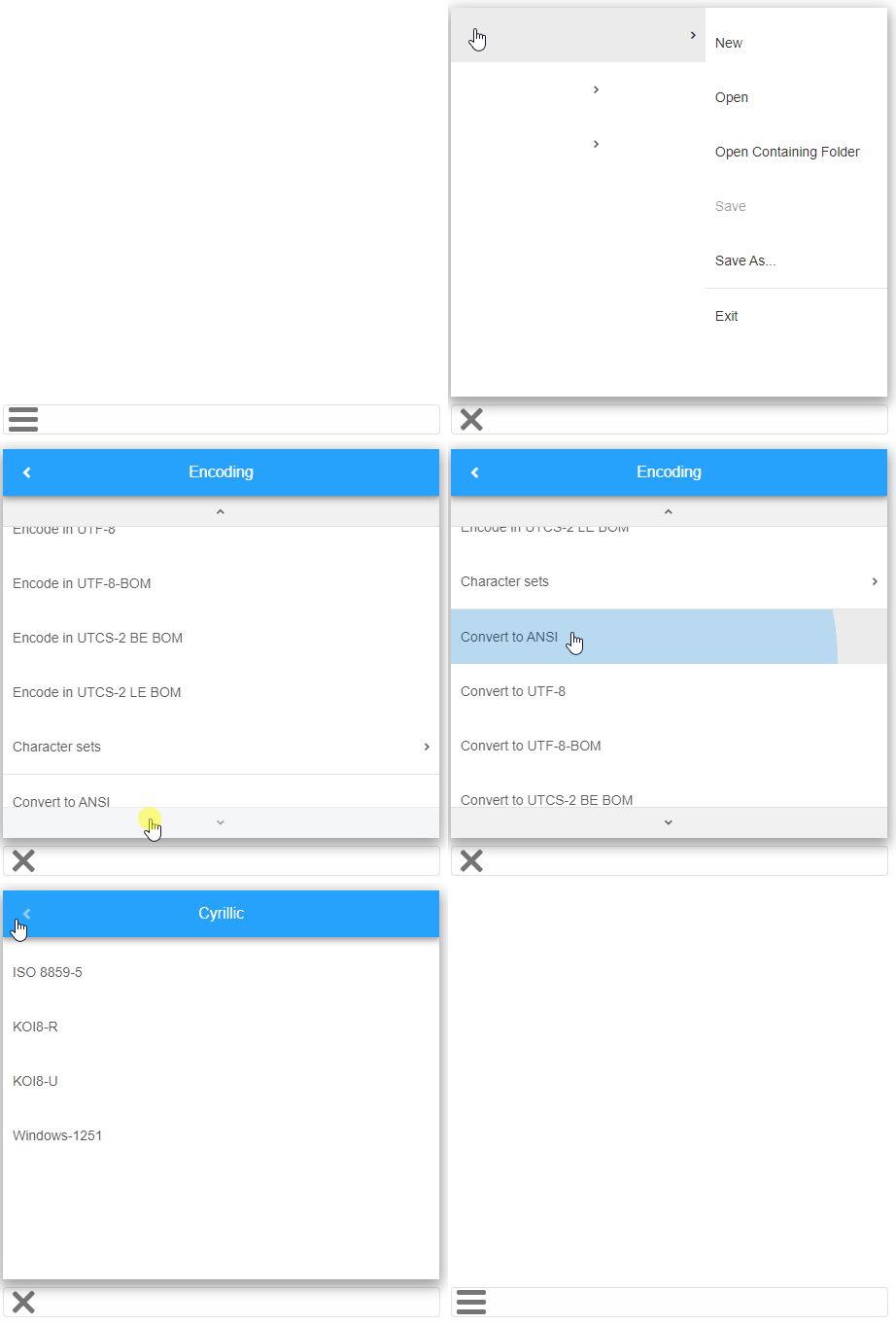
User can switch between few drop down positions. The value of dropDownPosition could be:
- top-left
- top-right
- bottom-left
- bottom-right
- auto
<smart-menu minimize-width="1000" drop-down-position="top-right"></smart-menu>
Demo
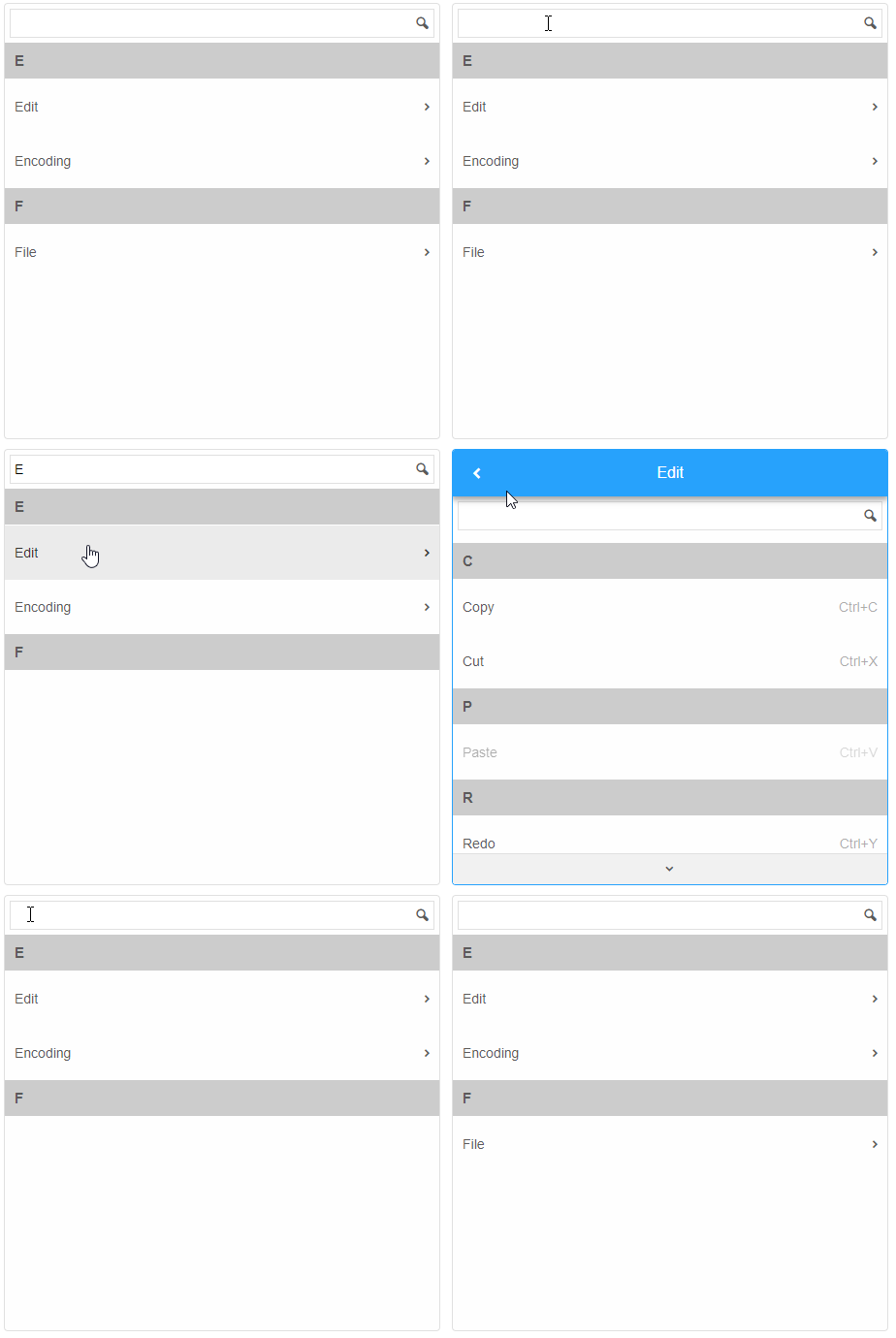
The element supports filtering and grouping. The following filter modes are allowed:
- contains
- containsIgnoreCase
- doesNotContain
- doesNotContainIgnoreCase
- equals
- equalsIgnoreCase
- startsWith
- startsWithIgnoreCase
- endsWith
- endsWithIgnoreCase
<smart-list-menu filterable filter-mode="startsWith" filter-mode grouped></smart-list-menu>
Demo
Manipulating the content
The element offers the following methods:
-
addItem - adds new item to the list menu.
<script> window.onload = function () { var listMenu = document.querySelector('smart-list-menu'); listMenu.addItem(document.createElement('smart-menu-item'), '0'); } </script> -
back - navigates to the previous page (smart-menu-items-group).
<script> window.onload = function () { var listMenu = document.querySelector('smart-list-menu'); listMenu.back(); } </script> -
changePage - navigates to a particular page (smart-menu-items-group).
<script> window.onload = function () { var listMenu = document.querySelector('smart-list-menu'); listMenu.changePage(0.0); } </script> -
checkItem - checks an item.
<script> window.onload = function () { var listMenu = document.querySelector('smart-list-menu'); listMenu.checkItem(0.0); } </script> -
getItem - gets an item by its id or numeric path.
<script> window.onload = function () { var listMenu = document.querySelector('smart-list-menu'); listMenu.getItem(0.0); } </script> -
maximize - maximizes the list menu.
<script> window.onload = function () { var listMenu = document.querySelector('smart-list-menu'); listMenu.maximize(); } </script> -
minimize - minimizes the list menu.
<script> window.onload = function () { var listMenu = document.querySelector('smart-list-menu'); listMenu.minimize(); } </script> -
removeItem - removes an item.
<script> window.onload = function () { var listMenu = document.querySelector('smart-list-menu'); listMenu.removeItem(0.0); } </script> -
setFocusable - sets whether the element can be focused or not.
<script> window.onload = function () { var listMenu = document.querySelector('smart-list-menu'); listMenu.setFocusable(false); } </script> -
uncheckItem - unchecks an item. The id or the path to the item is passed in as the method argument.
 <script>
     window.onload = function () {
         var listMenu = document.querySelector('smart-list-menu');
         listMenu.uncheckItem('0.0');
     }
 </script>
Keyboard Support
| Key | Action |
|---|---|
| Tab | The list menu receives focus by tabbing into it. |
| Arrow Up / Arrow Down | Navigates to the previous/next item in the current view. |
| Arrow Left / Arrow Right | Navigates to the previous/next view. |
| Home | Navigates to the "back" button or the first enabled item (for the top-level view). |
| End | Navigates to the last enabled item in the current view. |
| Enter | Selects an item/opens an items group (new view). If the list menu is minimized and the minimized pop-up is closed, opens the pop-up. |
| Escape | Navigates to the previous view. If the top-level view is reached and the list menu is minimized, closes the minimized pop-up. |
| Space | Toggles an item's checked state. |
Append to the DOM:
const container = document.getElementById('listmenu-container');
container.appendChild(listmenu);
Remove from the DOM:
listmenu.remove();
Set a property:
listmenu.disabled = true;
listmenu.theme = 'dark';
Get a property value:
const isDisabled = listmenu.disabled;
const currentTheme = listmenu.theme;
Invoke a method:
listmenu.refresh();
listmenu.focus();
Add event listener:
listmenu.addEventListener('itemClick', (event) => {
    console.log('itemClick triggered:', event.detail.item);
});
Remove event listener:
const handleListMenuEvent = (event) => {
    console.log('itemClick triggered:', event.detail.item);
};

listmenu.addEventListener('itemClick', handleListMenuEvent);
listmenu.removeEventListener('itemClick', handleListMenuEvent);
Accessibility
The ListMenu component follows WAI-ARIA best practices:
- Keyboard navigation - Tab, Arrow keys, Enter, and Escape are supported
- ARIA roles - Appropriate roles and labels are applied automatically
- Focus management - Visible focus indicators for keyboard users
- Screen readers - State changes are announced to assistive technology
- High contrast - Supports Windows High Contrast Mode and forced colors
For custom labeling, set aria-label or aria-labelledby attributes on the component.
Supported stacks: Smart UI targets Angular 17+, React 18+, Vue 3+, Node 18 LTS, and evergreen browsers; pin exact package versions to your org policy.