



Getting Started with QueryBuilder Web Component
Smart UI Web Components work with current evergreen browsers and Node 18+ for local tooling; pin package versions to match your project policy.
Smart UI is distributed as the smart-webcomponents NPM package. You can also use the full download from the Download page.
Quick start
- Install the package:
npm install smart-webcomponents
- Load the QueryBuilder module (ES module script):
<script type="module" src="node_modules/smart-webcomponents/source/modules/smart.querybuilder.js"></script>
- Add the default stylesheet (prefer angular.json / bundler entry in app codebases; for plain HTML use a link):
<link rel="stylesheet" type="text/css" href="node_modules/smart-webcomponents/source/styles/smart.default.css" />
- Add markup in one of two ways - semantic custom element (the component tag is in your HTML) or a host
div(you mount programmatically with appendTo):
Semantic element (id matches the selector in Smart()):
<smart-query-builder id="querybuilder"></smart-query-builder>
Host container (id matches appendTo on Smart.QueryBuilder):
<div id="querybuilderContainer"></div>
- Initialize after the module loads: define a const querybuilderOptions object, then either bind with Smart('#querybuilder', ...) on the semantic tag or use new Smart.QueryBuilder({ ...querybuilderOptions, appendTo: '#querybuilderContainer' }) on the host
div:
<script type="module">
	import 'node_modules/smart-webcomponents/source/modules/smart.querybuilder.js';

	const querybuilderOptions = {
				allowDrag: true,
				fields: [
					{ label: 'Id', dataField: 'id', dataType: 'number' },
					{ label: 'Product', dataField: 'productName', dataType: 'string' },
					{ label: 'Unit Price', dataField: 'price', dataType: 'number' },
					{ label: 'Purchased', dataField: 'purchased', dataType: 'datetime' },
					{ label: 'Available', dataField: 'available', dataType: 'boolean' }
				]
			};

	// Option A - semantic <smart-query-builder> with id="querybuilder"
	Smart('#querybuilder', class {
		get properties() {
			return querybuilderOptions;
		}
	});

	// Option B - host div id="querybuilderContainer"
	// const querybuilderInstance = new Smart.QueryBuilder({
	// 	...querybuilderOptions,
	// 	appendTo: '#querybuilderContainer'
	// });

	// Option C - constructor(selector, options), then append the returned element yourself
	// const myQueryBuilder = new Smart.QueryBuilder('#querybuilder', querybuilderOptions);
	// document.body.appendChild(myQueryBuilder);
</script>
Uncomment Option B when you use the host
div; use Option A when you use the semantic element. The Runtime cookbook also documents new Smart.QueryBuilder('#querybuilder', querybuilderOptions) with appendChild, and document.createElement('smart-query-builder') with .props or Object.assign (all are valid patterns; do not combine overlapping patterns for the same instance unless you intend multiple components). - Serve the folder over HTTP (or use your bundler dev server) and open the page.
Runtime cookbook
Alternative creation patterns and imperative APIs. These are all valid ways to create Smart UI components: semantic markup + Smart(); new Smart.QueryBuilder({ ...options, appendTo: '#...' }); new Smart.QueryBuilder('#querybuilder', querybuilderOptions) plus appendChild on the returned element; and document.createElement('smart-query-builder') then assigning options via .props or Object.assign on the element.
Constructor with a selector string and options, then append the returned element (for example const myQueryBuilder = new Smart.QueryBuilder('#querybuilder', querybuilderOptions)):
	const querybuilderOptions = {
				allowDrag: true,
				fields: [
					{ label: 'Id', dataField: 'id', dataType: 'number' },
					{ label: 'Product', dataField: 'productName', dataType: 'string' },
					{ label: 'Unit Price', dataField: 'price', dataType: 'number' },
					{ label: 'Purchased', dataField: 'purchased', dataType: 'datetime' },
					{ label: 'Available', dataField: 'available', dataType: 'boolean' }
				]
			};
	const myQueryBuilder = new Smart.QueryBuilder('#querybuilder', querybuilderOptions);
	document.body.appendChild(myQueryBuilder);
Create with document.createElement('smart-query-builder'), assign properties (same as any custom element), then append:
	const querybuilderOptions = {
				allowDrag: true,
				fields: [
					{ label: 'Id', dataField: 'id', dataType: 'number' },
					{ label: 'Product', dataField: 'productName', dataType: 'string' },
					{ label: 'Unit Price', dataField: 'price', dataType: 'number' },
					{ label: 'Purchased', dataField: 'purchased', dataType: 'datetime' },
					{ label: 'Available', dataField: 'available', dataType: 'boolean' }
				]
			};
	const querybuilder = document.createElement('smart-query-builder');
	Object.assign(querybuilder, querybuilderOptions);
	document.body.appendChild(querybuilder);
Host on a div with appendTo (import the module, then instantiate when the document is ready; the container id must match appendTo):
	import "../../source/modules/smart.querybuilder.js";

	document.readyState === 'complete' ? init() : window.addEventListener('load', init);

	function init() {
		const querybuilderOptions = {
				allowDrag: true,
				fields: [
					{ label: 'Id', dataField: 'id', dataType: 'number' },
					{ label: 'Product', dataField: 'productName', dataType: 'string' },
					{ label: 'Unit Price', dataField: 'price', dataType: 'number' },
					{ label: 'Purchased', dataField: 'purchased', dataType: 'datetime' },
					{ label: 'Available', dataField: 'available', dataType: 'boolean' }
				]
			};
		const querybuilder = new Smart.QueryBuilder({
			...querybuilderOptions,
			appendTo: '#querybuilderContainer'
		});
	}
Append to the DOM:
const container = document.getElementById('querybuilder-container');
container.appendChild(querybuilder);
Remove from the DOM:
querybuilder.remove();
Set a property:
querybuilder.disabled = true;
querybuilder.theme = 'dark';
Get a property value:
const isDisabled = querybuilder.disabled;
const currentTheme = querybuilder.theme;
Invoke a method:
querybuilder.refresh();
querybuilder.focus();
Add event listener:
querybuilder.addEventListener('change', (event) => {
    console.log('change triggered:', event.detail.item);
});
Remove event listener:
const handleQueryBuilderEvent = (event) => {
    console.log('change triggered:', event.detail.item);
};

querybuilder.addEventListener('change', handleQueryBuilderEvent);
querybuilder.removeEventListener('change', handleQueryBuilderEvent);
Common Use Cases
-
Get filter expression
Retrieve the current query as a filter
const filter = queryBuilder.value;
-
Set initial conditions
Pre-populate the query builder
queryBuilder.value = [
  ['productName', 'contains', 'Tea'],
  'and',
  ['price', '>', 5]
];
Building a Filter Query
A complex filter query can be built by adding and manipulating conditions in the QueryBuilder's UI. In the element's initialization code, an array of fields to choose from is passed.
<!DOCTYPE html>
<html>
<head>
    <link rel="stylesheet" type="text/css" href="./../../source/styles/smart.default.css" />
    <script type="text/javascript" src="../../source/smart.element.js"></script>
    <script type="text/javascript" src="../../source/smart.button.js"></script>
    <script type="text/javascript" src="../../source/smart.scrollbar.js"></script>
    <script type="text/javascript" src="../../source/smart.menu.js"></script>
    <script type="text/javascript" src="../../source/smart.input.js"></script>
    <script type="text/javascript" src="../../source/smart.complex.js"></script>
    <script type="text/javascript" src="../../source/smart.math.js"></script>
    <script type="text/javascript" src="../../source/smart.numeric.js"></script>
    <script type="text/javascript" src="../../source/smart.numerictextbox.js"></script>
    <script type="text/javascript" src="../../source/smart.calendar.js"></script>
    <script type="text/javascript" src="../../source/smart.date.js"></script>
    <script type="text/javascript" src="../../source/smart.draw.js"></script>
    <script type="text/javascript" src="../../source/smart.dropdownlist.js"></script>
    <script type="text/javascript" src="../../source/smart.listbox.js"></script>
    <script type="text/javascript" src="../../source/smart.timepicker.js"></script>
    <script type="text/javascript" src="../../source/smart.tooltip.js"></script>
    <script type="text/javascript" src="../../source/smart.datetimepicker.js"></script>
    <script type="text/javascript" src="../../source/smart.checkbox.js"></script>
    <script type="text/javascript" src="../../source/smart.filterbuilder.js"></script>
    <script>
        Smart('#queryBuilder', class {
            get properties() {
                return {
                    allowDrag: true,
                    fields: [
                        { label: 'Id', dataField: 'id', dataType: 'number' },
                        { label: 'Product', dataField: 'productName', dataType: 'string' },
                        { label: 'Unit Price', dataField: 'price', dataType: 'number' },
                        { label: 'Purchased', dataField: 'purchased', dataType: 'datetime' },
                        { label: 'Available', dataField: 'available', dataType: 'boolean' }
                    ]
                };
            }
        });
    </script>
</head>
<body>
    <smart-query-builder id="queryBuilder"></smart-query-builder>
</body>
</html>
Demo
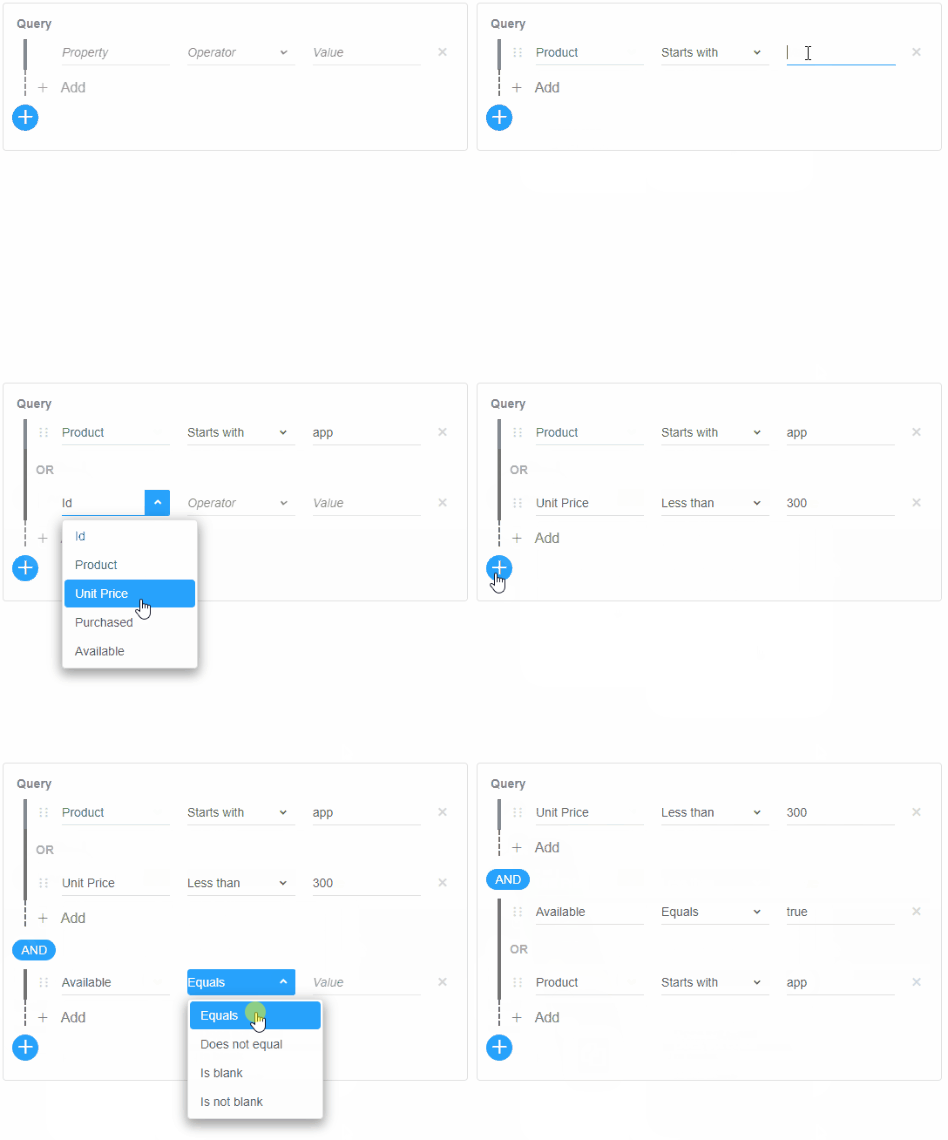
The shown operations result in the following value:
[[["price","<","300"]],"and",[["available","=",true],"or",["productName","startswith","app"]]]
Whether or not conditions can be dragged is controlled by the property allowDrag.
Setting value Initially
A QueryBuilder can be initialized with a predefined value, as shown in the example below:
<!DOCTYPE html>
<html>
<head>
    <link rel="stylesheet" type="text/css" href="./../../source/styles/smart.default.css" />
    <script type="text/javascript" src="../../source/smart.element.js"></script>
    <script type="text/javascript" src="../../source/smart.button.js"></script>
    <script type="text/javascript" src="../../source/smart.scrollbar.js"></script>
    <script type="text/javascript" src="../../source/smart.menu.js"></script>
    <script type="text/javascript" src="../../source/smart.input.js"></script>
    <script type="text/javascript" src="../../source/smart.complex.js"></script>
    <script type="text/javascript" src="../../source/smart.math.js"></script>
    <script type="text/javascript" src="../../source/smart.numeric.js"></script>
    <script type="text/javascript" src="../../source/smart.numerictextbox.js"></script>
    <script type="text/javascript" src="../../source/smart.calendar.js"></script>
    <script type="text/javascript" src="../../source/smart.date.js"></script>
    <script type="text/javascript" src="../../source/smart.draw.js"></script>
    <script type="text/javascript" src="../../source/smart.dropdownlist.js"></script>
    <script type="text/javascript" src="../../source/smart.listbox.js"></script>
    <script type="text/javascript" src="../../source/smart.timepicker.js"></script>
    <script type="text/javascript" src="../../source/smart.tooltip.js"></script>
    <script type="text/javascript" src="../../source/smart.datetimepicker.js"></script>
    <script type="text/javascript" src="../../source/smart.checkbox.js"></script>
    <script type="text/javascript" src="../../source/smart.filterbuilder.js"></script>
    <script>
        Smart('#queryBuilder', class {
            get properties() {
                return {
                    allowDrag: true,
                    fields: [
                        { label: 'Id', dataField: 'id', dataType: 'number' },
                        { label: 'Product', dataField: 'productName', dataType: 'string' },
                        { label: 'Unit Price', dataField: 'price', dataType: 'number' },
                        { label: 'Purchased', dataField: 'purchased', dataType: 'datetime' },
                        { label: 'Available', dataField: 'available', dataType: 'boolean' }
                    ],
                    value: [
                        [
                            ['purchased', '=', new Date(2026, 0, 4)],
                            'and',
                            ['productName', '<>', 'Monitors'],
                            'or',
                            ['productName', 'isblank']
                        ],
                        'and',
                        [
                            ['available', '=', true],
                            'and',
                            ['price', '<', 1300],
                        ]
                    ]
                };
            }
        });
    </script>
</head>
<body>
    <smart-query-builder id="queryBuilder"></smart-query-builder>
</body>
</html>
Demo
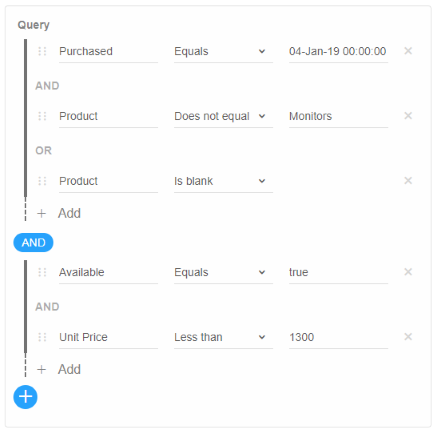
Custom Operations
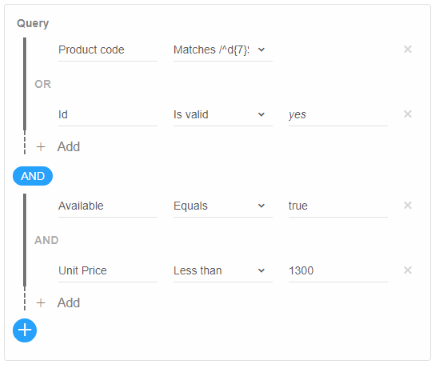
Apart from standard comparison operations, such as Equals, Greater than, Less than, and Contains, users can define their own custom operations to use when creating queries with Smart.QueryBuilder:
Custom operations are defined by setting the customOperations property. Each member of this array can have the following fields:
- label - label to be displayed in the operator box. Multiple operations with the same label can exist.
- name - unique name of the operation
- editorTemplate - callback function that creates a custom value editor
- valueTemplate - callback function that displays the value after the edior has been closed
- handleValue - callback function that handles the value returned by the editor when it is closed
- hideValue - a boolean condition that specifies whether the operation requires a value or not
The name of the custom operation also has to be included in the filterOperations property/array of the field(s) it is applicable to.
<!DOCTYPE html>
<html>
<head>
    <link rel="stylesheet" type="text/css" href="./../../source/styles/smart.default.css" />
    <script type="text/javascript" src="../../source/smart.element.js"></script>
    <script type="text/javascript" src="../../source/smart.button.js"></script>
    <script type="text/javascript" src="../../source/smart.scrollbar.js"></script>
    <script type="text/javascript" src="../../source/smart.menu.js"></script>
    <script type="text/javascript" src="../../source/smart.input.js"></script>
    <script type="text/javascript" src="../../source/smart.complex.js"></script>
    <script type="text/javascript" src="../../source/smart.math.js"></script>
    <script type="text/javascript" src="../../source/smart.numeric.js"></script>
    <script type="text/javascript" src="../../source/smart.numerictextbox.js"></script>
    <script type="text/javascript" src="../../source/smart.calendar.js"></script>
    <script type="text/javascript" src="../../source/smart.date.js"></script>
    <script type="text/javascript" src="../../source/smart.draw.js"></script>
    <script type="text/javascript" src="../../source/smart.dropdownlist.js"></script>
    <script type="text/javascript" src="../../source/smart.listbox.js"></script>
    <script type="text/javascript" src="../../source/smart.timepicker.js"></script>
    <script type="text/javascript" src="../../source/smart.tooltip.js"></script>
    <script type="text/javascript" src="../../source/smart.datetimepicker.js"></script>
    <script type="text/javascript" src="../../source/smart.checkbox.js"></script>
    <script type="text/javascript" src="../../source/smart.filterbuilder.js"></script>
    <script>
        Smart('#queryBuilder', class {
            get properties() {
                return {
                    customOperations: [
                        { label: 'Matches /^\d{7}$/g', name: '/^\d{7}$/g', hideValue: true },
                        {
                            label: 'Is valid',
                            name: 'isvalid',
                            editorTemplate: function (fieldType, value, fieldData) {
                                const editor1 = document.createElement('smart-radio-button'),
                                    editor2 = document.createElement('smart-radio-button'),
                                    container = document.createElement('div');

                                editor1.innerHTML = 'Yes';
                                editor2.innerHTML = 'No';
                                container.className = 'container';

                                if (typeof value !== 'boolean') {
                                    value = !!parseFloat(value);
                                }

                                editor1.checked = value;
                                editor2.checked = !value;

                                container.appendChild(editor1);
                                container.appendChild(editor2);

                                return container;
                            },
                            valueTemplate: function (editor, value) {
                                return value ? '<em>yes</em>' : '<em>no</em>';
                            },
                            handleValue: function (editor) {
                                const editors = editor.getElementsByTagName('smart-radio-button');

                                return editors[0].checked;
                            }
                        }],
                    fields: [
                        { label: 'Id', dataField: 'id', dataType: 'number', filterOperations: ['=', '<', '>', 'isvalid'] },
                        { label: 'Product', dataField: 'productName', dataType: 'string' },
                        { label: 'Product code', dataField: 'productCode', dataType: 'string', filterOperations: ['=', '/^\d{7}$/g'] },
                        { label: 'Unit Price', dataField: 'price', dataType: 'number' },
                        { label: 'Produced', dataField: 'produced', dataType: 'date', filterOperations: ['<', '>'] },
                        { label: 'Purchased', dataField: 'purchased', dataType: 'datetime' },
                        { label: 'Available', dataField: 'available', dataType: 'boolean' }
                    ],
                    value: [
                        [
                            ['productCode', '/^\d{7}$/g'],
                            'or',
                            ['id', 'isvalid', true]
                        ],
                        'and',
                        [
                            ['available', '=', true],
                            'and',
                            ['price', '<', 1300],
                        ]
                    ]
                }
            }
        });
    </script>
</head>
<body>
    <smart-query-builder id="queryBuilder"></smart-query-builder>
</body>
</html>
Demo
Operation Icons
Icons can be shown next to labels in the coparison operation box by setting the property showIcons to true. The icons property, on the other hand, defines CSS classes to be applied to each of the built-in operations. Icons for these classes are applied in the smart-query-builder style sheet.
Demo
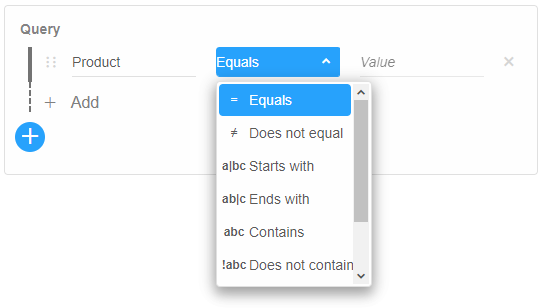
To apply a custom icon to a particular operation, add CSS that defines the icon's appearance:
<style type="text/css">
    .custom-equals-icon:after {
        background-image: url("https://img.icons8.com/officel/16/000000/equal-sign.png");
    }
</style>
then set the respective icons field (in this case, '=', the Equals operation) to the name of the class defined in the CSS:
document.getElementById('queryBuilder').icons['='] = 'custom-equals-icon';
Troubleshooting
- How do I get the filter expression?
- Access queryBuilder.value to get the current conditions as an array that can be used for filtering data.
- How do I add custom operators?
- Define custom operators in the customOperations property for specific field types.
Accessibility
The QueryBuilder component follows WAI-ARIA best practices:
- Keyboard navigation - Tab, Arrow keys, Enter, and Escape are supported
- ARIA roles - Appropriate roles and labels are applied automatically
- Focus management - Visible focus indicators for keyboard users
- Screen readers - State changes are announced to assistive technology
- High contrast - Supports Windows High Contrast Mode and forced colors
For custom labeling, set aria-label or aria-labelledby attributes on the component.
Supported stacks: Smart UI targets Angular 17+, React 18+, Vue 3+, Node 18 LTS, and evergreen browsers; pin exact package versions to your org policy.