



Scheduler for React
React version of this topic (compatible with React 19+). Keep the same configuration logic from JavaScript and pass it as component props.
What this topic covers: practical setup, the framework-specific API access pattern, and copy-adapt guidance for the examples in this page.
import React, { useMemo, useRef } from 'react';
import { Scheduler } from 'smart-webcomponents-react/scheduler';
import 'smart-webcomponents-react/source/styles/smart.default.css';

export default function App() {
  const componentRef = useRef(null);
  const componentProps = useMemo(() => ({
    // Copy this topic's JavaScript configuration here.
  }), []);

  return <Scheduler ref={componentRef} {...componentProps}></Scheduler>;
}
Use componentRef.current for API methods in this topic.
Build your web apps using Smart Custom Elements
Smart.Scheduler - Header Customization
Smart.Scheduler Header
Smart.Scheduler Header contains navigation controls for the date and view selection. It contains the following controls:
- Today Button - a button that switches to the current date when clicked.
- Date Navigation Buttons - buttons that allow to navigate the date backwards and forwards. Depending on the view the buttons can navigate by date, week or month.
- Date Selector - a drop down button that when clicked opens a popup containing the Smart.Calendar component that allows to select a specific date.
- View Selector - depending on the viewSelectorType it can be a drop down button or tabs control. Both components allow to select the current view.
The header components update the dateCurrent and view properties of the Smart.Scheduler.
Demo
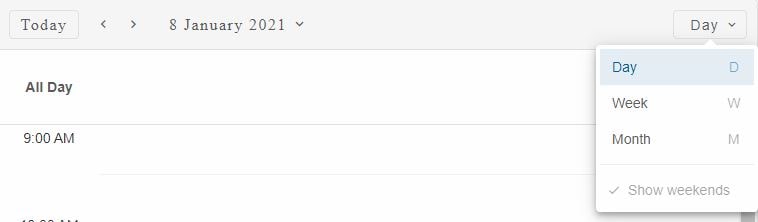
The Today Button is visible by default but it can be hidden via the hideTodayButton
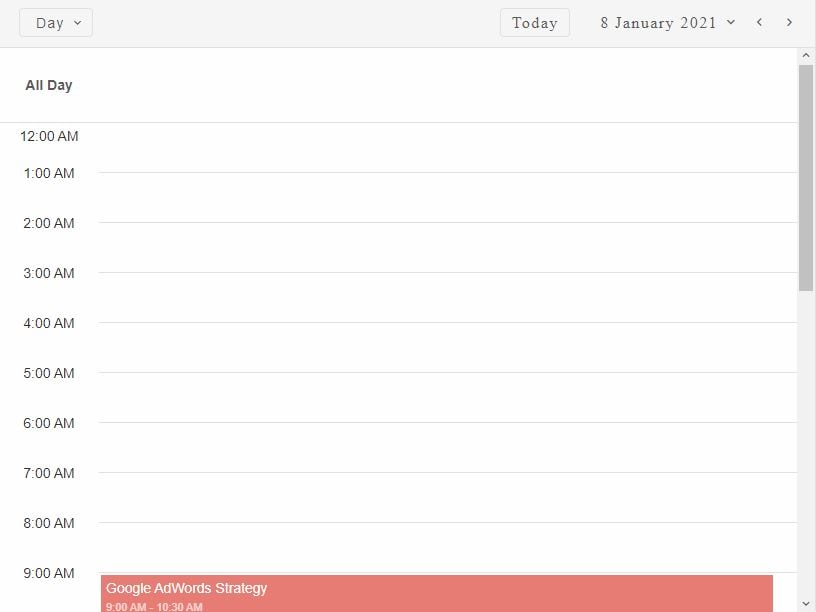
The Navigation Buttons are Smart.RepeatButtons. This means that the action repeats while the button is pressed. The position of the buttons can be changed via the scrollButtonsPosition property. It has three possible values: 'near', 'far', 'both'. By default the position of the buttons is 'near'.
The Date Selector control indicates the currently selected time period and allows to change it via the calendar popup. The popup can be disabled via the disableDateMenu property. When disabled the control becomes an indicator for the currently selected time period. The position of the Date selector is determined by the headerDatePosition property. Two values are allowed: 'near' and 'far'.
The View Selector by default represents a button that when clicked opens a list of view items for selection. The viewSelectorType determines the type of the control. Three possible values are available: 'auto', 'tabs' and 'menu'. By default, it is set to 'menu'.
When set to 'tabs' the view items are positioned one after another horizontally. If the view labels overflow the parent, two additional scroll buttons appear on both ends of the view selection container. The buttons allow to scroll to the desired view if not visible.

When set to 'auto' the Smart.Scheduler automatically determines when to use tabs or drop down button for the view selection. The decision is based on the space available for the view items. If the items overflow then the drop down button is prefered. If not, tabs is used instead. For mobile devices the drop down button is the prefered choice.
The View Selector can also be transformed into an indicator. The disableViewMenu property disables the view selector menu. This is only applicable when view seletor is a drop down button.
The position of the View Selector can also be changed via the headerViewPosition property. The possible values are: 'near' and 'far'. By default the View Selector is positioned on the 'far' side of the header.
Here's how to change the position of the header controls:
const componentProps = useMemo(() => ({
            //Properties
            dataSource: data,
            headerDatePosition: 'far',
            headerViewPosition: 'near',
            scrollButtonsPosition: 'far'
}), []);
Header Customization
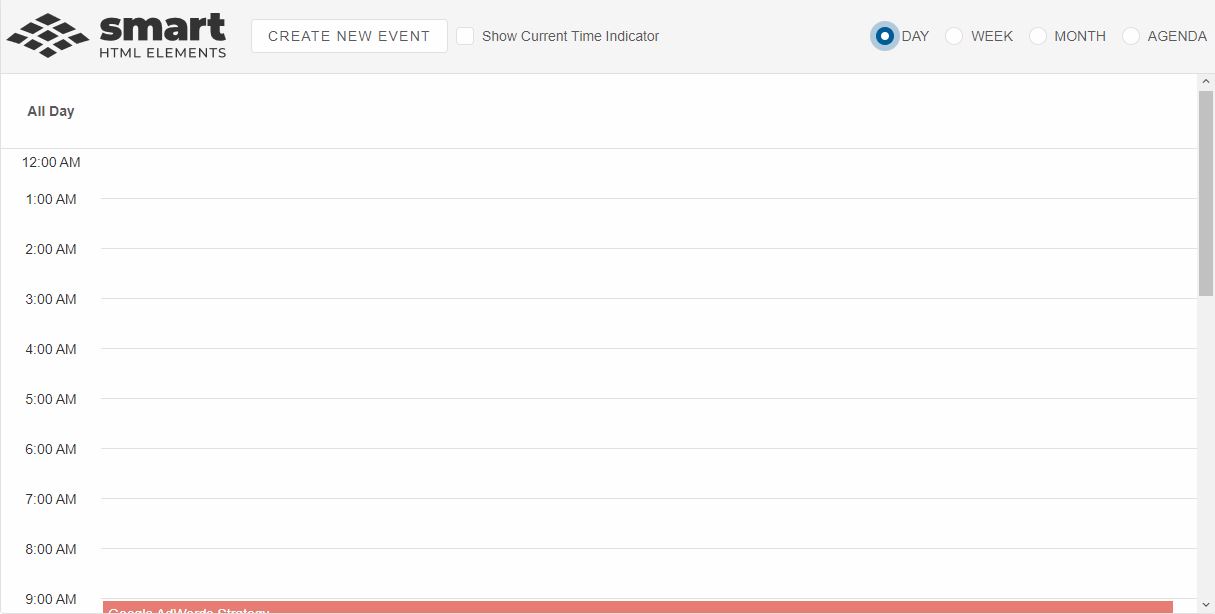
Smart.Scheduler header can be completely customized via the headerTemplate property. The property accepts a function HTMLTemplate element or the id of HTMLTemplate element.
Here's how to create a completely custom Smart.Scheduler header with radio buttons for view selection, a check box component for enabling/disabling the currentTimeIndicator and button that allows to create a new event when clicked.
const componentProps = useMemo(() => ({
            //Properties
            dataSource: data,
            headerTemplate: function (headerContainer) {
                const scheduler = componentRef.current,
                container = document.createElement('div'),
                div = document.createElement('div'),
                radioButtons = document.createElement('div'),
                checkBox = document.createElement('smart-check-box'),
                button = document.createElement('smart-button');
                container.classList.add('custom-header');

                div.id = 'logo';

                radioButtons.classList.add('radio-buttons-container');

                ['day', 'week', 'month', 'agenda'].forEach(v => {
                    const radioButton = document.createElement('smart-radio-button');
                    if (v === 'day') {
                        radioButton.checked = true;
                    }
                    radioButton.innerHTML = v.toUpperCase();
                    radioButton.value = v;
                    radioButtons.appendChild(radioButton);
                });

                radioButtons.addEventListener('change', function (event) {
                    if (event.target instanceof window.Smart.RadioButton) {
                        scheduler.view = event.target.value;
                    }
                });

                button.id = 'newButton';
                button.innerHTML = 'Create New Event';

                checkBox.innerHTML = 'Show Current Time Indicator';
                checkBox.id = 'indicatorCheckBox';

                checkBox.addEventListener('change', function (event) {
                    scheduler.currentTimeIndicator = event.detail.value;
                });

                button.addEventListener('click', function () {
                    scheduler.openWindow({});
                });

                container.appendChild(div);
                container.appendChild(button);
                container.appendChild(checkBox);
                container.appendChild(radioButtons);

                headerContainer.innerHTML = '';
                headerContainer.appendChild(container);
            }
}), []);
Demo
The footer section of the Smart.Scheduler is also customizable.
For AI tooling
Developer Quick Reference
Topic: scheduler-header-customization Component: Scheduler Framework: React
Main methods: (none detected)
Common config keys: dataSource
Implementation Notes
Compatibility: React 19+ API access pattern: const componentRef = useRef(null) + componentRef.current.method()
Lifecycle guidance: Use useMemo for large config objects and call imperative API through componentRef.current after first render.
Common pitfalls:
- Recreating columns/dataSource objects on every render can reset component state.
- Calling API methods before ref is available causes runtime errors.
- Mixing controlled and imperative updates without sync can lead to stale UI.
Validation checklist:
- Keep config objects memoized when possible.
- Guard API calls with ref existence checks.
- Verify CSS theme import is present once per app.