



Grid for Angular
Angular standalone version of this topic (compatible with Angular 17+). Import both the Smart UI component and module in the standalone component.
What this topic covers: practical setup, the framework-specific API access pattern, and copy-adapt guidance for the examples in this page.
import { Component, ViewChild, ViewEncapsulation } from '@angular/core';
import { CommonModule } from '@angular/common';
import { RouterOutlet } from '@angular/router';
import { GridComponent, GridModule } from 'smart-webcomponents-angular/grid';

@Component({
  selector: 'app-root',
  standalone: true,
  imports: [CommonModule, GridModule, RouterOutlet],
  templateUrl: './app.component.html',
  styleUrls: ['./app.component.css'],
  encapsulation: ViewEncapsulation.None
})
export class AppComponent {
  @ViewChild('grid', { read: GridComponent, static: false }) grid!: GridComponent;
}
<!-- app.component.html -->
<smart-grid #grid></smart-grid>
Use this.grid for API methods in this topic.
Grid Row Sorting
Enable Sorting
Grid sorting by single column is enabled by setting thesorting.enabled property to true. You can then sort a column by clicking on the column header.
componentProps = {
    dataSourceSettings: {
        dataFields: [
            { name: 'firstName', dataType: 'string' },
            { name: 'lastName', dataType: 'string' },
            { name: 'productName', map: 'product.name', dataType: 'string' },
            { name: 'quantity', map: 'product.quantity', dataType: 'number' },
            { name: 'price', map: 'product.price', dataType: 'number' },
            { name: 'total', map: 'product.total', dataType: 'number' }
        ]
    },
    behavior: {
        columnResizeMode: 'growAndShrink'
    },
    sorting: {
        enabled: true
    },
    dataSource: [
        {
            firstName: 'Andrew',
            lastName: 'Burke',
            product: {
                name: 'Ice Coffee', price: 10, quantity: 3, total: 30
            }
        },
        {
            firstName: 'Petra',
            lastName: 'Williams',
            product: {
                name: 'Espresso', price: 7, quantity: 5, total: 35
            }
        },
        {
            firstName: 'Kevin',
            lastName: 'Baker',
            product: {
                name: 'Frappucino', price: 6, quantity: 4, total: 24
            }
        }
    ],
    columns: [
        { label: 'First Name', dataField: 'firstName', allowSort: false },
        { label: 'Last Name', dataField: 'lastName' },
        { label: 'Product', dataField: 'productName' },
        { label: 'Quantity', dataField: 'quantity', cellsAlign: 'right' },
        { label: 'Unit Price', dataField: 'price', cellsAlign: 'right', cellsFormat: 'c2' }
    ]
}
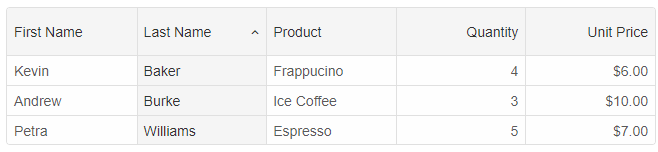
Disable Column Sorting
Disable sorting for columns by setting the allowSort column definition to false.
Sort Column when you create the Grid
You can use thesorting.sort property. The property expects an Array with key-value pairs. The key is the column's dataField, the value is the sort order - 'asc' or 'desc'.
sorting: {
	enabled: true,
	sort: [
		{ 'lastName': 'asc' }
	]
}
Sort Multiple Columns
It is possible to sort by multiple columns
sorting: {
	enabled: true,
	mode: 'many',
	sort: [
		{ 'lastName': 'asc' },
		{ 'productName': 'desc' }
	]
}
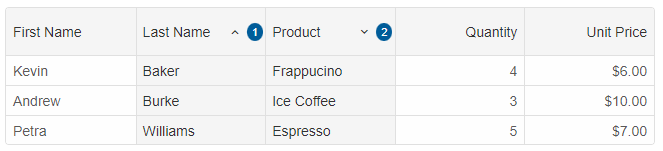
If you want to sort by multiple columns only while you hold the 'Control' key, you can set the
sorting.commandKey property to Control.
sorting: {
	enabled: true,
	mode: 'many',
	commandKey: 'Control',
	sort: [
		{ 'lastName': 'asc' },
		{ 'productName': 'desc' }
	]
}
Clear Sorting API
To clear the sorting, you can use theclearSort() method.
this.grid.clearSort();
Sort by Column API
To sort by a column, you can use thesortBy(dataField, sortOrder) method.
this.grid.sortBy('productName', 'desc');
Custom Sort
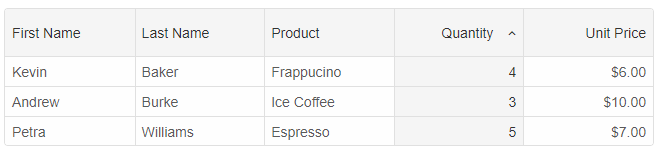
Custom sorting can be configured by using the column'ssortComparator(value1, value2) function.
Example:
componentProps = {
    dataSourceSettings: {
        dataFields: [
            { name: 'firstName', dataType: 'string' },
            { name: 'lastName', dataType: 'string' },
            { name: 'productName', map: 'product.name', dataType: 'string' },
            { name: 'quantity', map: 'product.quantity', dataType: 'number' },
            { name: 'price', map: 'product.price', dataType: 'number' },
            { name: 'total', map: 'product.total', dataType: 'number' }
        ]
    },
    behavior: {
        columnResizeMode: 'growAndShrink'
    },
    sorting: {
        enabled: true
    },
    dataSource: [
        {
            firstName: 'Andrew',
            lastName: 'Burke',
            product: {
                name: 'Ice Coffee', price: 10, quantity: 3, total: 30
            }
        },
        {
            firstName: 'Petra',
            lastName: 'Williams',
            product: {
                name: 'Espresso', price: 7, quantity: 5, total: 35
            }
        },
        {
            firstName: 'Kevin',
            lastName: 'Baker',
            product: {
                name: 'Frappucino', price: 6, quantity: 4, total: 24
            }
        }
    ],
    columns: [
		{ label: 'First Name', dataField: 'firstName' },
		{ label: 'Last Name', dataField: 'lastName' },
		{ label: 'Product', dataField: 'productName' },
		{
			label: 'Quantity', dataField: 'quantity', cellsAlign: 'right', sortOrder: 'asc',
			sortComparator: (value1, value2) => {
				const result = value1 === value2;

				// When the value is 4, it will bubble up.
				if (value1 === 4) {
					return -1;
				}

				if (value2 === 4) {
					return 1;
				}

				// return 0 for equal values.
				if (result) {
					return 0;
				}

				// return -1, if value1 is smaller than value2.
				if (value1 < value2) {
					return -1;
				}

				// return 1, if value1 is greater than value2.
				return 1;
			}
		},
		{ label: 'Unit Price', dataField: 'price', cellsAlign: 'right', cellsFormat: 'c2' }
    ]
}
For AI tooling
Developer Quick Reference
Topic: grid-row-sort Component: Grid Framework: Angular
Main methods: clearSort(), sortBy()
Common config keys: behavior, sorting, dataSource, columns
Implementation Notes
Compatibility: Angular 17+ (standalone) API access pattern: @ViewChild(...) + this.component.method()
Lifecycle guidance: Bind inputs declaratively and call imperative API through @ViewChild in/after ngAfterViewInit.
Common pitfalls:
- Using @ViewChild API too early (before view init).
- Omitting standalone imports for Smart modules in @Component.imports.
- Type mismatches between configuration fields and template bindings.
Validation checklist:
- Ensure module import exists in standalone component imports array.
- Use typed @ViewChild(..., { read: ComponentType }).
- Call imperative methods after view initialization.