



Grid for Vue
Vue 3 version using Smart custom elements and template refs.
What this topic covers: practical setup, the framework-specific API access pattern, and copy-adapt guidance for the examples in this page.
<script setup>
import { onMounted, ref } from 'vue';
import 'smart-webcomponents/source/styles/smart.default.css';
import 'smart-webcomponents/source/modules/smart.grid.js';

const component = ref();
const componentProps = {
  // Copy this topic's JavaScript configuration here.
};

onMounted(() => {
  Object.assign(component.value, componentProps);
});
</script>

<template>
  <smart-grid ref="component"></smart-grid>
</template>
Use component.value for API methods in this topic.
Cell Styling
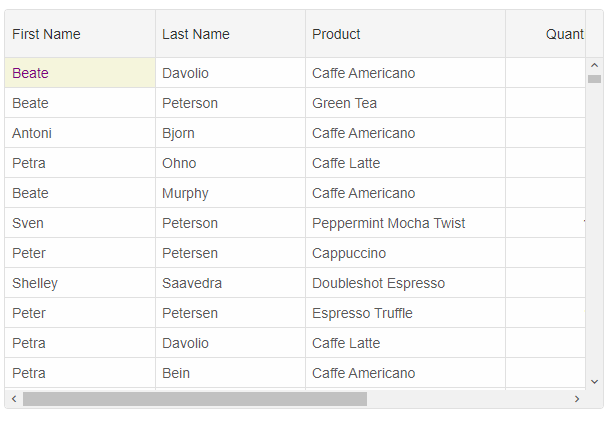
Cell styling is possible by usingsetCellStyle method, cell object properties like background, color, fontSize, fontFamily, fontWeight and fontStyle properties.
component.value.setCellStyle(0, 'firstName', {
	background: 'beige',
	color: 'purple'
})
Cell Class
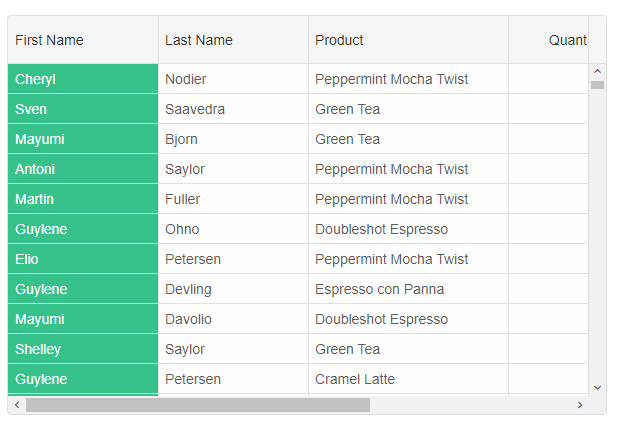
Cells styling by setting thecellsClassName column property. The property allows you to set a class or classes for the cells in this column. You can also set a function that returns a string or an array of strings.
columns: [
{
	label: 'First Name', width: 150, dataField: 'firstName', cellsClassName: 'cell-class-1'
},
{ label: 'Last Name', width: 150, dataField: 'lastName' },
{ label: 'Product', width: 200, dataField: 'productName' },
{ label: 'Quantity', width: 100, dataField: 'quantity' },
{ label: 'Unit Price', width: 100, dataField: 'price', cellsFormat: 'c2' },
{ label: 'Total', dataField: 'total', width: 200, cellsFormat: 'c2' }
]
and the CSS class name
.cell-class-1{
	background: #37C18B;
	color: white;
}
The following example shows how to use
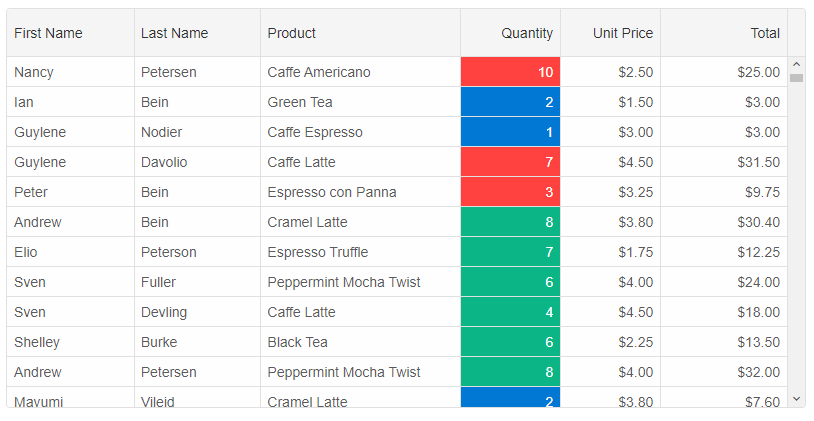
cellsClassName as a function. The function gets called for each cell in the column with the following parameters: index - row's index, dataField - column's data field, cellValue - current cell's value, rowData - current row's data, row - GridRow object.
const componentProps = {
    behavior: { columnResizeMode: 'growAndShrink' },
    dataSource: new window.JQX.DataAdapter({
        dataSource: window.Data,
        dataFields: [
            'id: number',
            'firstName: string',
            'lastName: string',
            'productName: string',
            'quantity: number',
            'price: number',
            'total: number'
        ]
    }),
    editing: {
        enabled: true
    },
    selection: {
        enabled: true,
        allowCellSelection: true,
        allowRowHeaderSelection: true,
        allowColumnHeaderSelection: true,
        mode: 'extended'
    },
    columns: [
        {
            label: 'First Name', dataField: 'firstName'
        },
        { label: 'Last Name', dataField: 'lastName' },
        { label: 'Product', width: 200, dataField: 'productName' },
        {
            label: 'Quantity', width: 100, dataField: 'quantity', cellsClassName: (index, dataField, value, rowData, row) => {
                if (value < 3) {
                    return 'cell-class-2';
                }

                if (index < 5) {
                    return 'cell-class-1';
                }

                if (index >= 5) {
                    return 'cell-class-3';
                }
            }
        },
        { label: 'Unit Price', width: 100, dataField: 'price', cellsFormat: 'c2' },
        { label: 'Total', dataField: 'total', cellsFormat: 'c2' }
    ]
};
CSS Class to a Cell
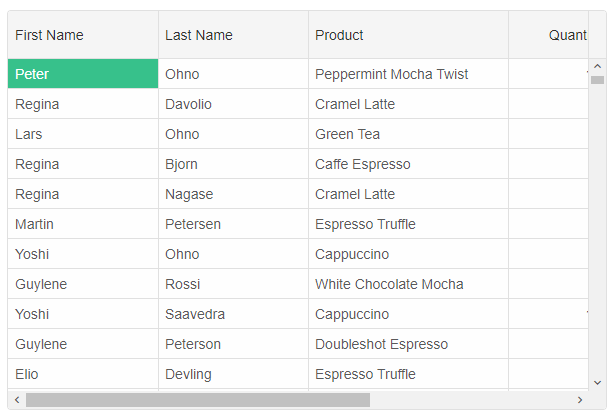
To apply a CSS class name to a cell, you can use the
highlightCell method.
component.value.highlightCell(0, 'firstName', 'cell-class-1');
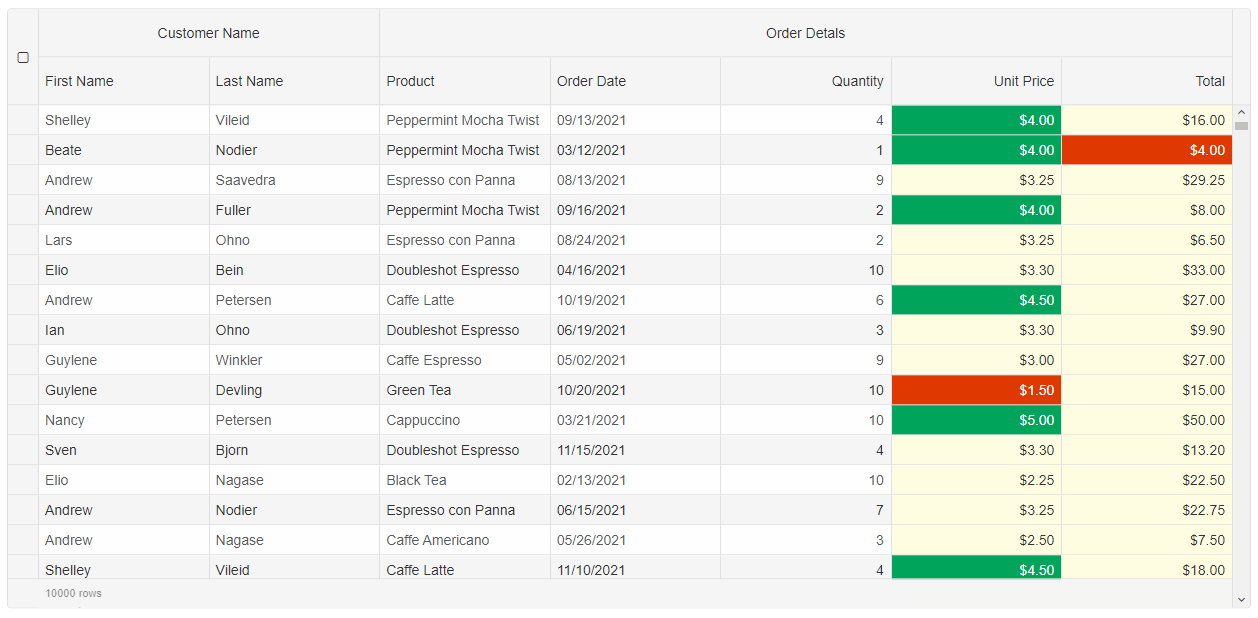
Format Function and Cells API
You can style cells dynamically by setting up the column'sformatFunction
columns: [
	{
		label: 'First Name', dataField: 'firstName', columnGroup: 'name'
	},
	{ label: 'Last Name', dataField: 'lastName', columnGroup: 'name' },
	{ label: 'Product', dataField: 'productName', columnGroup: 'order'},
	{ label: 'Order Date', cellsFormat: 'MM/dd/yyyy', dataField: 'date', columnGroup: 'order'},
	{ label: 'Quantity', dataField: 'quantity', columnGroup: 'order'},
	{ label: 'Unit Price', dataField: 'price', cellsFormat: 'c2', columnGroup: 'order', formatFunction(settings) {
		const rowId = settings.row;
		const columnDataField = settings.column;
		const template = settings.template;

		if (settings.value >= 4) {
			settings.cell.background = '#00A45A';
			settings.cell.color = '#fff';
		}
		else if (settings.value < 2)
		{
			settings.cell.background = '#DF3800';
			settings.cell.color = '#fff';
		}
		else {
			settings.cell.background = '#FFFDE1';
			settings.cell.color = '#333';
		}

		settings.value = '$' + new Number(settings.value).toFixed(2);
	}
	},
	{ label: 'Total', dataField: 'total', cellsFormat: 'c2', columnGroup: 'order', formatFunction(settings) {
		const rowId = settings.row;
		const columnDataField = settings.column;
		const template = settings.template;

		if (settings.value >= 20) {
			settings.cell.background = '#00A45A';
			settings.cell.color = '#fff';
		}
		if (settings.value <= 5) {
			settings.cell.background = '#DF3800';
			settings.cell.color = '#fff';
		}
		else {
			settings.cell.background = '#FFFDE1';
			settings.cell.color = '#333';
		}

		settings.value = '$' + new Number(settings.value).toFixed(2);
	} }
]
Conditional Formatting
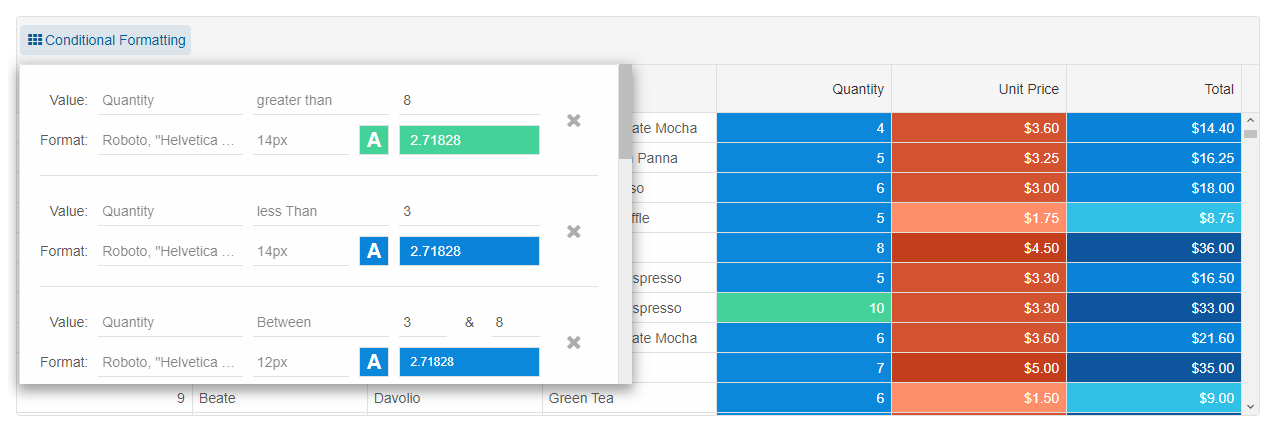
Another way to apply formatting to the cells is to use the Grid'sconditionalFormatting feature. You can apply conditional formatting by using the Grid API, but you can also apply it through the UI and the built-in conditional formatting dialog.
conditionalFormatting: [
	{
		column: 'quantity',
		condition: 'greaterThan',
		firstValue: 8,
		text: '#FFFFFF',
		highlight: '#45D29A'
	},
	{
		column: 'quantity',
		condition: 'lessThan',
		firstValue: 3,
		text: '#FFFFFF',
		highlight: '#0984D9'
	},
	{
		column: 'quantity',
		condition: 'between',
		firstValue: 3,
		secondValue: 8,
		fontSize: '12px',
		text: '#ffffff',
		highlight: '#0C88DA'
	},
	{
		column: 'price',
		condition: 'lessThan',
		firstValue: 3,
		fontFamily: 'Courier New',
		text: '#FFFFFF',
		highlight: '#FF8F6B'
	},
	{
		column: 'price',
		condition: 'greaterThan',
		firstValue: 4,
		fontFamily: 'Courier New',
		text: '#FFFFFF',
		highlight: '#C43E1C'
	},
	{
		column: 'price',
		condition: 'between',
		firstValue: 3,
		secondValue: 4,
		fontFamily: 'Courier New',
		text: '#FFFFFF',
		highlight: '#D35230'
	},
	{
		column: 'total',
		condition: 'greaterThan',
		firstValue: 25,
		fontSize: '14px',
		text: '#FFFFFF',
		highlight: '#0D559D'
	},
	{
		column: 'total',
		condition: 'between',
		firstValue: 10,
		secondValue: 25,
		fontSize: '12px',
		text: '#ffffff',
		highlight: '#0883D8'
	},
	{
		column: 'total',
		condition: 'lessThan',
		firstValue: 10,
		fontSize: '10px',
		text: '#FFFFFF',
		highlight: '#31C1E7'
	}
]
Cells CSS rules
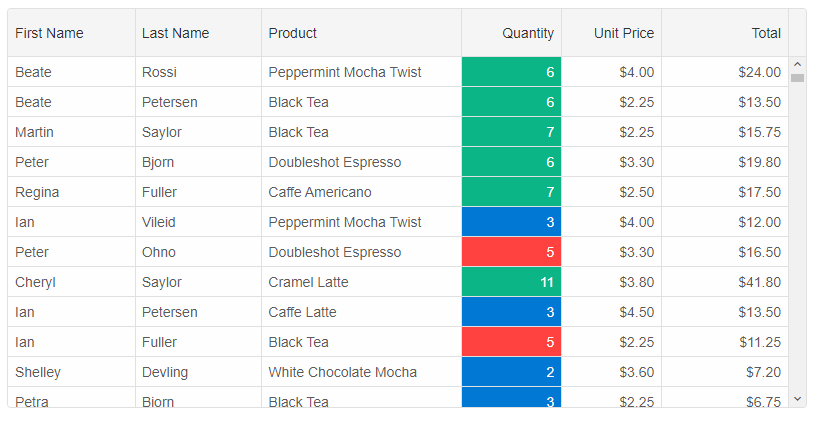
Similarly to thecellClassName function, you can use CSS rules. The settings object contains the following properties: index, value, dataField, row, api.
columns: [
	{
		label: 'First Name', dataField: 'firstName'
	},
	{ label: 'Last Name', dataField: 'lastName' },
	{ label: 'Product', width: 200, dataField: 'productName' },
	{
		label: 'Quantity', width: 100, dataField: 'quantity', cellsCSSRules: {
			'cell-class-1': settings => settings.value === 5,
			'cell-class-2': settings => settings.value < 5,
			'cell-class-3': settings => settings.value > 5
		}
	},
	{ label: 'Unit Price', width: 100, dataField: 'price', cellsFormat: 'c2' },
	{ label: 'Total', dataField: 'total', cellsFormat: 'c2' }
]
For AI tooling
Developer Quick Reference
Topic: grid-styling-cells Component: Grid Framework: Vue
Main methods: setCellStyle(), highlightCell()
Common config keys: columns, behavior, dataSource, editing, selection
Implementation Notes
Compatibility: Vue 3+ API access pattern: const component = ref() + component.value.method()
Lifecycle guidance: Use template refs with