



Kanban for React
React version of this topic (compatible with React 19+). Keep the same configuration logic from JavaScript and pass it as component props.
What this topic covers: practical setup, the framework-specific API access pattern, and copy-adapt guidance for the examples in this page.
import React, { useMemo, useRef } from 'react';
import { Kanban } from 'smart-webcomponents-react/kanban';
import 'smart-webcomponents-react/source/styles/smart.default.css';

export default function App() {
  const componentRef = useRef(null);
  const componentProps = useMemo(() => ({
    // Copy this topic's JavaScript configuration here.
  }), []);

  return <Kanban ref={componentRef} {...componentProps}></Kanban>;
}
Use componentRef.current for API methods in this topic.
Build your web apps using Smart UI
Smart.Kanban - configuration and usage
Kanban Users
Each task in Smart.Kanban can be assigned to a user. Users are defined in the users property/array, each member of which can have the following fields:
- id - The user's unique ID. Corresponds to the userId field in the data source and the property currentUser.
- name - The user's name as it will appear in the Users list and "Assigned to" editor.
- image - A url to an image representing the user (avatar).
- allowAdd - sets whether the user has a privilege to add or copy tasks; true by default.
- allowComment - sets whether the user has a privilege to add comments to tasks; true by default.
- allowDrag - sets whether the user has a privilege to drag tasks. Works along with the property allowDrag; true by default.
- allowEdit - sets whether the user has a privilege to edit tasks. Works along with the property editable; true by default.
- allowRemove - sets whether the user has a privilege to remove tasks; true by default.
const componentProps = useMemo(() => ({
            collapsible: true,
            currentUser: 2, // The current user is the one with id 2 - Janet
            dataSource: getKanbanData(),
            editable: true,
            userList: true,
            users: [
                { id: 0, name: 'Andrew', image: '../../images/people/andrew.png' },
                { id: 1, name: 'Anne', image: '../../images/people/anne.png' },
                { id: 2, name: 'Janet', image: '../../images/people/janet.png' },
                { id: 3, name: 'John', image: '../../images/people/john.png' },
                { id: 4, name: 'Laura', image: '../../images/people/laura.png' }
            ],
            columns: [
                { label: 'To do', dataField: 'toDo' },
                { label: 'In progress', dataField: 'inProgress' },
                { label: 'Testing', dataField: 'testing' },
                { label: 'Done', dataField: 'done' }
            ]
}), []);
When the property currentUser is set to the id of an user, the respective user's privileges are enacted.
Assigning a User to a Task
A user can be assigned to a task by opening the Users list by clicking the user icon in a task and selecting a user:
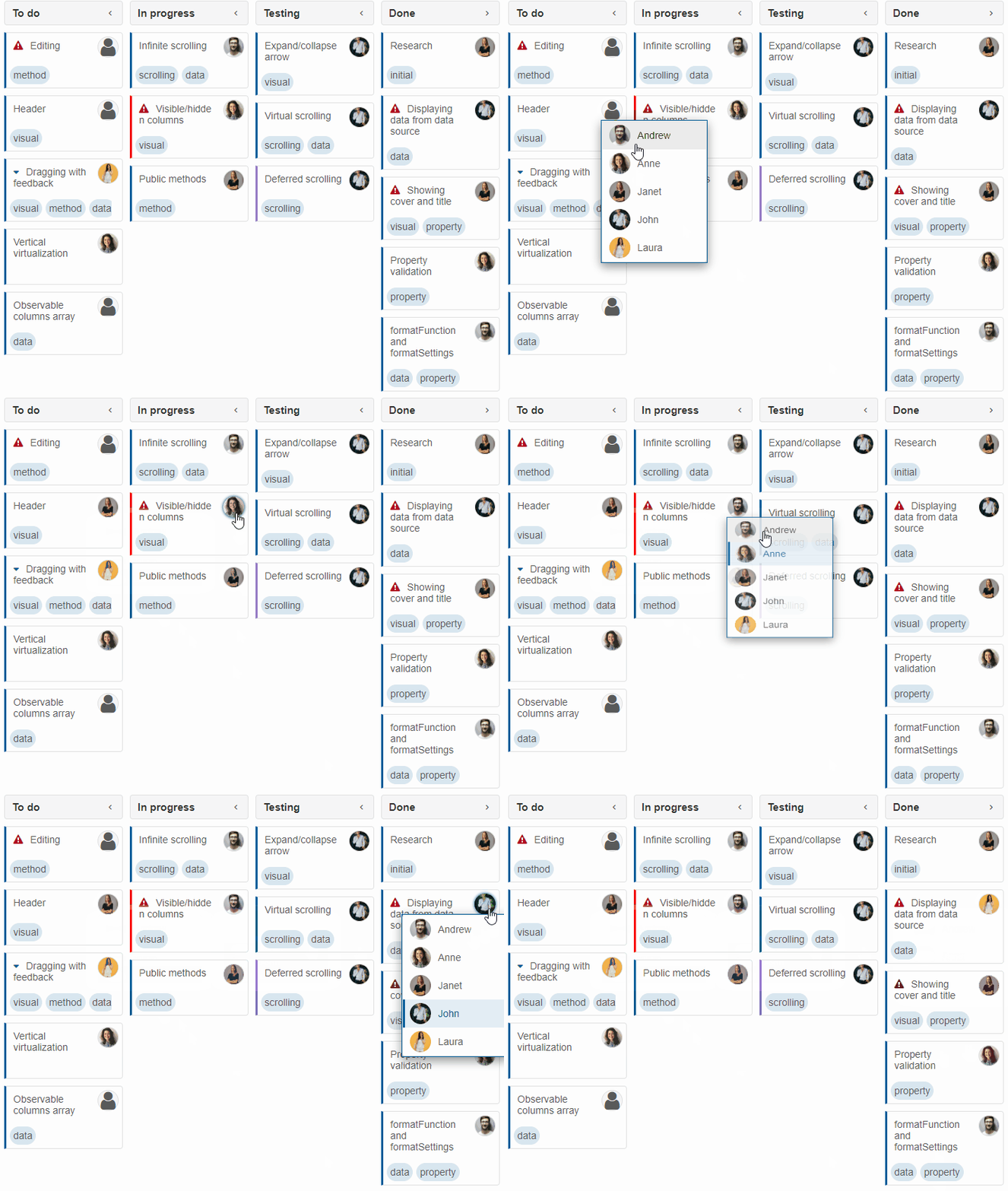
To enable the Users list, userList has to be set to true. To enable the task user icon, taskUserIcon has to be set to true.
Asignees can also be changed from the edit dialog (more information in the topic Kanban Editing and Customization).
Task Comments
Task comments can be loaded from the data source. When a currentUser with comment privileges is set, comments can also be written about tasks and saved in the data source.
To write a comment, click the Comments icon (visible when the property taskComments is enabled), enter the comment's content in the textarea and click "Send".
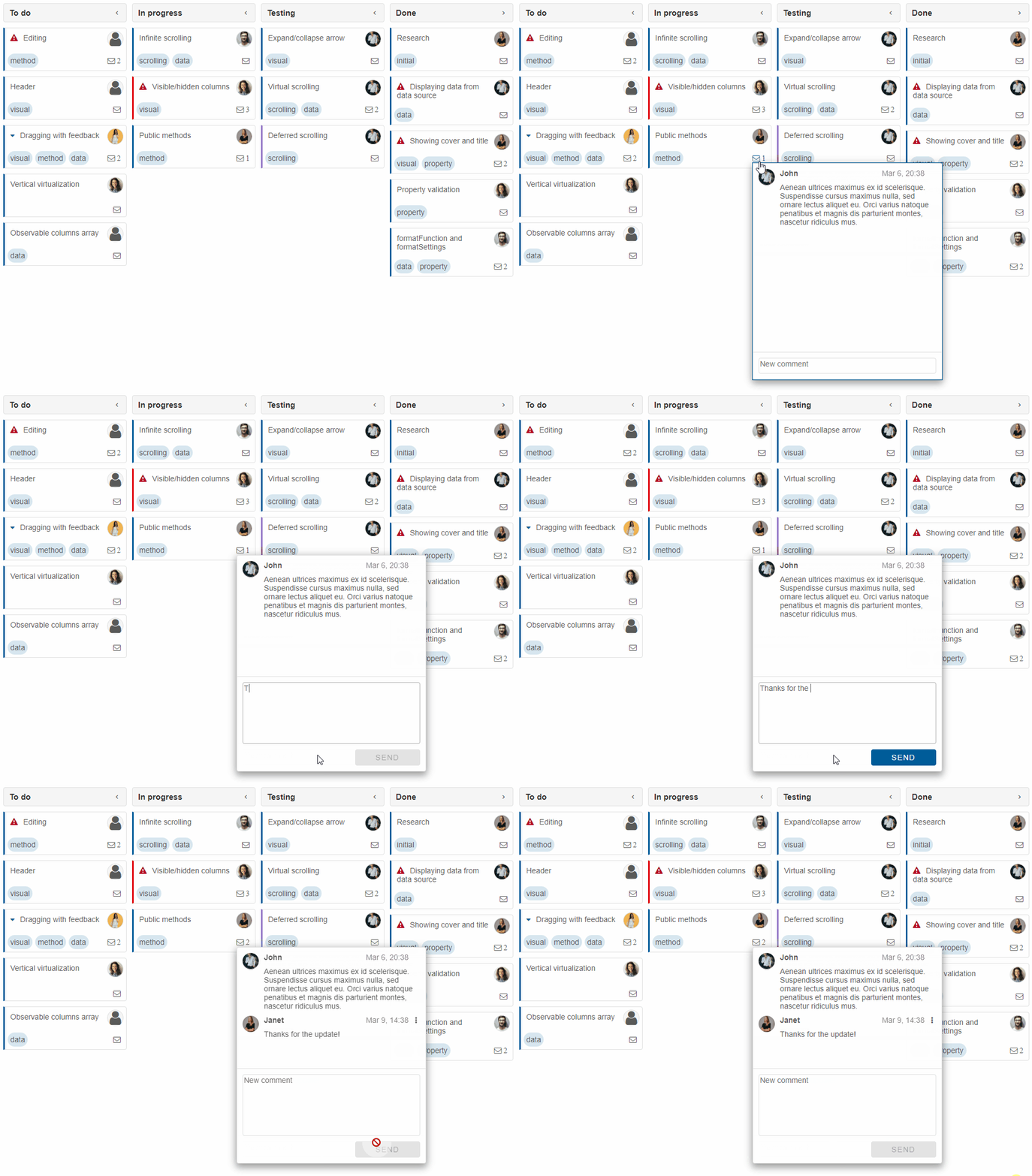
The new number of comments is reflected in the number that appears next to the Comments icon.
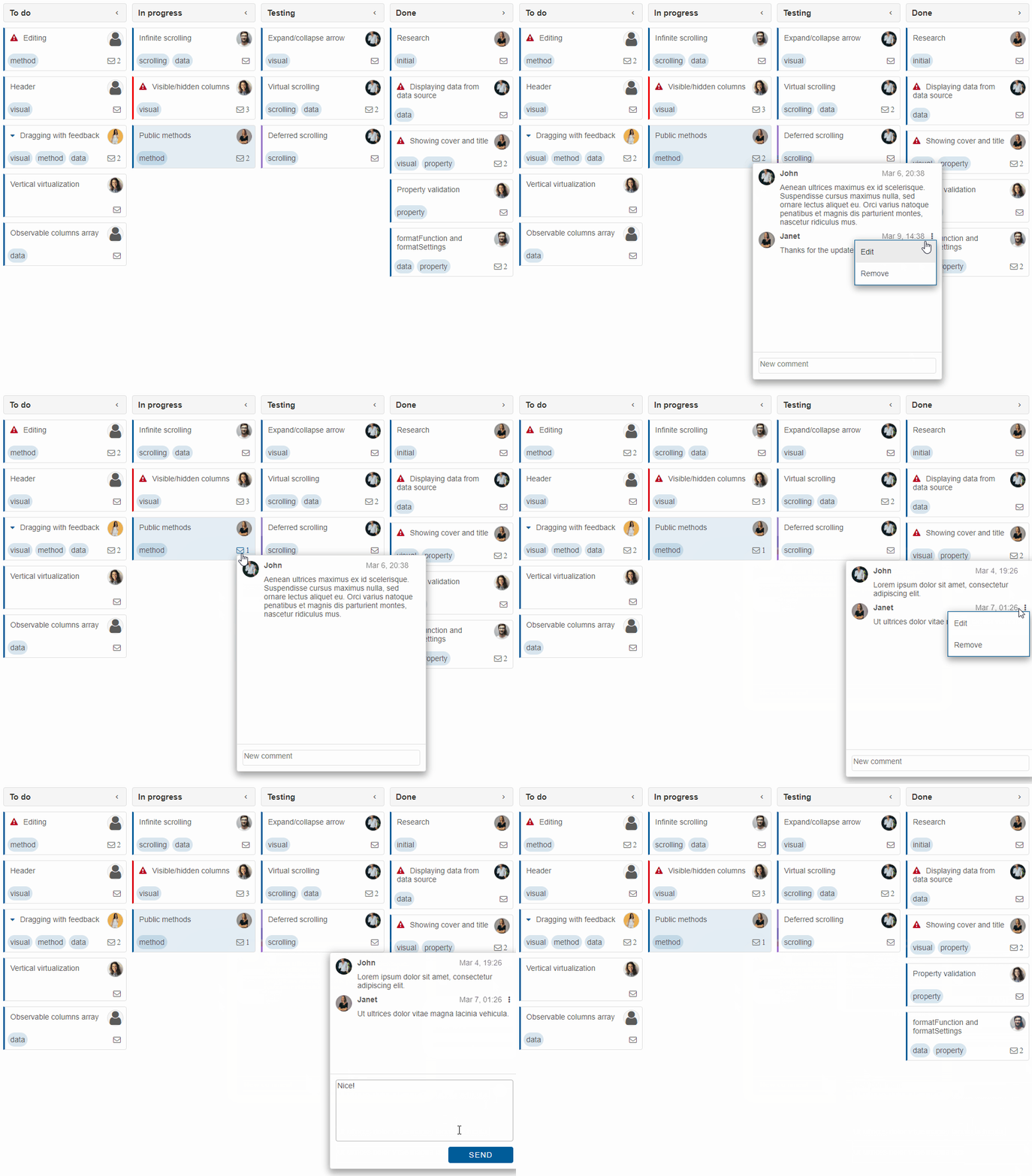
Existing comments that are written by the current user can be edited or removed by clicking the button next to the comment's timestamp:
For AI tooling
Developer Quick Reference
Topic: kanban-users-comments Component: Kanban Framework: React
Main methods: (none detected)
Common config keys: dataSource, columns
Implementation Notes
Compatibility: React 19+ API access pattern: const componentRef = useRef(null) + componentRef.current.method()
Lifecycle guidance: Use useMemo for large config objects and call imperative API through componentRef.current after first render.
Common pitfalls:
- Recreating columns/dataSource objects on every render can reset component state.
- Calling API methods before ref is available causes runtime errors.
- Mixing controlled and imperative updates without sync can lead to stale UI.
Validation checklist:
- Keep config objects memoized when possible.
- Guard API calls with ref existence checks.
- Verify CSS theme import is present once per app.