



Scheduler for Angular
Angular standalone version of this topic (compatible with Angular 17+). Import both the Smart UI component and module in the standalone component.
What this topic covers: practical setup, the framework-specific API access pattern, and copy-adapt guidance for the examples in this page.
import { Component, ViewChild, ViewEncapsulation } from '@angular/core';
import { CommonModule } from '@angular/common';
import { RouterOutlet } from '@angular/router';
import { SchedulerComponent, SchedulerModule } from 'smart-webcomponents-angular/scheduler';

@Component({
  selector: 'app-root',
  standalone: true,
  imports: [CommonModule, SchedulerModule, RouterOutlet],
  templateUrl: './app.component.html',
  styleUrls: ['./app.component.css'],
  encapsulation: ViewEncapsulation.None
})
export class AppComponent {
  @ViewChild('scheduler', { read: SchedulerComponent, static: false }) scheduler!: SchedulerComponent;
}
<!-- app.component.html -->
<smart-scheduler #scheduler></smart-scheduler>
Use this.scheduler for API methods in this topic.
Build your web apps using Smart Custom Elements
Smart.Scheduler - Google Calendar Sync
Smart.Scheduler Google Calendar Events Sync
Google Calendar events can be loaded directly to the Smart.Scheduler via url. By doing so the events between Google Calendar and Smart.Scheduler are in sync. This means that making changes to the events in Google Calendar will automatically reflect to the events in the Smart.Scheduler when the page is reloaded.
This feature is achieved thanks to the Smart.DataAdapter Utilitiy and Google Calendars abbility to reference calendars via url.
In order to sync events beetween both elements first we need to create appointments in the Google Calendar and get the url to the calendar with the appointments. In order to do so the user has to take the following steps:
-
Create appointments in Google Calendar:
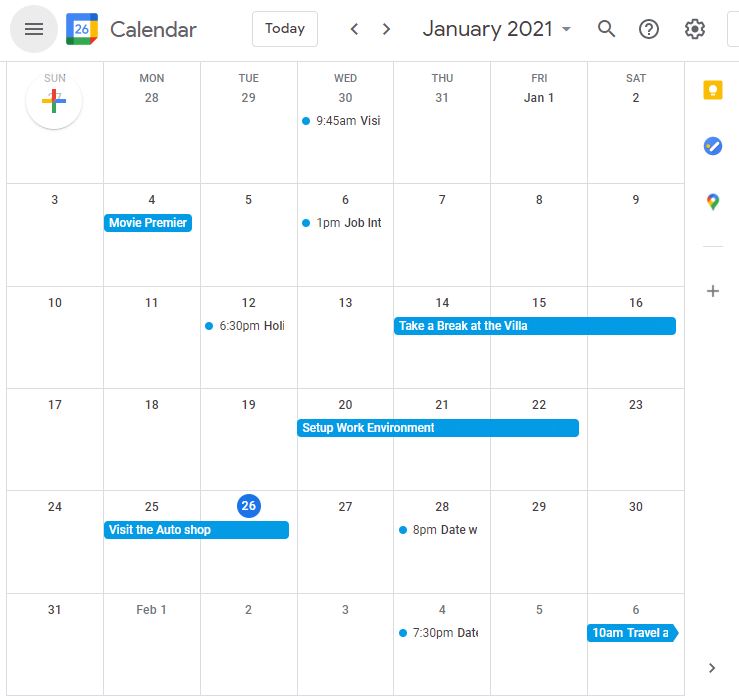
-
Go to the Settings tab of Google Calendar and select the calendar that will be used for the demo:
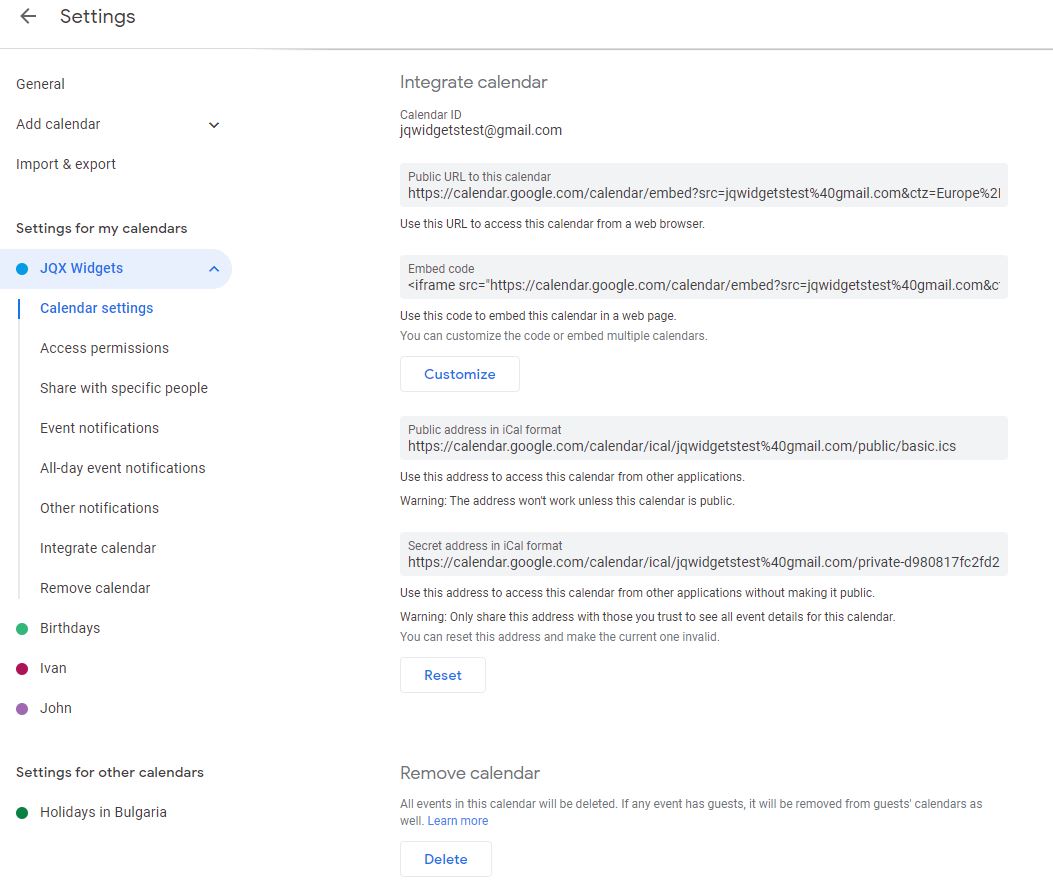
-
Copy the calendar Secret url address that is displayed in the image above. If the calednar is public it is possible to use the public address instead.
In order to bind the dataSource of the Smart.Scheduler to a Google Calendar url the user has to make the following setup:
-
index.html
<html xmlns="http://www.w3.org/1999/xhtml"> <head> <meta charset="utf-8" /> <meta http-equiv="X-UA-Compatible" content="IE=edge" /> <meta http-equiv="Content-Type" content="text/html; charset=utf-8" /> <meta name="viewport" content="width=device-width, initial-scale=1.0, maximum-scale=1.0" /> <link rel="stylesheet" type="text/css" href="../../../source/styles/smart.default.css" /> <script type="text/javascript" src="../../../source/webcomponents-lite.js"></script> </head> <body class="viewport"> <smart-scheduler id="scheduler"></smart-scheduler> <!-- scripts --> <script type="module" src="../../../source/modules/smartscheduler.js"></script> <script type="module" src="index.js"></script> </body> </html> -
index.js
componentOptions = {
            //Properties
            view: 'month',
            dateCurrent: new Date(2021, 0, 20),
            dataSource: new window.Smart.DataAdapter({
                dataSource: 'https://calendar.google.com/calendar/ical/jqwidgetstest%40gmail.com/private-d980817fc2fd252df41420619aeeddbb/basic.ics',
                dataSourceType: 'ics',
                dataFields: [
                    { name: 'dateStart', map: 'DTSTART', dataType: 'date' },
                    { name: 'dateEnd', map: 'DTEND', dataType: 'date' },
                    { name: 'label', map: 'SUMMARY', dataType: 'string' },
                    { name: 'location', map: 'LOCATION', dataType: 'string' },
                    { name: 'description', map: 'DESCRIPTION', dataType: 'string' },
                    { name: 'rrule', map: 'RRULE', dataType: 'string' },
                    { name: 'extdate', map: 'EXDATE', dataType: 'string' },
                    { name: 'status', map: 'STATUS', dataType: 'string' },
                    { name: 'reccurenceId', map: 'RECURRENCEID', dataType: 'string' },
                    { name: 'uid', map: 'UID', dataType: 'string' },
                    { name: 'categories', map: 'CATEGORIES', dataType: 'string' },
                    { name: 'alarm', map: 'ALARM', dataType: 'any' }
                ]
            }),
            views: ['day', 'week', 'month', 'agenda']
};
Notice that we pasted the previously copied Google calendar url address to the dataSource attribute of the Smart.DataAdapter.
The dataFields property allows to define the expected properties of the ics file that is references from the url in order to load the appointments.
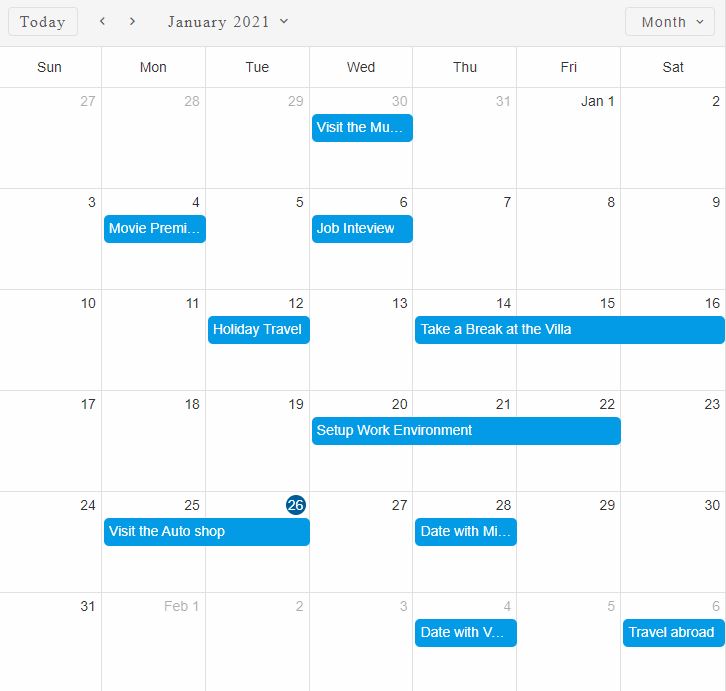
As a result, when the page is loaded the events from Google Calendar will be loaded to the Smart.Scheduler
Demo
For AI tooling
Developer Quick Reference
Topic: scheduler-google-calendar-sync Component: Scheduler Framework: Angular
Main methods: (none detected)
Common config keys: dataSource, views
Implementation Notes
Compatibility: Angular 17+ (standalone) API access pattern: @ViewChild(...) + this.component.method()
Lifecycle guidance: Bind inputs declaratively and call imperative API through @ViewChild in/after ngAfterViewInit.
Common pitfalls:
- Using @ViewChild API too early (before view init).
- Omitting standalone imports for Smart modules in @Component.imports.
- Type mismatches between configuration fields and template bindings.
Validation checklist:
- Ensure module import exists in standalone component imports array.
- Use typed @ViewChild(..., { read: ComponentType }).
- Call imperative methods after view initialization.