



Getting Started with Window Web Component
Smart UI Web Components work with current evergreen browsers and Node 18+ for local tooling; pin package versions to match your project policy.
Smart UI is distributed as the smart-webcomponents NPM package. You can also use the full download from the Download page.
Quick start
- Install the package:
npm install smart-webcomponents
- Load the Window module (ES module script):
<script type="module" src="node_modules/smart-webcomponents/source/modules/smart.window.js"></script>
- Add the default stylesheet (prefer angular.json / bundler entry in app codebases; for plain HTML use a link):
<link rel="stylesheet" type="text/css" href="node_modules/smart-webcomponents/source/styles/smart.default.css" />
- Add markup in one of two ways - semantic custom element (the component tag is in your HTML) or a host
div(you mount programmatically with appendTo):
Semantic element (id matches the selector in Smart()):
<smart-window id="window"></smart-window>
Host container (id matches appendTo on Smart.Window):
<div id="windowContainer"></div>
- Initialize after the module loads: define a const windowOptions object, then either bind with Smart('#window', ...) on the semantic tag or use new Smart.Window({ ...windowOptions, appendTo: '#windowContainer' }) on the host
div:
<script type="module">
	import 'node_modules/smart-webcomponents/source/modules/smart.window.js';

	const windowOptions = { opened: true };

	// Option A - semantic <smart-window> with id="window"
	Smart('#window', class {
		get properties() {
			return windowOptions;
		}
	});

	// Option B - host div id="windowContainer"
	// const windowInstance = new Smart.Window({
	// 	...windowOptions,
	// 	appendTo: '#windowContainer'
	// });

	// Option C - constructor(selector, options), then append the returned element yourself
	// const myWindow = new Smart.Window('#window', windowOptions);
	// document.body.appendChild(myWindow);
</script>
Uncomment Option B when you use the host
div; use Option A when you use the semantic element. The Runtime cookbook also documents new Smart.Window('#window', windowOptions) with appendChild, and document.createElement('smart-window') with .props or Object.assign (all are valid patterns; do not combine overlapping patterns for the same instance unless you intend multiple components). - Serve the folder over HTTP (or use your bundler dev server) and open the page.
Runtime cookbook
Alternative creation patterns and imperative APIs. These are all valid ways to create Smart UI components: semantic markup + Smart(); new Smart.Window({ ...options, appendTo: '#...' }); new Smart.Window('#window', windowOptions) plus appendChild on the returned element; and document.createElement('smart-window') then assigning options via .props or Object.assign on the element.
Constructor with a selector string and options, then append the returned element (for example const myWindow = new Smart.Window('#window', windowOptions)):
	const windowOptions = { opened: true };
	const myWindow = new Smart.Window('#window', windowOptions);
	document.body.appendChild(myWindow);
Create with document.createElement('smart-window'), assign properties (same as any custom element), then append:
	const windowOptions = { opened: true };
	const window = document.createElement('smart-window');
	Object.assign(window, windowOptions);
	document.body.appendChild(window);
Host on a div with appendTo (import the module, then instantiate when the document is ready; the container id must match appendTo):
	import "../../source/modules/smart.window.js";

	document.readyState === 'complete' ? init() : window.addEventListener('load', init);

	function init() {
		const windowOptions = { opened: true };
		const window = new Smart.Window({
			...windowOptions,
			appendTo: '#windowContainer'
		});
	}
Demo
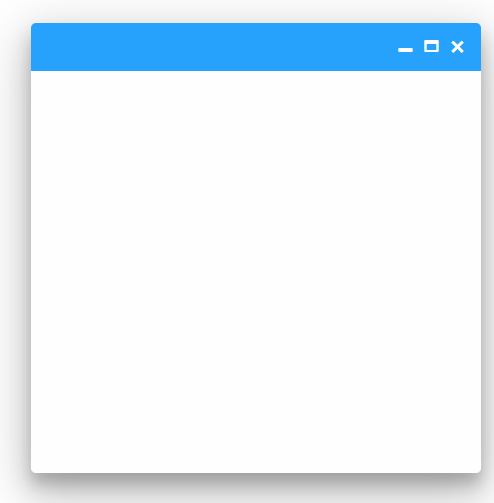
The opened attribue is applied in order to show the window element. By default the property is not applied and the window is not visible.
Appearance
Smart.Window element represents a blank HTML container that can be used as a window for other elements, a modal that prompts for something while blocking the UI in the background or just a simple prompt panel asking for user permission. The apearance of the window depends on user preferences.
The element can appear as closed or opened. Opened means the element is visible while closed means hidden. To open a window simply set the opened attribute or call the open() method:
<!DOCTYPE html>
<html>
<head>
 <link rel="stylesheet" href="../../source/styles/smart.default.css" type="text/css" />
 <script type="text/javascript" src="../../source/modules/smart.window.js"></script>
 <script>
     window.onload = function () {
        document.querySelector('smart-window').open();
     }
 </script>
</head>
<body>
 <smart-window></smart-window>
</body>
</html>
Demo

To close the window simply remove the opened attribute or call the close() method.
The window element has three sections: header, content and footer. All three of them are completely customizable.
The Header usually holds a label that represents the name of the window:
<smart-window opened label="New Window"></smart-window>
Demo
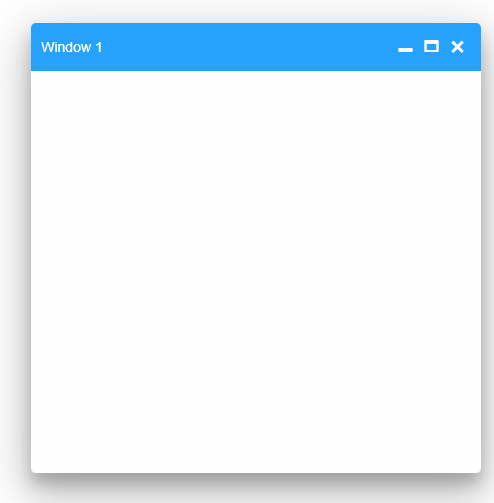
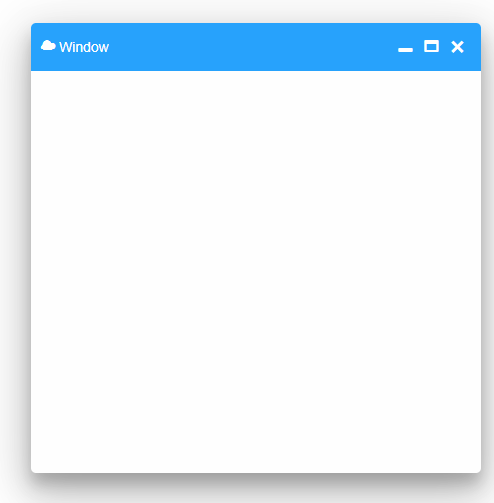
However the user can change the content of The Header to include any HTML code by passing an HTML Tempalte element to the headerTemplate property like so:
<!DOCTYPE html>
<html>
<head>
 <link rel="stylesheet" href="../../source/styles/smart.default.css" type="text/css" />
 <script type="text/javascript" src="https://cdnjs.cloudflare.com/ajax/libs/webcomponentsjs/1.0.22/webcomponents-lite.js"></script>
 <script type="text/javascript" src="https://cdnjs.cloudflare.com/ajax/libs/webcomponentsjs/1.0.22/webcomponents-loader.js"></script>
 <script type="text/javascript" src="../../source/Smart.element.js"></script>
 <script type="text/javascript" src="../../source/Smart.button.js"></script>
 <script type="text/javascript" src="../../source/Smart.window.js"></script>
 <style>
     .glyphicon-cloud {
        margin-right: 5px;
     }
 </style>
</head>
<body>
 <template id="headerTemplate">
     <span class="glyphicon glyphicon-cloud"></span>
     <span>Window</span>
 </template>
 <smart-window opened header-template="headerTemplate"></smart-window>
</body>
</html>
Demo
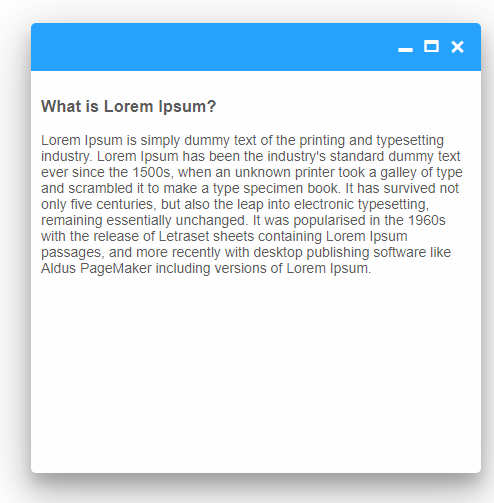
The Content section is the main section of the element. Here the user can store anything he desires in two ways:
-
Place any HTML content between the opening and closing breckets of the element in the initialization code, like so:
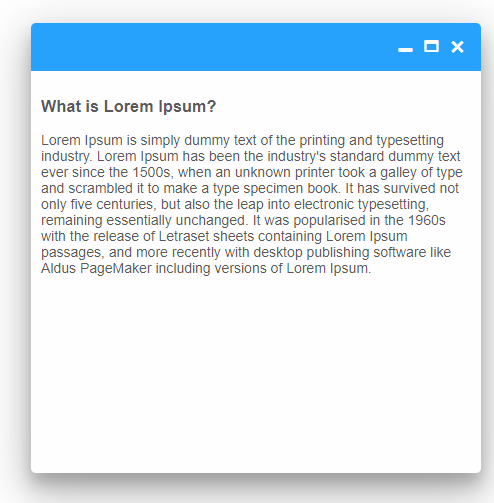
<smart-window opened>
 <section>
    <h3>What is Lorem Ipsum?</h3>
    <p>
        Lorem Ipsum is simply dummy text of the printing and typesetting industry. Lorem Ipsum has been the industry's standard dummy text ever since the 1500s, when an unknown printer took a galley of type and scrambled it to make a type specimen book. It has survived not only five centuries, but also the leap into electronic typesetting, remaining essentially unchanged. It was popularised in the 1960s with the release of Letraset sheets containing Lorem Ipsum passages, and more recently with desktop publishing software like Aldus PageMaker including versions of Lorem Ipsum.
     </p>
  </section>
 </smart-window>
Demo
What is Lorem Ipsum?
Lorem Ipsum is simply dummy text of the printing and typesetting industry. Lorem Ipsum has been the industry's standard dummy text ever since the 1500s, when an unknown printer took a galley of type and scrambled it to make a type specimen book. It has survived not only five centuries, but also the leap into electronic typesetting, remaining essentially unchanged. It was popularised in the 1960s with the release of Letraset sheets containing Lorem Ipsum passages, and more recently with desktop publishing software like Aldus PageMaker including versions of Lorem Ipsum.
-
Change the content of the window at any time ( after the element has been initialized and ready) using the innerHTML property:
<!DOCTYPE html>
<html>
<head>
 <link rel="stylesheet" href="../../source/styles/smart.default.css" type="text/css" />
 <script type="text/javascript" src="https://cdnjs.cloudflare.com/ajax/libs/webcomponentsjs/1.0.22/webcomponents-lite.js"></script>
 <script type="text/javascript" src="https://cdnjs.cloudflare.com/ajax/libs/webcomponentsjs/1.0.22/webcomponents-loader.js"></script>
 <script type="text/javascript" src="../../source/Smart.element.js"></script>
 <script type="text/javascript" src="../../source/Smart.button.js"></script>
 <script type="text/javascript" src="../../source/Smart.window.js"></script>
 <script>
    window.onload = function () {
        document.querySelector('smart-window').innerHTML = `
        <section>
         <h2>What is Lorem Ipsum?</h2>
         <p>
         Lorem Ipsum is simply dummy text of the printing and typesetting industry. Lorem Ipsum has been the industry's standard dummy text ever since the 1500s, when an unknown printer took a galley of type and scrambled it to make a type specimen book. It has survived not only five centuries, but also the leap into electronic typesetting, remaining essentially unchanged. It was popularised in the 1960s with the release of Letraset sheets containing Lorem Ipsum passages, and more recently with desktop publishing software like Aldus PageMaker including versions of Lorem Ipsum.
         </p>
         </section>`;
        }
 </script>
</head>
<body>
 <smart-window opened></smart-window>
</body>
</html>
Notice how we apply the changes during the window.onload. This is the stage at which the custom elements are initialized and ready to accept changes.
Demo
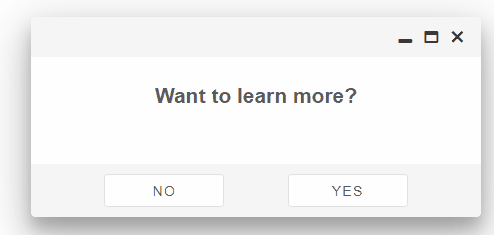
The Footer section of the element can also be customized using HTML Template:
<!DOCTYPE html>
<html>
<head>
 <link rel="stylesheet" href="../../source/styles/smart.default.css" type="text/css" />
 <script type="text/javascript" src="https://cdnjs.cloudflare.com/ajax/libs/webcomponentsjs/1.0.22/webcomponents-lite.js"></script>
 <script type="text/javascript" src="https://cdnjs.cloudflare.com/ajax/libs/webcomponentsjs/1.0.22/webcomponents-loader.js"></script>
 <script type="text/javascript" src="../../source/Smart.element.js"></script>
 <script type="text/javascript" src="../../source/Smart.button.js"></script>
 <script type="text/javascript" src="../../source/Smart.window.js"></script>
 <style>
     smart-window {
         --smart-window-header-height: 40px;
         --smart-window-footer-height: 40px;
         --smart-window-default-height: 200px;
     }
    smart-window .smart-footer {
        display: flex;
        justify-content: space-evenly;
     }
     smart-window .smart-footer smart-button {
        height: 100%;
     }
 </style>
</head>
<body>
 <template id="footerTemplate">
     <smart-button>No</smart-button>
     <smart-button>Yes</smart-button>
 </template>
 <smart-window opened footer-template="footerTemplate">
    <h2>Want to learn more?</h2>
</smart-window>
</body>
</html>
Demo
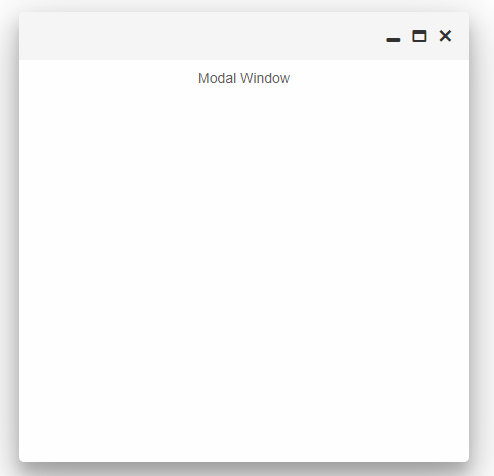
Modal Windows are used when the user wants to block the UI in the background. In order to enable that functionality of the element simply add the modal attribute to the HTML tag of the element:
<smart-window opened modal>Modal Window</smart-window>
Demo
Or set the modal property via Javascript:
<!DOCTYPE html>
<html>
<head>
 <link rel="stylesheet" href="../../source/styles/smart.default.css" type="text/css" />
 <script type="text/javascript" src="https://cdnjs.cloudflare.com/ajax/libs/webcomponentsjs/1.0.22/webcomponents-lite.js"></script>
 <script type="text/javascript" src="https://cdnjs.cloudflare.com/ajax/libs/webcomponentsjs/1.0.22/webcomponents-loader.js"></script>
 <script type="text/javascript" src="../../source/Smart.element.js"></script>
 <script type="text/javascript" src="../../source/Smart.button.js"></script>
 <script type="text/javascript" src="../../source/Smart.window.js"></script>
 <script>
     window.onload = function () {
        document.querySelector('smart-window').modal = true;
     }
 </script>
</head>
<body>
 <smart-window opened>Modal Window</smart-window>
</body>
</html>
Demo
Behavior
Smart.Window can be dragged or resized inside the container of it's parent element. Dragging is enabled by default while resizing is not.
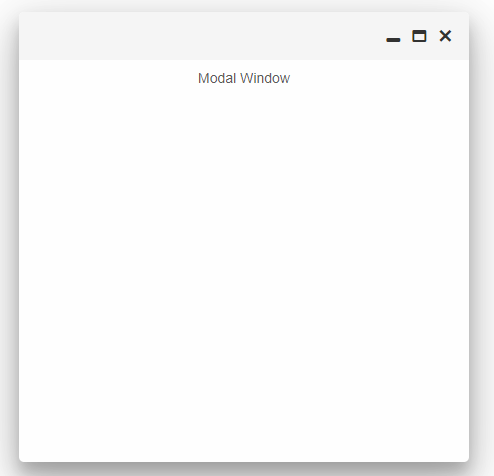
To enable resizing the user has to apply the property resizable to the element either in the HTML tag of the element or via javascript:
<smart-window opened resizable></smart-window>
Demo
The window can be resized from any of it's sides or corners.
However there is a property that controls the resizing behavior called resizeMode.
Two modes are available:
- default - the window can be resized from any side or corner.
- corner - the window can be resized only from the bottom-right corner.
Changing the reseizeMode is as easy as the any other property:
<smart-window opened resizable resize-mode="corner"></smart-window>
Demo
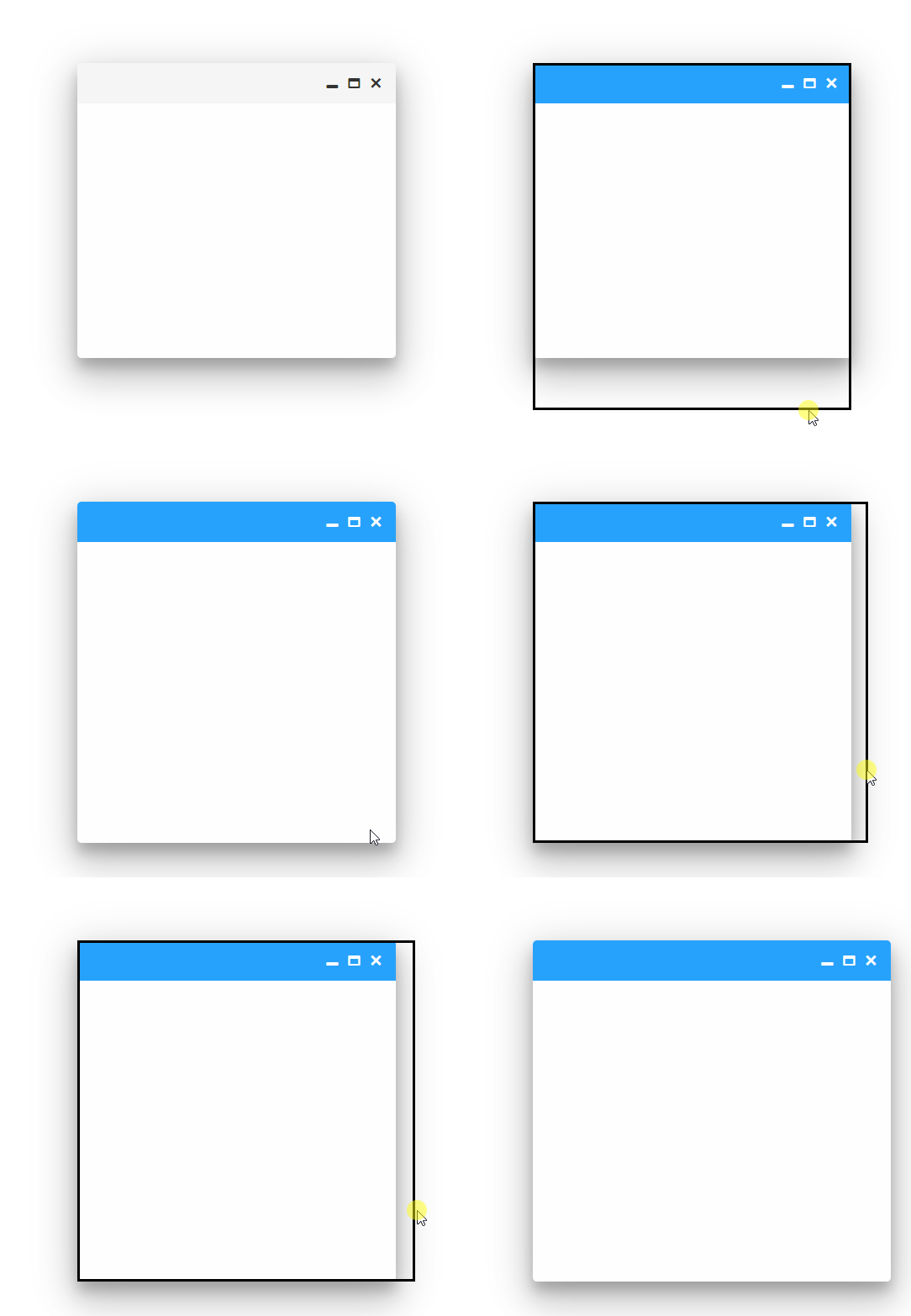
Window dragging can be disabled by applying the pinned property:
<smart-window opened pinned></smart-window>
Demo
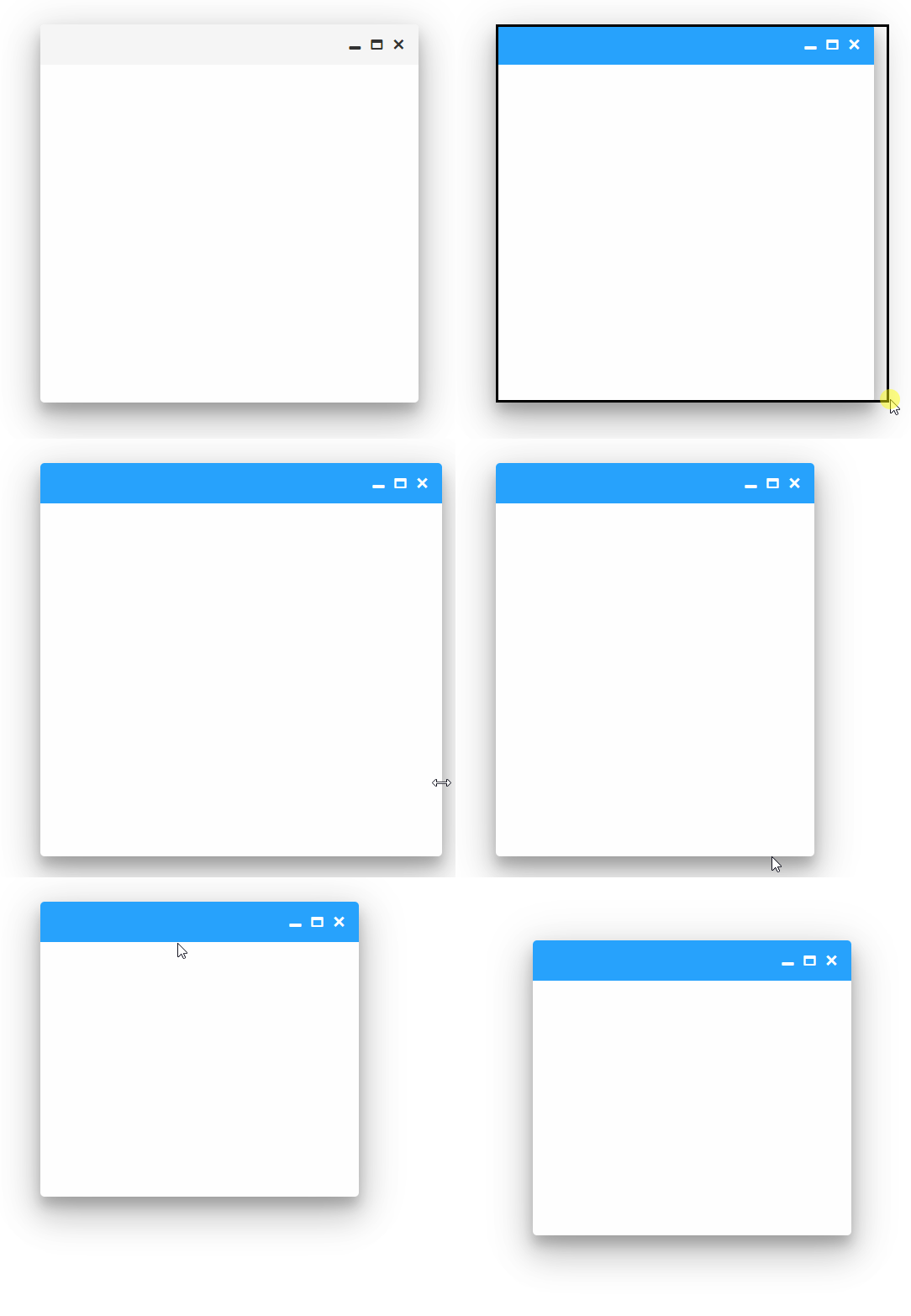
Or calling the pin() method:
<!DOCTYPE html>
<html>
<head>
 <link rel="stylesheet" href="../../source/styles/smart.default.css" type="text/css" />
 <script type="text/javascript" src="https://cdnjs.cloudflare.com/ajax/libs/webcomponentsjs/1.0.22/webcomponents-lite.js"></script>
 <script type="text/javascript" src="https://cdnjs.cloudflare.com/ajax/libs/webcomponentsjs/1.0.22/webcomponents-loader.js"></script>
 <script type="text/javascript" src="../../source/Smart.element.js"></script>
 <script type="text/javascript" src="../../source/Smart.button.js"></script>
 <script type="text/javascript" src="../../source/Smart.window.js"></script>
 <script>
     window.onload = function () {
        document.querySelector('smart-window').pin();
     }
 </script>
</head>
<body>
 <smart-window opened></smart-window>
</body>
</html>
Demo
To allow dragging again simply remove the pinned attribute or call the unpin() method.
The window can fill the entire screen if necessary. This can be accomplished via the maximized property or by calling the maximize() method just like in the example above.
<smart-window maximized opened></smart-window>
Demo
To restore the window size back to normal remove the maximized property or call the restore() method.
Smart.Window can be collapsed by applying the collapsed property or calling the collapse() method. When collapsed the only visible part of the window is the header section.
<smart-window collapsed opened></smart-window>
Demo
In order to restore the window to it's full size, remove the collapsed attribute or call the restore() method.
Keyboard Support
Smart.Window implements the following keys:
| Key | Action |
|---|---|
| Arrow Up / Arrow Down / Arrow Left/ Arrow Right | Move the window according to the direction. |
| Ctrl + Arrow Up / Arrow Down / Arrow Left/ Arrow Right | Resize the window according to the direction. |
| Alt + Arrow Up / Arrow Down | Maximize/Restore the window. |
| Ctrl + P | Pin/Unpin the window |
| Ctrl + C | Collapse/Uncollapse the window |
Append to the DOM:
const container = document.getElementById('window-container');
container.appendChild(window);
Remove from the DOM:
window.remove();
Set a property:
window.disabled = true;
window.theme = 'dark';
Get a property value:
const isDisabled = window.disabled;
const currentTheme = window.theme;
Invoke a method:
window.refresh();
window.focus();
Add event listener:
window.addEventListener('open', (event) => {
    console.log('open triggered:', event.detail);
});
Remove event listener:
const handleWindowEvent = (event) => {
    console.log('open triggered:', event.detail);
};

window.addEventListener('open', handleWindowEvent);
window.removeEventListener('open', handleWindowEvent);
Common Use Cases
-
Open modal dialog
Show window as a modal overlay
window.modal = true;
window.open();
-
Handle close event
Execute code when window closes
smartWindow.addEventListener('close', () => {
  console.log('Window closed');
});
Troubleshooting
- How do I center the window?
- Use windowParent = 'body' and set centered = true, or calculate position manually using viewport dimensions.
- How do I prevent the window from being closed?
- Handle the closing event and call e.preventDefault() to cancel the close action.
Accessibility
The Window component follows WAI-ARIA best practices:
- Keyboard navigation - Tab, Arrow keys, Enter, and Escape are supported
- ARIA roles - Appropriate roles and labels are applied automatically
- Focus management - Visible focus indicators for keyboard users
- Screen readers - State changes are announced to assistive technology
- High contrast - Supports Windows High Contrast Mode and forced colors
For custom labeling, set aria-label or aria-labelledby attributes on the component.
Supported stacks: Smart UI targets Angular 17+, React 18+, Vue 3+, Node 18 LTS, and evergreen browsers; pin exact package versions to your org policy.