



Angular CardView - Setup
Smart UI for Angular supports both standalone components (bootstrapApplication) and NgModule-based apps (bootstrapModule(AppModule)). Steps 1-5 show the standalone path; the section below shows the NgModule path with the same package and styles.
Demo source (Smart UI repo): angular/src/cardview/overview
1 NPM Install
Install the smart-webcomponents-angular package:
npm install smart-webcomponents-angular
2 Register styles
Add the default Smart UI stylesheet to angular.json -> projects -> <your-project> -> architect -> build -> options -> styles (merge with existing entries):
"styles": [
		"node_modules/smart-webcomponents-angular/source/styles/smart.default.css"
	]
Add optional theme CSS from the same package after smart.default.css if you use Bootstrap, Fluent, or other bundled themes.
3 Import the Angular module
Import CardViewModule from smart-webcomponents-angular/cardview: use @Component.imports for standalone, or add it to your AppModule (or feature module) imports array for NgModule apps.
import { CardViewModule } from 'smart-webcomponents-angular/cardview';
4 Root component (standalone)
Add CardViewModule to your root standalone component (src/app/app.ts). Snippet from Smart UI demos (paths normalized to app.html / App where applicable):
 import { Component, ViewChild, OnInit, AfterViewInit } from '@angular/core';
import { CardViewColumn, CardViewComponent, Smart } from 'smart-webcomponents-angular/cardview';

import { CardViewModule } from 'smart-webcomponents-angular/cardview';

@Component({
  selector: 'app-root',
  standalone: true,
  imports: [ CardViewModule ],
  templateUrl: './app.html',
  styleUrl: './app.css'
})

export class App implements AfterViewInit, OnInit {
	@ViewChild('cardview', { read: CardViewComponent, static: false }) cardview!: CardViewComponent;

    generateData(length: number): any[] {
        const sampleData = [], firstNames = ['Andrew', 'Nancy', 'Shelley', 'Regina', 'Yoshi', 'Antoni', 'Mayumi', 'Ian', 'Peter', 'Lars', 'Petra', 'Martin', 'Sven', 'Elio', 'Beate', 'Cheryl', 'Michael', 'Guylene'], lastNames = ['Fuller', 'Davolio', 'Burke', 'Murphy', 'Nagase', 'Saavedra', 'Ohno', 'Devling', 'Wilson', 'Peterson', 'Winkler', 'Bein', 'Petersen', 'Rossi', 'Vileid', 'Saylor', 'Bjorn', 'Nodier'], petNames = ['Sam', 'Bob', 'Lucky', 'Tommy', 'Charlie', 'Olliver', 'Mixie', 'Fluffy', 'Acorn', 'Beak'], countries = ['Bulgaria', 'USA', 'UK', 'Singapore', 'Thailand', 'Russia', 'China', 'Belize'], productNames = ['Black Tea', 'Green Tea', 'Caffe Espresso', 'Doubleshot Espresso', 'Caffe Latte', 'White Chocolate Mocha', 'Cramel Latte', 'Caffe Americano', 'Cappuccino', 'Espresso Truffle', 'Espresso con Panna', 'Peppermint Mocha Twist'];
        for (let i = 0; i < length; i++) {
            const row: any = {};

            row.firstName = (i + 1) + '. ' + firstNames[Math.floor(Math.random() * firstNames.length)];
            row.lastName = lastNames[Math.floor(Math.random() * lastNames.length)];
            row.birthday = new Date(Math.round(Math.random() * (2018 - 1918) + 1918), Math.round(Math.random() * 11), Math.round(Math.random() * (31 - 1) + 1));
            row.petName = petNames[Math.floor(Math.random() * petNames.length)];
            row.country = countries[Math.floor(Math.random() * countries.length)];
            row.productName = productNames[Math.floor(Math.random() * productNames.length)];
            row.price = parseFloat((Math.random() * (100 - 0.5) + 0.5).toFixed(2));
            row.quantity = Math.round(Math.random() * (50 - 1) + 1);
            row.timeOfPurchase = new Date(2019, 0, 1, Math.round(Math.random() * 23), Math.round(Math.random() * (31 - 1) + 1));
            row.expired = Math.random() >= 0.5;
            row.attachments = [];
            const maxAttachments = Math.floor(Math.random() * Math.floor(3)) + 1;
            for (let i = 0; i < maxAttachments; i++) {
                row.attachments.push(`../../../src/images/travel/${Math.floor(Math.random() * 36) + 1}.jpg`);
            }
            row.attachments = row.attachments.join(',');
            sampleData[i] = row;
        }

        return sampleData;
    }


    dataSource = new Smart.DataAdapter({
        dataSource: this.generateData(50),
        dataFields: [
            'firstName: string',
            'lastName: string',
            'birthday: date',
            'petName: string',
            'country: string',
            'productName: string',
            'price: number',
            'quantity: number',
            'timeOfPurchase: date',
            'expired: boolean',
            'attachments: string'
        ]
    });

    columns: CardViewColumn[] = [
        { label: 'First Name', dataField: 'firstName', icon: 'firstName' },
        { label: 'Last Name', dataField: 'lastName', icon: 'lastName' },
        { label: 'Birthday', dataField: 'birthday', icon: 'birthday', formatSettings: { formatString: 'd' } },
        { label: 'Pet Name', dataField: 'petName', icon: 'petName' },
        { label: 'Country', dataField: 'country', icon: 'country' },
        { label: 'Product Name', dataField: 'productName', icon: 'productName' },
        { label: 'Price', dataField: 'price', icon: 'price', formatSettings: { formatString: 'c2' } },
        {
            label: 'Quantity', dataField: 'quantity', icon: 'quantity', formatFunction: function (settings) {
                const value = settings.value;
                let className;
                if (value < 20) {
                    className = 'red';
                }
                else if (value < 35) {
                    className = 'yellow';
                }
                else {
                    className = 'green';
                }
                settings.template = `<div class="${className}">${value}</div>`;
            }
        },
        { label: 'Time of Purchase', dataField: 'timeOfPurchase', icon: 'timeOfPurchase', formatSettings: { formatString: 'hh:mm tt' } },
        {
            label: 'Expired', dataField: 'expired', icon: 'expired', formatFunction: function (settings) {
                settings.template = settings.value ? '☑' : '☐';
            }
        },
        { label: 'Attachments', dataField: 'attachments', image: true }
    ];

    coverField: string = 'attachments';
    titleField: string = 'firstName'

	ngOnInit(): void {
		// onInit code.
	}

	ngAfterViewInit(): void {
		// afterViewInit code.
		this.init();
    }

	init(): void {
		// init code.


	}
}
Boot the app with bootstrapApplication from src/main.ts and an ApplicationConfig in src/app/app.config.ts as generated by the CLI.
5 Template (standalone)
Use your markup in src/app/app.html (or inline template). Bind properties and events on smart-card-view as needed:
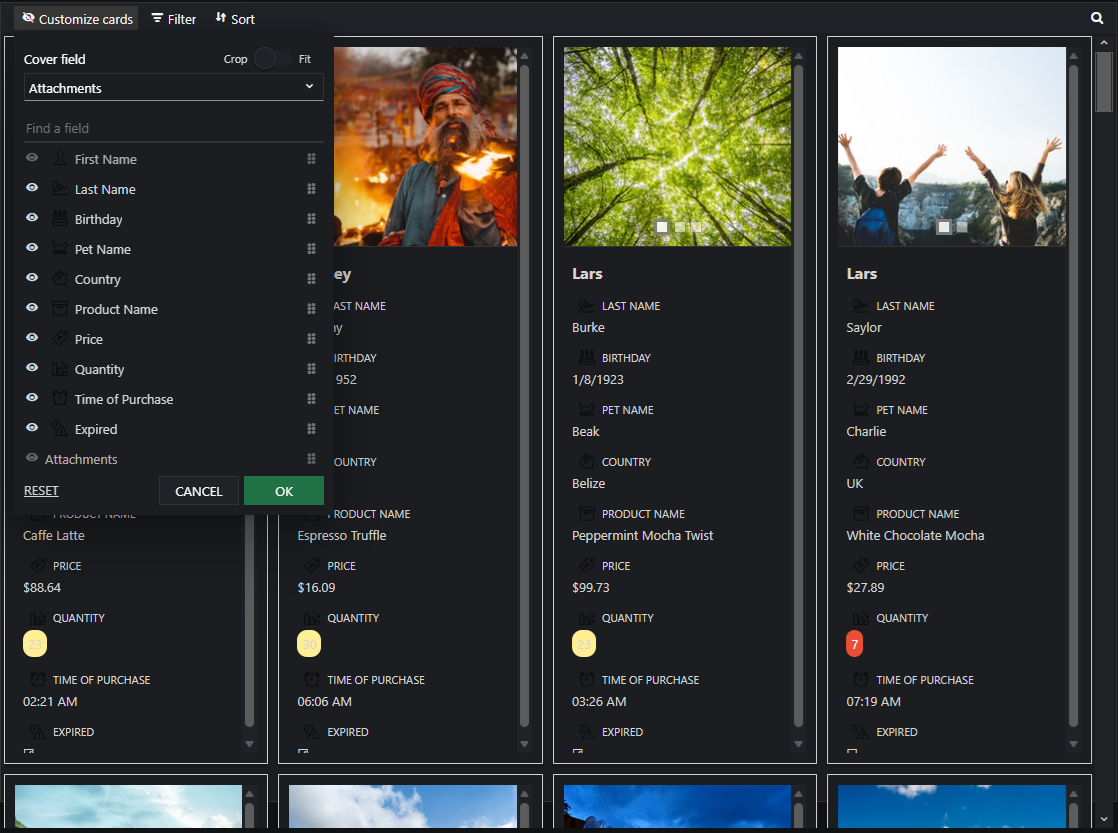
 <div class="demo-description">In Card View, data source records are represented as cards. Each Card
    contain content and actions about a single subject. smartCardView supports
    data sort, data filtering, data editing, data grouping and data searching.</div>
<smart-card-view [columns]="columns" [titleField]="titleField" [dataSource]="dataSource" [coverField]="coverField"
    #cardview id="cardView"></smart-card-view>
6 NgModule bootstrap (also supported)
Same npm package and angular.json styles as steps 1-2. Put CardViewModule on your NgModule.imports instead of @Component.imports, and bootstrap with bootstrapModule(AppModule).
The demo sources bundled for this widget use standalone only (there is no app.module.ts in that folder). NgModule is fully supported: put CardViewModule from smart-webcomponents-angular/cardview on NgModule.imports, make your root component non-standalone (remove standalone: true and move widget modules from @Component.imports to the module), and bootstrap with platformBrowserDynamic().bootstrapModule(AppModule).
Minimal main.ts + app.module.ts pairing (adjust paths to match your CLI layout):
src/main.ts
import { platformBrowserDynamic } from '@angular/platform-browser-dynamic';
import { AppModule } from './app/app.module';

platformBrowserDynamic().bootstrapModule(AppModule).catch((err) => console.error(err));
src/app/app.module.ts
import { NgModule } from '@angular/core';
import { BrowserModule } from '@angular/platform-browser';
import { AppComponent } from './app.component';
import { CardViewModule } from 'smart-webcomponents-angular/cardview';

@NgModule({
	declarations: [ AppComponent ],
	imports: [ BrowserModule, CardViewModule ],
	bootstrap: [ AppComponent ]
})
export class AppModule { }
Reuse the template and class logic from steps 4-5 in AppComponent, configured for declarations + NgModule.imports instead of a standalone @Component.
Run
ng serve or npm start - then open http://localhost:4200/.
Smart UI for Angular - full documentation
Common Use Cases
-
Configure card layout
Set columns and cover image field
cardView.coverField = 'image';
cardView.titleField = 'name';
-
Handle card click
Respond when user clicks a card
cardView.addEventListener('itemClick', (e) => {
  console.log('Card data:', e.detail.data);
});
Troubleshooting
- How do I customize card templates?
- Use the cardTemplate property to define a custom HTML template with data bindings.
Accessibility
The CardView component follows WAI-ARIA best practices:
- Keyboard navigation - Tab, Arrow keys, Enter, and Escape are supported
- ARIA roles - Appropriate roles and labels are applied automatically
- Focus management - Visible focus indicators for keyboard users
- Screen readers - State changes are announced to assistive technology
- High contrast - Supports Windows High Contrast Mode and forced colors
For custom labeling, set aria-label or aria-labelledby attributes on the component.
Supported stacks: Smart UI targets Angular 17+, React 18+, Vue 3+, Node 18 LTS, and evergreen browsers; pin exact package versions to your org policy.