



Getting Started with Vue GanttChart Component
Smart UI Vue examples target Vue 3 and Vite; enable TypeScript in create-vue when you want typed SFCs.
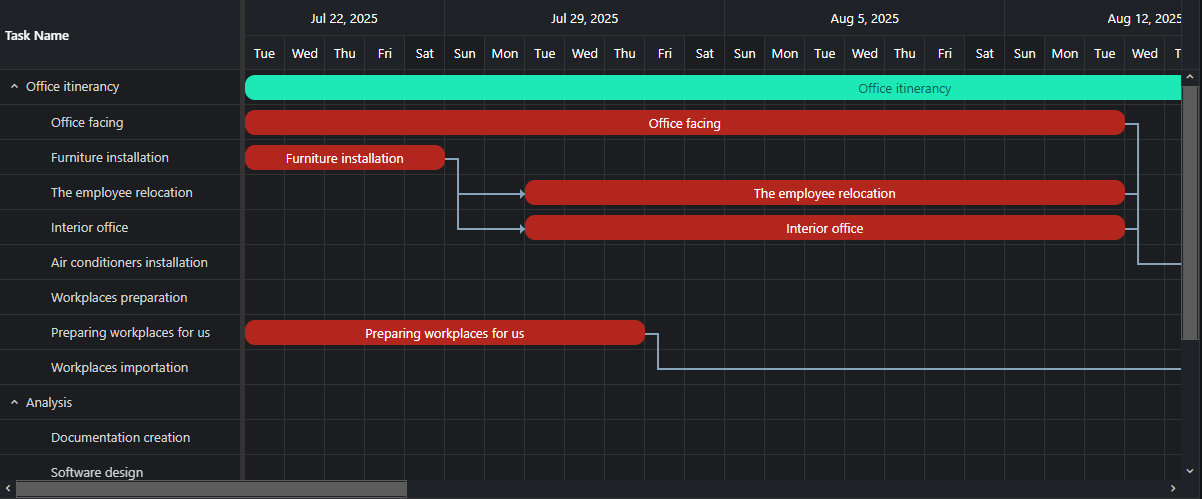
Demo source (Smart UI repo): vue/vue-3/src/gantt/events/App.vue
Scaffold with Vite (Vue 3)
Run the official scaffolding tool:
npm create vue@latest
You will be prompted for TypeScript, Router, Pinia, and other options. When unsure, accept defaults and enable features later.
cd <your-project-name>
npm install
npm install smart-webcomponents
npm run dev
Vue + TypeScript
If you enabled TypeScript, use vite.config.ts with the same isCustomElement configuration as below so the compiler treats Smart UI tags as native custom elements.
Teach Vue about custom elements
Without this, Vue warns about unknown custom elements. Open vite.config.js or vite.config.ts and configure the Vue plugin so smart-* and legacy jqx-* tags are passed through to the DOM:
import { fileURLToPath, URL } from 'node:url'

import { defineConfig } from 'vite'
import vue from '@vitejs/plugin-vue'

export default defineConfig({
  plugins: [
    vue({
      template: {
        compilerOptions: {
          isCustomElement: tag => tag.startsWith('smart-') || tag.startsWith('jqx-')
        }
      }
    })
  ],
  resolve: {
    alias: {
      '@': fileURLToPath(new URL('./src', import.meta.url))
    }
  }
})
App.vue example
Example from Smart UI Vue 3 demos for this widget:
<template>
  <div class="vue-root">
    <div class="demo-description">
      <p>
        GanttChart fires a number of events on different ocasions, like dragging,resizing,inserting/removing
        a connection between tasks or editing/removing/inserting a task/resource.
        Double click on a task in order to open the Editor Window. When an item
        is edited an event is fired and displayed in the log.
      </p>Events fired in
      the demo:
      <ul>
        <li>change - fired when selection is changed</li>
        <li>opening - fired when the editor window is opening</li>
        <li>open - fired when the editor window is opened</li>
        <li>closing - fired when the editor window is closing</li>
        <li>close - fired when the editor window is closed</li>
        <li>dragStart - fired when a task bar dragging is started</li>
        <li>dragEnd - fired when a task bar dragging is finished</li>
        <li>resizeStart - fired when a task bar resizing is started</li>
        <li>resizeEnd - fired when a task bar resizing is finished</li>
        <li>progressChangeStart - fired when task bar progress thumb dragging is started</li>
        <li>progressChangeEnd - fired when task bar progress thumb dragging is finished</li>
        <li>connetionStart - fired when task bar connecting is started</li>
        <li>connetionEnd - fired when task bar conneciting is finished.</li>
        <li>itemRemove - fired when a task/resource/connection is removed.</li>
        <li>itemInsert - fired when a task/resource/connection is inserted.</li>
        <li>itemUpdate - fired when a task/resource/connection is updated.</li>
        <li>
          itemClick - fired when a task bar/task tree item/resource tree item/connection
          is clicked.
        </li>
      </ul>
    </div>
    <smart-gantt-chart id="ganttChart"></smart-gantt-chart>
    <div class="options">
      <h3>Events:</h3>
      <div class="option" id="eventLog">
        <div id="log"></div>
      </div>
    </div>
  </div>
</template>

<script>
import { onMounted } from "vue";
import "smart-webcomponents/source/styles/smart.default.css";
import "smart-webcomponents/source/modules/smart.ganttchart.js";

export default {
  name: "app",
  setup() {
    onMounted(() => {
      window.Smart(
        "#ganttChart",
        class {
          get properties() {
            return {
              view: "week",
              durationUnit: "day",
              taskColumns: [
                {
                  label: "Name",
                  value: "label"
                }
              ],
              dataSource: [
                {
                  label: "Task A",
                  dateStart: "2021-01-15",
                  duration: 10
                },
                {
                  label: "Task B",
                  dateStart: "2021-01-14",
                  duration: 6
                },
                {
                  label: "Task C",
                  dateStart: "2021-01-16",
                  duration: 4
                },
                {
                  label: "Task D",
                  dateStart: "2021-01-13",
                  duration: 12
                },
                {
                  label: "Task E",
                  dateStart: "2021-01-18",
                  duration: 7
                },
                {
                  label: "Task F",
                  dateStart: "2021-01-15T00:00:00",
                  duration: 15
                }
              ]
            };
          }
        }
      );

      const ganttChart = document.querySelector("smart-gantt-chart"),
        log = document.getElementById("log"),
        eventNames = [
          "change",
          "opening",
          "closing",
          "open",
          "close",
          "dragStart",
          "dragEnd",
          "resizeStart",
          "resizeEnd",
          "progressChangeStart",
          "progressChangeEnd",
          "connectionStart",
          "connectionEnd",
          "itemRemove",
          "itemInsert",
          "itemUpdate",
          "itemClick"
        ];
      for (let i = 0; i < eventNames.length; i++) {
        ganttChart.addEventListener(eventNames[i], function(e) {
          log.innerHTML += e.type + "<br />";
        });
      }
    });
  }
};
</script>

<style>
.smart-gantt-chart {
  width: calc(100% - 300px);
  height: 450px;
}
@media only screen and (max-width: 600px) {
  .smart-gantt-chart {
    width: 100%;
    height: auto;
  }
}

.options {
    padding: 20px;
    background-color: rgba(191, 191, 191, .15);
    position: absolute;
    right: 0;
    top: 0;
    bottom: 0;
    width: 260px
}

@media (max-width: 750px) {
    .options {
        position: relative;
        top: 30px;
        width: 240px;
        margin: 0 auto;
    }
}
</style>
You can now use smart-gantt-chart in templates; bindings and events follow Vue's normal syntax.
Run and build
Development server:
npm run dev
Then open http://localhost:5173/.
Production build:
npm run build
Output goes to ./dist.
Read more about using Smart UI for Vue.
Common Use Cases
-
Load tasks from JSON
Populate Gantt chart with task data
gantt.dataSource = tasksArray;
-
Add task dependencies
Link tasks with predecessor relationships
gantt.dataSource = [{ label: 'Task 1', dateStart: '2026-01-01', dateEnd: '2026-01-05' }, { label: 'Task 2', dateStart: '2026-01-06', dateEnd: '2026-01-10', connections: [{ target: 0, type: 1 }] }]; -
Export to PDF
Generate a PDF of the Gantt chart
gantt.exportData('pdf', 'GanttExport');
Troubleshooting
- Why are my task dependencies not showing?
- Ensure connections array in each task uses valid target indices and connection type values. Type 0 = start-to-start, 1 = end-to-start.
- How do I change the time scale?
- Set durationUnit to 'hour', 'day', 'week', or 'month' and configure view settings accordingly.
Accessibility
The GanttChart component follows WAI-ARIA best practices:
- Keyboard navigation - Tab, Arrow keys, Enter, and Escape are supported
- ARIA roles - Appropriate roles and labels are applied automatically
- Focus management - Visible focus indicators for keyboard users
- Screen readers - State changes are announced to assistive technology
- High contrast - Supports Windows High Contrast Mode and forced colors
For custom labeling, set aria-label or aria-labelledby attributes on the component.
Supported stacks: Smart UI targets Angular 17+, React 18+, Vue 3+, Node 18 LTS, and evergreen browsers; pin exact package versions to your org policy.