



Grid for Vue
Vue 3 version using Smart custom elements and template refs.
What this topic covers: Focuses on reliable data export workflows (xlsx/csv/pdf/json), what gets exported from current grid state, and how to tune export options for business reporting.
<script setup>
import { onMounted, ref } from 'vue';
import 'smart-webcomponents/source/styles/smart.default.css';
import 'smart-webcomponents/source/modules/smart.grid.js';

const component = ref();
const componentProps = {
  // Copy this topic's JavaScript configuration here.
};

onMounted(() => {
  Object.assign(component.value, componentProps);
});
</script>

<template>
  <smart-grid ref="component"></smart-grid>
</template>
Use component.value for API methods in this topic.
Export data
The Grid data can be exported to 'Excel', 'CSV', 'TSV', 'XML', 'PDF' and 'JSON'. The data export exports the grid as it is currently rendered i.e it will take into account whether you have applied sorting, filtering, grouping. Columns which are hidden i.e column.visible = false, will not be exported. If you want to disable the export of a column which is visible, you can use theallowExport column property i.e column.allowExport = false.
The Grid exports the raw data values which means that custom cell renderers and cell styles will not be included in the export.
To export Grid data, you can use the
exportData method.
component.value.exportData('xlsx');
You can customize the export by using the dataExport property.
Disable the column headers export.
dataExport.header = false;
Set the page orientation when exporting to 'pdf'. Accepted values are 'portrait' and 'landscape'.
dataExport.pageOrientation = 'landscape';
Restrict the export to specific range of rows.
dataExport.view = true; dataExport.viewStart = 1; dataExport.viewEnd = 10;
Restrict the export to specific rows.
dataExport.rowIds = [0, 5, 15];
Set export's file name.
dataExport.fileName = 'myFile';
Custom Style
By default the Grid exports the data using the background, color, font style and font names from its Theme. By using thedataExport.style property, it is possible
to customize that style.
Let's create a Grid instance with the following setup:
const componentProps = {
    dataSourceSettings: {
        dataFields: [
            { name: 'firstName', dataType: 'string' },
            { name: 'lastName', dataType: 'string' },
            { name: 'productName', map: 'product.name', dataType: 'string' },
            { name: 'quantity', map: 'product.quantity', dataType: 'number' },
            { name: 'price', map: 'product.price', dataType: 'number' },
            { name: 'total', map: 'product.total', dataType: 'number' }
        ]
    },
    layout: {
        allowCellsWrap: true,
        rowHeight: 'auto'
    },
    behavior: {
        columnResizeMode: 'growAndShrink'
    },
    sorting: {
        enabled: true
    },
    dataSource: [
        {
            firstName: 'Andrew',
            lastName: 'Burke',
            product: {
                name: 'Ice Coffee', price: 10, quantity: 3, total: 30
            }
        },
        {
            firstName: 'Petra',
            lastName: 'Williams',
            product: {
                name: 'Espresso', price: 7, quantity: 5, total: 35
            }
        },
        {
            firstName: 'Anthony',
            lastName: 'Baker',
            product: {
                name: 'Frappucino', price: 6, quantity: 4, total: 24
            }
        }
    ],
    columns: [
        {
            label: 'First Name', dataField: 'firstName'
        },
        { label: 'Last Name', dataField: 'lastName' },
        { label: 'Product', dataField: 'productName' },
        {
            label: 'Quantity', dataField: 'quantity', cellsAlign: 'right'
        },
        { label: 'Unit Price', dataField: 'price', cellsAlign: 'right', cellsFormat: 'c2' }
    ]
}

const grid = new Smart.Grid("#grid", gridOptions);

By calling
component.value.exportData('xlsx');, we will get the following output:
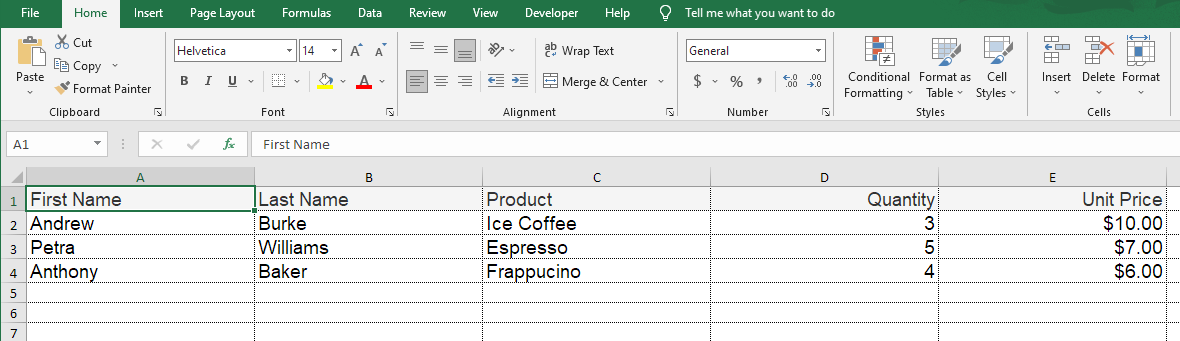
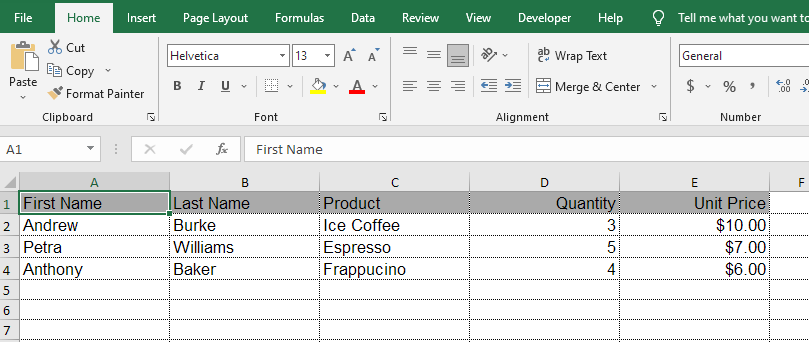
Now, if we apply the following custom style which sets custom border color, font family, font size, font weight, color, background color, cell formatting, etc. to the grid headers, rows and cells.
component.value.dataExport.style = {
	border: '1px solid #bbbbbb',
	borderCollapse: 'collapse',
	header: {
		height: '30px',
		border: '1px solid #bbbbbb',
		fontFamily: 'Helvetica',
		fontSize: '13px',
		color: '#000000',
		backgroundColor: '#aaaaaa',
		fontWeight: '400',
		firstName: {
			width: '150px'
		},
		lastName: {
			width: '150px'
		},
		productName: {
			width: '150px'
		},
		quantity: {
			textAlign: 'right',
			width: '150px'
		},
		price: {
			textAlign: 'right',
			format: 'c2',
			width: '150px'
		}
	},
	columns: {
		border: '1px solid #bbbbbb',
		fontFamily: 'Helvetica',
		fontSize: '13px',
		quantity: {
			textAlign: 'right'
		},
		price: {
			textAlign: 'right',
			format: 'c2'
		}
	},
	rows: {
		height: '30px'
	}
}
Excel Export with Grouping
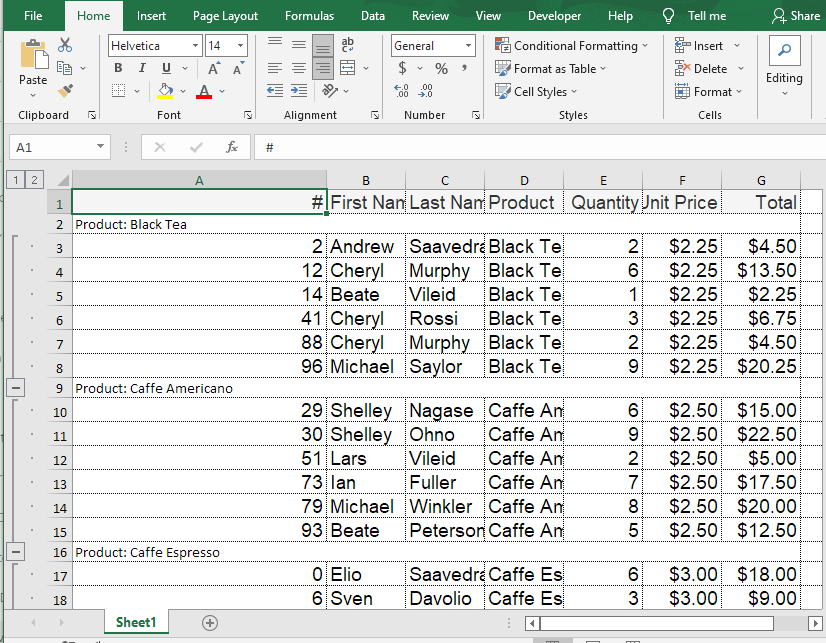
The Grid maintains the groups and in Excel you still will be able to expand/collapse the groups.Let's look at the following code taken from: data export with grouping sample.
const componentProps = {
	dataSource: new Smart.DataAdapter(
	{
		dataSource: generateData(100),
		groupBy: ['productName'],
		dataFields:
			[
				'id: number',
				'firstName: string',
				'lastName: string',
				'productName: string',
				'quantity: number',
				'price: number',
				'total: number'
			]
	}),
	grouping: {
		enabled: true
	},
	columns: [
		{
			label: '#', width: 200, dataField: 'id'
		},
		{
			label: 'First Name', dataField: 'firstName'
		},

		{ label: 'Last Name', dataField: 'lastName' },
		{ label: 'Product', dataField: 'productName' },
		{ label: 'Quantity', dataField: 'quantity', align: 'right', cellsAlign: 'right', },
		{ label: 'Unit Price', dataField: 'price', align: 'right', cellsAlign: 'right', cellsFormat: 'c2' },
		{
			label: 'Total', dataField: 'total', align: 'right', cellsAlign: 'right', cellsFormat: 'c2'
		}
	]
}
Excel export with Tree Grid
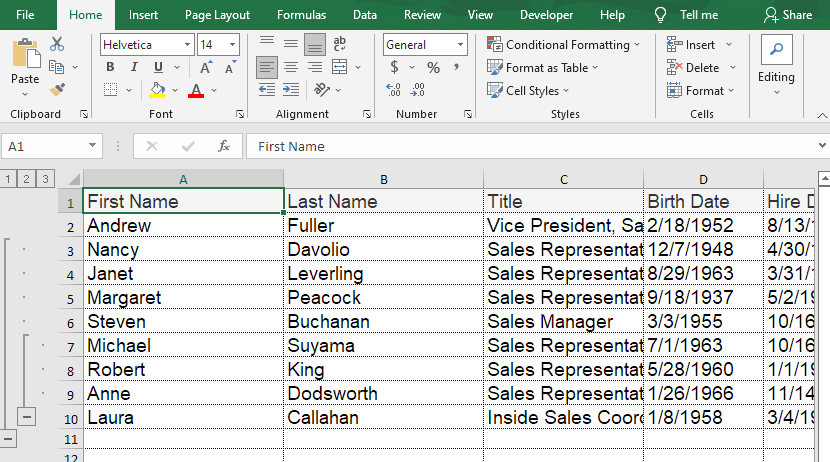
The Grid maintains the Tree hierarchy and in Excel you still will be able to expand/collapse the tree grid rows.Let's look at the following code taken from: data export with tree grid sample.
const componentProps = {
	dataSource: new Smart.DataAdapter(
	{
		dataSource: [
			{ "EmployeeID": 1, "FirstName": "Nancy", "LastName": "Davolio", "ReportsTo": 2, "Country": "USA", "Title": "Sales Representative", "HireDate": "1992-05-01 00:00:00", "BirthDate": "1948-12-08 00:00:00", "City": "Seattle", "Address": "507 - 20th Ave. E.Apt. 2A" },
			{ "EmployeeID": 2, "FirstName": "Andrew", "LastName": "Fuller", "ReportsTo": null, "Country": "USA", "Title": "Vice President, Sales", "HireDate": "1992-08-14 00:00:00", "BirthDate": "1952-02-19 00:00:00", "City": "Tacoma", "Address": "908 W. Capital Way" },
			{ "EmployeeID": 3, "FirstName": "Janet", "LastName": "Leverling", "ReportsTo": 2, "Country": "USA", "Title": "Sales Representative", "HireDate": "1992-04-01 00:00:00", "BirthDate": "1963-08-30 00:00:00", "City": "Kirkland", "Address": "722 Moss Bay Blvd." },
			{ "EmployeeID": 4, "FirstName": "Margaret", "LastName": "Peacock", "ReportsTo": 2, "Country": "USA", "Title": "Sales Representative", "HireDate": "1993-05-03 00:00:00", "BirthDate": "1937-09-19 00:00:00", "City": "Redmond", "Address": "4110 Old Redmond Rd." },
			{ "EmployeeID": 5, "FirstName": "Steven", "LastName": "Buchanan", "ReportsTo": 2, "Country": "UK", "Title": "Sales Manager", "HireDate": "1993-10-17 00:00:00", "BirthDate": "1955-03-04 00:00:00", "City": "London", "Address": "14 Garrett Hill" },
			{ "EmployeeID": 6, "FirstName": "Michael", "LastName": "Suyama", "ReportsTo": 5, "Country": "UK", "Title": "Sales Representative", "HireDate": "1993-10-17 00:00:00", "BirthDate": "1963-07-02 00:00:00", "City": "London", "Address": "Coventry House Miner Rd." },
			{ "EmployeeID": 7, "FirstName": "Robert", "LastName": "King", "ReportsTo": 5, "Country": "UK", "Title": "Sales Representative", "HireDate": "1994-01-02 00:00:00", "BirthDate": "1960-05-29 00:00:00", "City": "London", "Address": "Edgeham Hollow Winchester Way" },
			{ "EmployeeID": 8, "FirstName": "Laura", "LastName": "Callahan", "ReportsTo": 2, "Country": "USA", "Title": "Inside Sales Coordinator", "HireDate": "1994-03-05 00:00:00", "BirthDate": "1958-01-09 00:00:00", "City": "Seattle", "Address": "4726 - 11th Ave. N.E." },
			{ "EmployeeID": 9, "FirstName": "Anne", "LastName": "Dodsworth", "ReportsTo": 5, "Country": "UK", "Title": "Sales Representative", "HireDate": "1994-11-15 00:00:00", "BirthDate": "1966-01-27 00:00:00", "City": "London", "Address": "7 Houndstooth Rd." }
		],
		keyDataField: 'EmployeeID',
		parentDataField: 'ReportsTo',
		id: 'EmployeeID',
		dataFields:
			[
				'EmployeeID: number',
				'ReportsTo: number',
				'FirstName: string',
				'LastName: string',
				'Country: string',
				'City: string',
				'Address: string',
				'Title: string',
				 'HireDate: date',
				'BirthDate: date'
			]
	}),
	onRowInit: function(index, row) {
		if (row.id === 2) {
			row.expanded = true;
		}
	},
	columns: [
		{ label: 'First Name', dataField: 'FirstName', width: 200 },
		{ label: 'Last Name', dataField: 'LastName', width: 200 },
		{ label: 'Title', dataField: 'Title', width: 160 },
		{ label: 'Birth Date', dataField: 'BirthDate', cellsFormat: 'd', width: 120 },
		{ label: 'Hire Date', dataField: 'HireDate', cellsFormat: 'd', width: 120 },
		{ label: 'Address', dataField: 'Address', width: 250 },
		{ label: 'City', dataField: 'City', width: 120 },
		{ label: 'Country', dataField: 'Country' }
	]
}
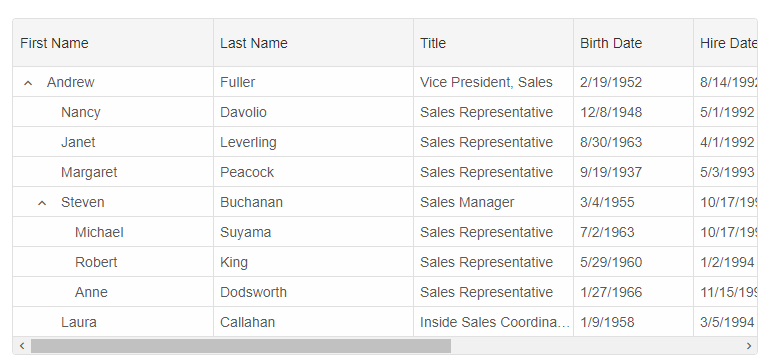
The output in Excel would be:
For AI tooling
Developer Quick Reference
Topic: grid-export Component: Grid Framework: Vue
Main methods: exportData()
Common config keys: layout, behavior, sorting, dataSource, columns, header, grouping
Implementation Notes
Compatibility: Vue 3+ API access pattern: const component = ref() + component.value.method()
Lifecycle guidance: Use template refs with