



Getting Started with PivotTable Web Component
Smart UI Web Components work with current evergreen browsers and Node 18+ for local tooling; pin package versions to match your project policy.
Smart UI is distributed as the smart-webcomponents NPM package. You can also use the full download from the Download page.
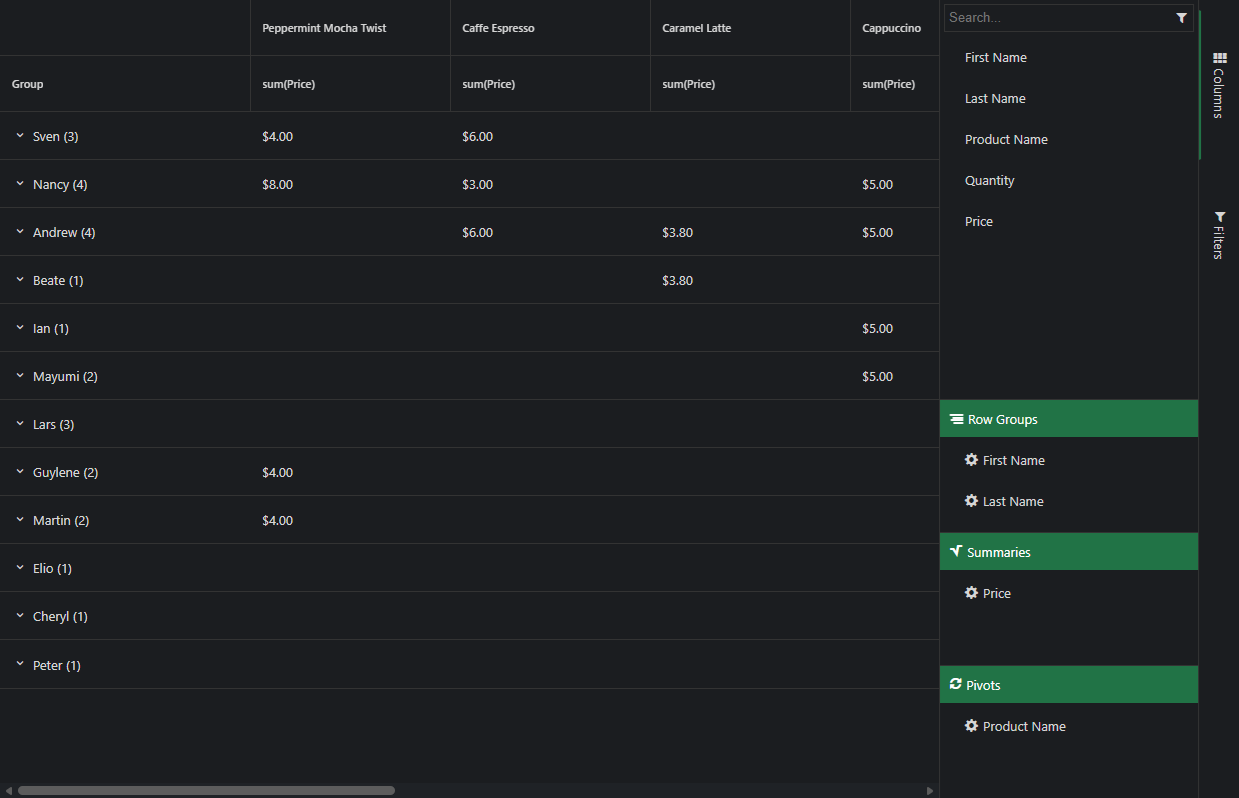
Quick start
- Install the package:
npm install smart-webcomponents
- Load the PivotTable module (ES module script):
<script type="module" src="node_modules/smart-webcomponents/source/modules/smart.pivottable.js"></script>
- Add the default stylesheet (prefer angular.json / bundler entry in app codebases; for plain HTML use a link):
<link rel="stylesheet" type="text/css" href="node_modules/smart-webcomponents/source/styles/smart.default.css" />
- Add markup in one of two ways - semantic custom element (the component tag is in your HTML) or a host
div(you mount programmatically with appendTo):
Semantic element (id matches the selector in Smart()):
<smart-pivot-table id="pivottable"></smart-pivot-table>
Host container (id matches appendTo on Smart.PivotTable):
<div id="pivottableContainer"></div>
- Initialize after the module loads: define a const pivottableOptions object, then either bind with Smart('#pivottable', ...) on the semantic tag or use new Smart.PivotTable({ ...pivottableOptions, appendTo: '#pivottableContainer' }) on the host
div:
<script type="module">
	import 'node_modules/smart-webcomponents/source/modules/smart.pivottable.js';

	const pivottableOptions = {};

	// Option A - semantic <smart-pivot-table> with id="pivottable"
	Smart('#pivottable', class {
		get properties() {
			return pivottableOptions;
		}
	});

	// Option B - host div id="pivottableContainer"
	// const pivottableInstance = new Smart.PivotTable({
	// 	...pivottableOptions,
	// 	appendTo: '#pivottableContainer'
	// });

	// Option C - constructor(selector, options), then append the returned element yourself
	// const myPivotTable = new Smart.PivotTable('#pivottable', pivottableOptions);
	// document.body.appendChild(myPivotTable);
</script>
Uncomment Option B when you use the host
div; use Option A when you use the semantic element. The Runtime cookbook also documents new Smart.PivotTable('#pivottable', pivottableOptions) with appendChild, and document.createElement('smart-pivot-table') with .props or Object.assign (all are valid patterns; do not combine overlapping patterns for the same instance unless you intend multiple components). - Serve the folder over HTTP (or use your bundler dev server) and open the page.
Runtime cookbook
Alternative creation patterns and imperative APIs. These are all valid ways to create Smart UI components: semantic markup + Smart(); new Smart.PivotTable({ ...options, appendTo: '#...' }); new Smart.PivotTable('#pivottable', pivottableOptions) plus appendChild on the returned element; and document.createElement('smart-pivot-table') then assigning options via .props or Object.assign on the element.
Constructor with a selector string and options, then append the returned element (for example const myPivotTable = new Smart.PivotTable('#pivottable', pivottableOptions)):
	const pivottableOptions = {};
	const myPivotTable = new Smart.PivotTable('#pivottable', pivottableOptions);
	document.body.appendChild(myPivotTable);
Create with document.createElement('smart-pivot-table'), assign properties (same as any custom element), then append:
	const pivottableOptions = {};
	const pivottable = document.createElement('smart-pivot-table');
	Object.assign(pivottable, pivottableOptions);
	document.body.appendChild(pivottable);
Host on a div with appendTo (import the module, then instantiate when the document is ready; the container id must match appendTo):
	import "../../source/modules/smart.pivottable.js";

	document.readyState === 'complete' ? init() : window.addEventListener('load', init);

	function init() {
		const pivottableOptions = {};
		const pivottable = new Smart.PivotTable({
			...pivottableOptions,
			appendTo: '#pivottableContainer'
		});
	}
Pivot Table Concepts, Columns, and Column Roles
Smart.PivotTable is a table of statistics that summarizes the data of a more extensive table (such as from a database, spreadsheet, or business intelligence program). This summary might include sums, averages, or other statistics, which the pivot table groups together in a meaningful way. The PivotTable arranges and rearranges (or "pivots") statistics in order to draw attention to useful information.
PivotTable has two types of columns - the original columns, that correspond to the ones from the grid/table/database the data is retrieved from, and the dynamic columns which are the columns visible in the PivotTable after the data has been processed.
Original Columns
The original columns are defined in the PivotTable's settings by setting the columns property. Here is a sample configuration:
columns: [
    { label: 'Last Name', dataField: 'lastName', dataType: 'string', allowRowGroup: true, rowGroup: true },
    { label: 'First Name', dataField: 'firstName', dataType: 'string', allowRowGroup: true, rowGroup: true },
    { label: 'Product Name', dataField: 'productName', dataType: 'string', allowPivot: true, pivot: true },
    { label: 'Quantity', dataField: 'quantity', dataType: 'number', summary: 'sum' },
    { label: 'Price', dataField: 'price', dataType: 'number', summary: 'sum', summarySettings: { prefix: '$', decimalPlaces: 2 } }
]
To be visualized in the PivotTable, a column has to have at least one role, configured by setting one of the properties:
- pivot - data from pivot columns is represented as column hierarchy in the PivotTable (see image below - (1)). Whether or not a column can be a pivot column is determined by allowPivot. Pivot columns are optional.
- rowGroup - data from row group columns is represented as rows in the PivotTable (see image below - (2)). Whether a column can be a row group column is determined by allowRowGroup. Row group columns are optional.
- summary - determines the summary function to aggregate the column's data by and produce
dynamic summary columns for each unique pivot data point. There must always be at least one
summary column for the PivotTable to make sense (see image below - (3)). Possible summary
functions are:
- avg - Average
- count - Count
- max - Maximum
- median - Median
- min - Minimum
- product - Product
- stdev - Standard deviation
- stdevp - Standard deviation based on the entire population
- sum - Sum
- var - Variance
- varp - Variance based on the entire population
Dynamic Columns
Once the PivotTable's data source and original columns array are processed, dynamic columns with summarized data are produced and populated. Here is an image that shows a Smart.PivotTable with dynamic columns based on the columns array from above:
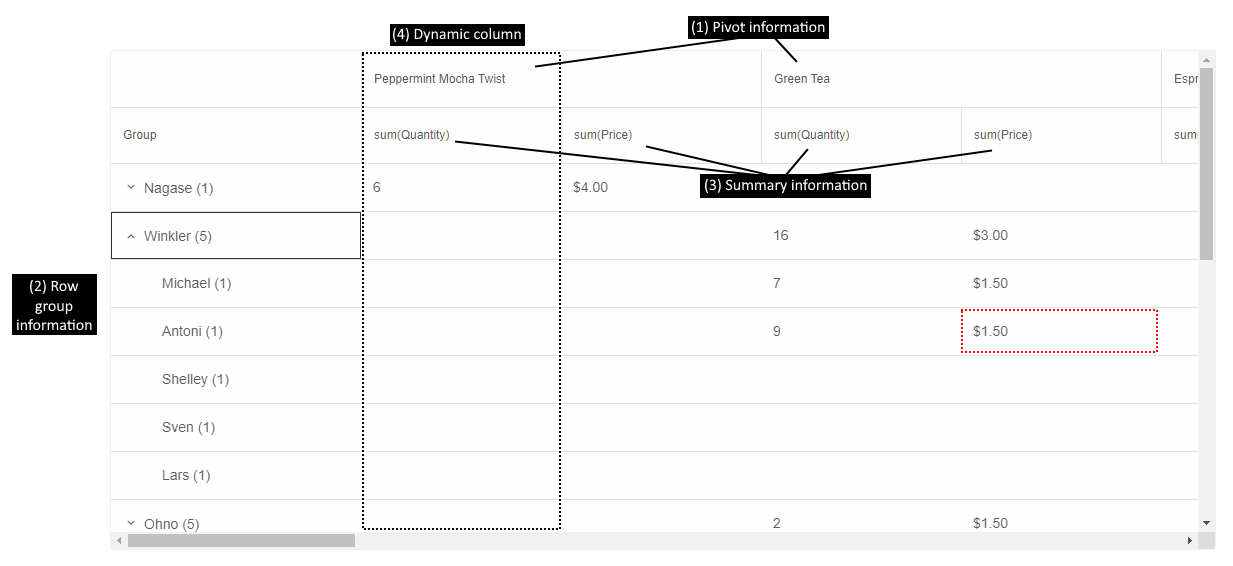
The cell highlighted in red in the image shows the sum of the prices (summary (3)) of all products Green Tea (pivot (1)), purchased by everyone named Antony Winkler (rowGroup (2)).
There can be multiple pivot, row group, and summary columns. The order in which they appear in the PivotTable depends on the order in which they are configured in the columns array. That is why, in this case, rows are first grouped by Last Name, then by First Name and sum(Quantity) is before sum(Price).
Information about all currently displayed dynamic columns can be retrieved by calling the method getDynamicColumns.
Drill Down
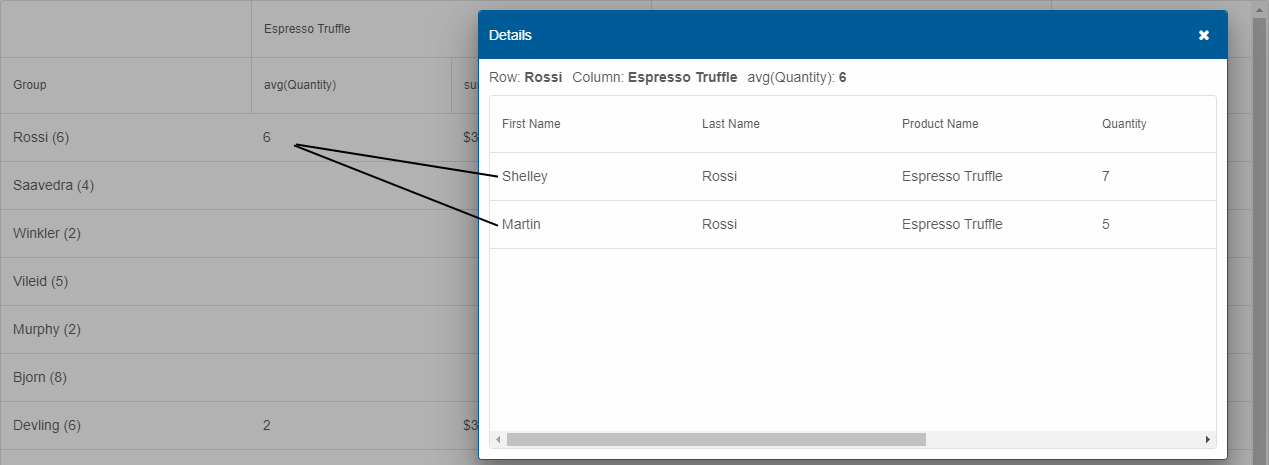
Each cell in PivotTable may summarize one or more original data points. If the property drillDown is enabled, the user can double-click a cell to show a Smart.Table in a dialog with all records aggregated in the clicked PivotTable cell.
Pivot Table Operations
A variety of operations can be performed on Smart.PivotTable's aggregated data or dynamic columns. Here is an overview:
Column Reorder
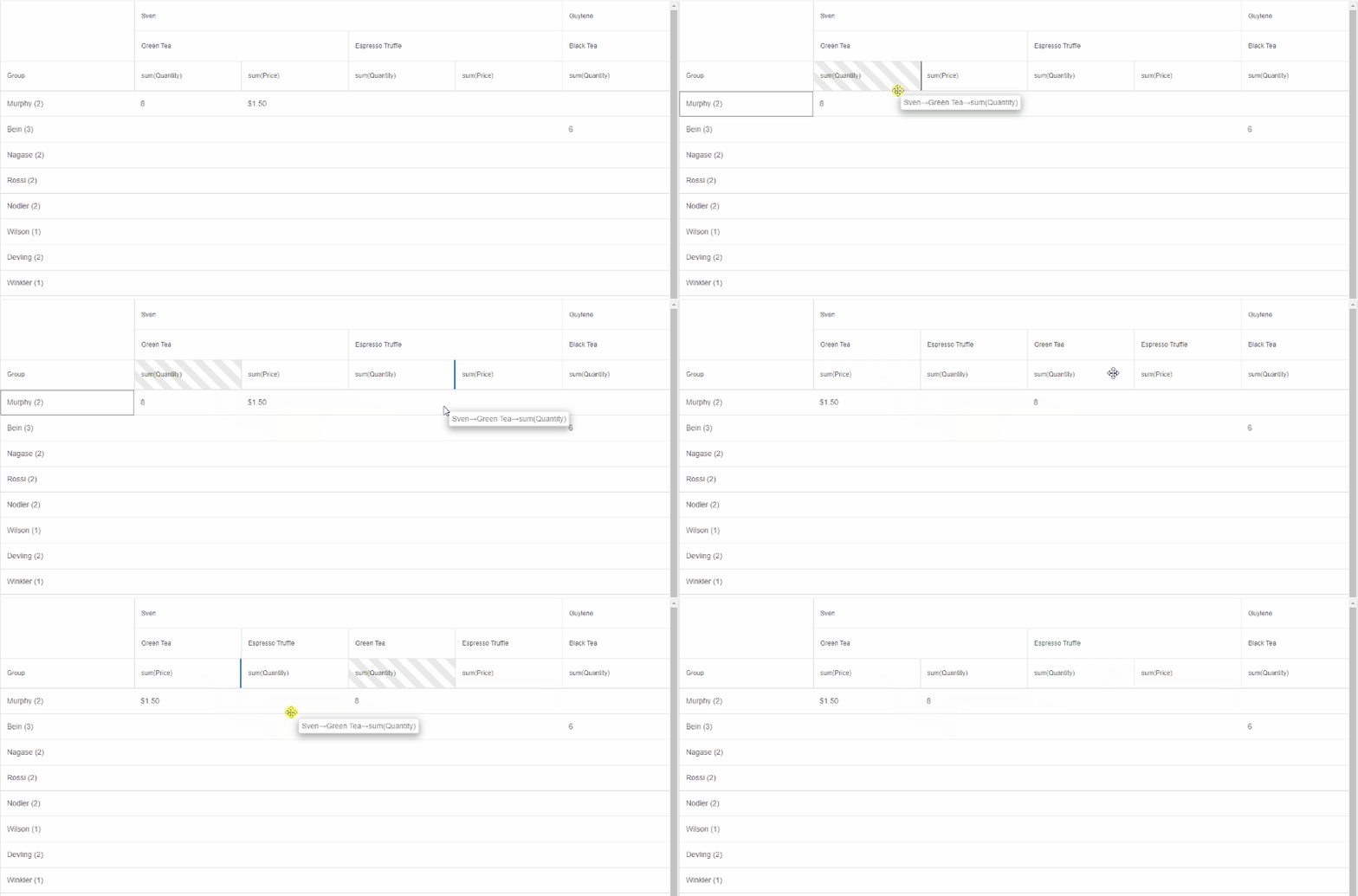
Dynamic columns can be reordered by clicking a summary header and dragging with the mouse. Reorder is enabled by setting the columnReorder property to true.
Data Export
The PivotTable's data can be exported to a wide variety of file formats:
- CSV
- HTML
- JSON (depends on the external free plug-in JSZip)
- PDF (depends on the external free plug-in PDFMake)
- TSV
- XLSX
- XML
by calling the element's method exportData, e.g.:
const pivotTable = document.getElementById('pivotTable');
pivotTable.exportData('html', 'pivotTable');
This sample code exports the PivotTable to the file pivotTable.html.
Filtering
The original data bound to Smart.PivotTable can be filtered in order to summarize a more focused set of data points. Filtering can be applied in two ways:
- Programmatically by calling the method addFilter. Related methods are removeFilter and clearFilters.
- Via the "Filters" panel of the PivotTable's designer. It can be displayed as a stand-alone part of the element by setting designer to true or can be opened in a dialog by clicking the "Fields" button of the PivotTable's toolbar. The designer is described in detail in the help topic Pivot Table Toolbar, Designer, and Settings.
Selection
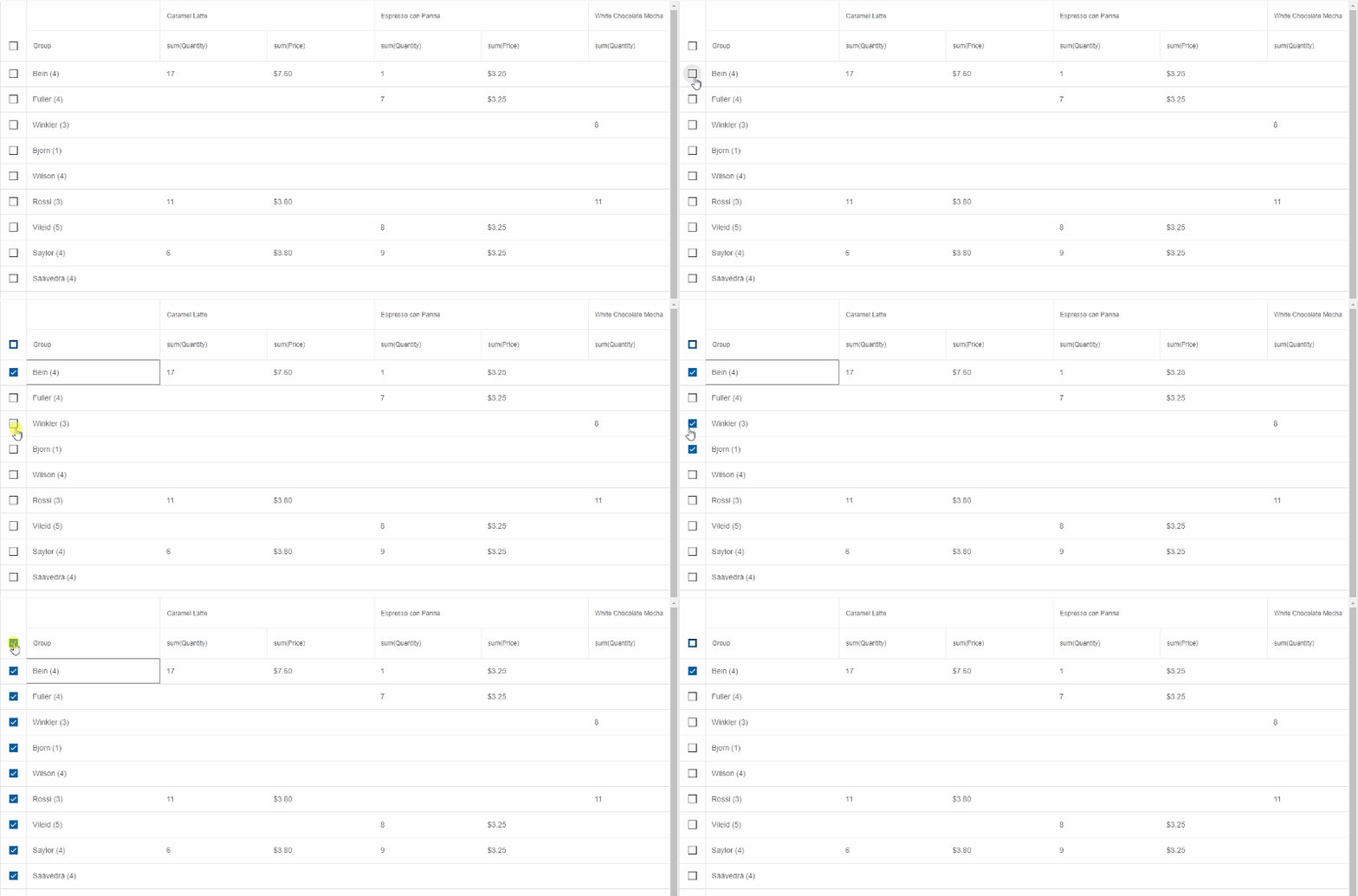
Checkbox row selection can be enabled in Smart.PivotTable by setting the property selection to true. There are two selection modes available:
- selectionMode: 'many' (default) - multiple rows can be selected by clicking the rows or their respective checkboxes.
- selectionMode: 'extended' - single row can be selected by clicking it. Multiple rows can be selected by Ctrl- or Shift-clicking the rows or just clicking their respective checkboxes.
Sorting
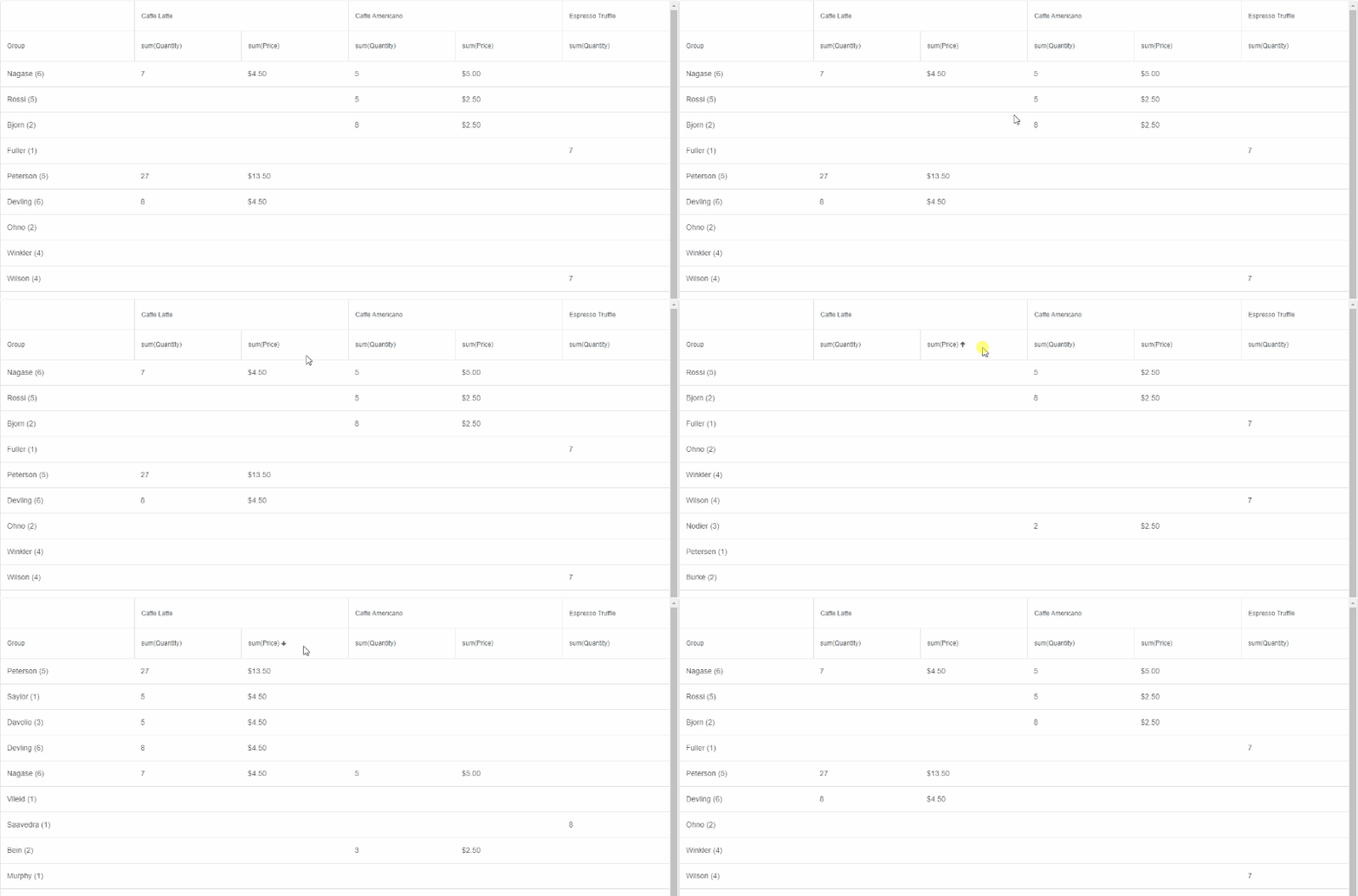
The PivotTable can be sorted by its dynamic columns (including the Group column). The sorting behavior is controlled by the property sortMode with the following values:
- 'none' (default) - sorting is disabled.
- 'one' - sorting by one column only is enabled.
- 'many' - sorting by multiple columns is enabled.
Users can apply sorting by clicking on a column's summary header. Clicking multiple times toggles between ascending direction, descending direction, and no sorting.
Alternatively, sorting can be modified with the methods sortBy and clearSort.
Classic Layout
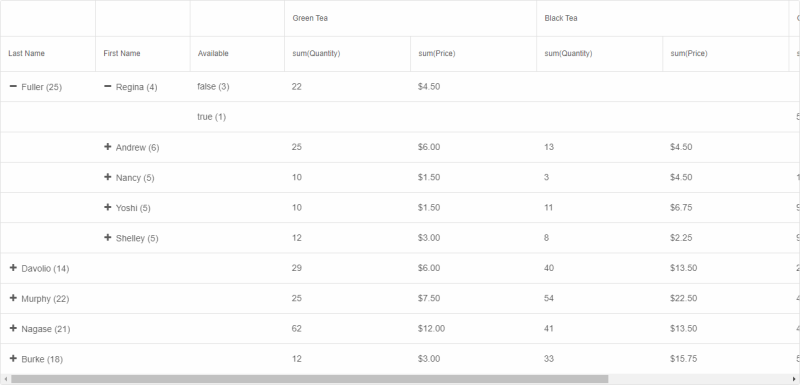
When there are row group columns in the PivotTable, an alternative layout, inspired by classic, OLAP, pivot tables can be enabled. In this layout, there is a separate column for each level of nesting (row group applied) as opposed to the default, tree grid-like, style with a separate row for each record in the hierarchy. Moreover, in classic layout, the data shown in a table row depends on whether the row is collapsed ("parent" data) or expanded (first "child" data).
The classic, OLAP, layout can be enabled by setting the property groupLayout to 'classic':
Advanced Features
Additional, advanced, features of Smart.PivotTable are described in the following help topics:
Methods
Smart.PivotTable has the following methods:
- addFilter(dataField, filter) - adds a filter to a specific column.
- clearFilters() - clears applied filters.
- clearSelection() - clears selection.
- clearSort() - clears the PivotTable sorting.
- collapseAllRows() - collapses all rows (when multiple row groups are applied).
- collapseRow(rowId) - collapses a row (when multiple row groups are applied).
- expandAllRows() - expands all rows (when multiple row groups are applied).
- expandRow(rowId) - expands a row (when multiple row groups are applied).
- exportData(dataFormat, fileName, callback) - exports the PivotTable's data.
- getDynamicColumns() - returns the current dynamic pivot columns.
- getSelection() - returns an array of selected row ids.
- refresh() - refreshes the PivotTable.
- removeFilter(dataField) - removes filters applied to a specific column.
- select(rowId) - selects a row.
- sortBy(columnDefinition,sortOrder) - sorts by a summary or group column.
- unselect(rowId) - unselects a row.
Append to the DOM:
const container = document.getElementById('pivottable-container');
container.appendChild(pivottable);
Remove from the DOM:
pivottable.remove();
Set a property:
pivottable.disabled = true;
pivottable.theme = 'dark';
Get a property value:
const isDisabled = pivottable.disabled;
const currentTheme = pivottable.theme;
Invoke a method:
pivottable.refresh();
pivottable.focus();
Add event listener:
pivottable.addEventListener('change', (event) => {
    console.log('change triggered:', event.detail.type);
});
Remove event listener:
const handlePivotTableEvent = (event) => {
    console.log('change triggered:', event.detail.type);
};

pivottable.addEventListener('change', handlePivotTableEvent);
pivottable.removeEventListener('change', handlePivotTableEvent);
Accessibility
The PivotTable component follows WAI-ARIA best practices:
- Keyboard navigation - Tab, Arrow keys, Enter, and Escape are supported
- ARIA roles - Appropriate roles and labels are applied automatically
- Focus management - Visible focus indicators for keyboard users
- Screen readers - State changes are announced to assistive technology
- High contrast - Supports Windows High Contrast Mode and forced colors
For custom labeling, set aria-label or aria-labelledby attributes on the component.
Supported stacks: Smart UI targets Angular 17+, React 18+, Vue 3+, Node 18 LTS, and evergreen browsers; pin exact package versions to your org policy.